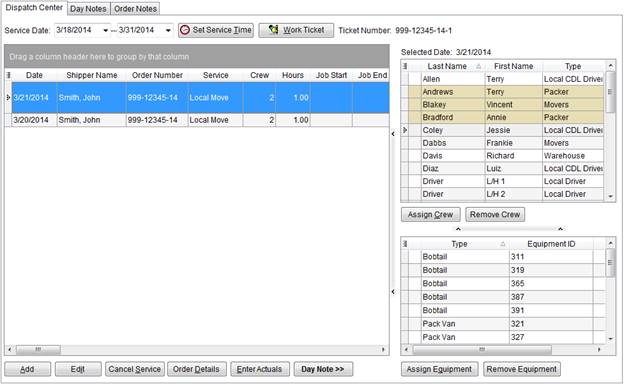
All dispatching service functions are available from the Dispatch Center tab. The screen function drives off the Service Date range, which defaults to the current system date upon initial entry to the module, and the selected Service Branch. The main data grid will display all services associates to the date range and branch or branches with the same common view. Clicking on listed service or services will enable it to have crew and equipment assignments made and other management functions performed on it, such as editing the services and updating the actual materials and labor involved in the move.
|
Note |
|
Manage multiple branches at time depending on the Dispatching Common View setup for the branch within Branch Setup. |
Figure 6: Dispatch Center tab
The tab layout and data column arrangement are customizable and the application will save changes made to the layout for each workstation (see Data Grids for more information).
Dispatch Center functions are described in the below table. Options are also available through right-click functionality as well (see Right-Click Options (Local Dispatch)).
|
Function |
Description |
|
Service Date |
Select a date range of services to populate the data grid by. The application compares the dates selected to the Date (Service Date) field in the grid below. Services with a date within the Service Date range will appear within the data grid. Note: Service dates will automatically be set to the current system date upon user login. |
|
|
Set Service Time (Alt+T) This function opens the Set Service Time screen allowing a user to override the default job starting and ending times.
Note: Default service times are set within System Wide Options.
|
|
|
Work Ticket (Alt+W) This function generates a work ticket document that will display in the adjacent Ticket Number field and will open the document within Report Viewer screen. Users can view existing work ticket documents by pressing the Work Ticket number on services already assigned a number; in such cases a new ticket number will not be regenerated. See Work Ticket Report for more information. |
|
|
Add (Alt+A) Opens the Local Dispatch screen where a user can select an order and branch of service to base the new service on and then the Add Local Service screen will appear. |
|
|
Edit (Alt+I) Opens the Edit Local Service screen where users can update the service request. Services that have crew and/or equipment assigned to them will be restricted from changes. Users can view the data displayed within the Edit Local Service screen but they cannot edit the record. The screen will display “Resources are Assigned” in the title when crew and/or equipment resources have been assigned to services being edited.
Note: MoversSuite can be set up to automatically email key personnel a message describing the changed service with a subject line of Local Service Changed. See Email Options Setup for more information.
Refer to Add Local Service for information on editing a local service. |
|
|
Cancel (Alt+S) This function removes the service from Local Dispatch after prompting the user.
Note: MoversSuite can be set up to automatically email key personnel a message describing the cancel status applied to the service with a subject line of Local Service Canceled. See Email Options Setup for more information.
Services cannot be cancelled once a work ticket has been generated for it. A user can remove all assignments and selecting a service type indicative of the cancellation in order to effect a cancellation. |
|
|
Order Details (Alt+D) This function opens the Order Details screen to view key move data set for the order. |
|
|
Enter Actuals (Alt+E) This function opens the Release Work Ticket screen to update crew, equipment, other services, and to set actual counts for container, packing, and unpacking items. |
|
|
Day Note Opens (>>) and closes (<<) the day note entry form where users can enter and view notes for the date of the selected service. See Day Notes for more information. |
|
|
Assign Crew (Alt+C) This function opens the Assign Crew screen to confirm the crew assignment and optionally define a crew member as a lead and adjust job start and end times.
Note: Users can double-click a crew to auto-assign them to the service.
See Assign and Remove Crew and Auto Assign Crew for more information. |
|
|
Remove Crew This function removes the assignment of the selected crew member(s) from selected services. A prompt appears to confirm the request. See Assign and Remove Crew for more information. |
|
|
Assign Equipment (Alt+Q) This function opens the Reserve Equipment screen to confirm addition of the selected piece of equipment and optionally adjust the job start and end times.
Note: Users can double-click an equipment resource to auto-assign them to the service.
See Assign and Remove Equipment for more information. |
|
|
Remove Equipment This function removes the assignment of the selected equipment from selected services. A prompt appears to confirm the request. See Assign and Remove Equipment for more information. |
Descriptions for the fields available to Dispatch Center services data grid are in the table below.
|
Note |
|
Dispatch Center contains a customizable, full-function data grid. See Data Grids for more information. Additionally, the application will save screen layout changes for each workstation. |
|
Field |
Description |
|
Order Number |
This field displays the MoversSuite Order Number the service is under.
Note: “[A]” displays next to the Order Number when the order has been archived. See Order Archive for more information.
|
|
Date |
This field displays the scheduled service date. |
|
Shipper Name |
Displays the formatted shipper name combined from the Last Name/Company Name and First Name fields from the Name, Address, Phone tab. |
|
Service |
Name of the service assigned to the request selected from a list defined within Service Type Setup. See Add Local Service for more information. |
|
Crew |
Displays the system estimated or requested number of crew members needed to perform the service. See Add Local Service for more information. |
|
Hours |
The number of system estimated or requested hours to complete the service. See Add Local Service for more information. |
|
Job Start |
This field displays the anticipated job starting time as set through the Set Service Time screen. |
|
Job End |
This field displays the anticipated job ending time as set through the Set Service Time screen. |
|
Crew Names |
This field displays the name(s) of crew assigned to the service. Crew leaders display in bold-weight font. When more than three crew assigned to a service a double-dash (- -) will display in the bottom right-hand corner. To see a list of those assigned hover the screen cursor over the field. See Assign and Remove Crew for more information. |
|
Equipment |
Displays the equipment resources assigned to the service. As like the Crew Names field, when more than three resources are assigned to a service a double-dash (- -) will display in the bottom right-hand corner. To see a list of assigned equipment hover the screen cursor over the field. See Assign and Remove Equipment for more information. |
|
Note |
A note attached to the service when it was submitted
through Send To Dispatch
will be indicated by a note attached icon ( |
|
Origin Address Origin City Origin State Origin Zip |
Displays the Moving From address, city, state, postal code set on the Name, Address, Phone tab for the order that the service is under. If the service is associated to an extra stop then the address set for the origin extra stop will display. Extra stops are associated to a service through the Advanced > Add Address function within Add Local Service. |
|
Destination Address Destination City Destination State Destination Zip |
Displays the primary Moving To address, city, state, and postal code set on the Name, Address, Phone tab for the order that the service is under. If the service is associated to an extra stop then the address set for the destination extra stop will display. Extra stops are associated to a service through the Advanced > Add Address function within Add Local Service. |
|
Estimated Weight |
Displays the value set for the estimated weight of the order. Manage this field through the Estimated Weight field in Billing Information (Revenue Entry) and Move Information. This value affects rated items. See the Weight/Carton field description in Add Local Service for more information. |
|
Hauled Weight |
Displays the value set for the hauled weight of the order. Manage this field through the Hauled Weight field in Billing Information (Revenue Entry) and Move Information. This value affects rated items. See the Weight/Carton field description in Add Local Service for more information. |
|
Order Containers |
Displays the total number of estimated containers for the order through the Update Containers, Packing and Unpacking screen through the Move Information tab. |
|
Service Containers |
Displays the total number of estimated containers for a service through the Update Containers, Packing and Unpacking screen from within the Add Local Service screen (through the CPU button). |
|
Order Crates |
Displays the total number of crates set for the order through the Update Containers, Packing and Unpacking screen accessed through the Move Information tab. |
|
Service Crates |
Displays the total number of crates set for a service through the Update Containers, Packing and Unpacking screen from within the Add Local Service screen (through the CPU button). |
|
Origin Phone |
Displays the Home Phone set within the Moving From section in Name, Address, Phone for the order that the service is under. |
|
Origin Work Phone |
Displays the Work Phone set within the Moving From section in Name, Address, Phone for the order that the service is under. |
|
Destination Phone |
Displays the Home Phone set within the Moving To section in Name, Address, Phone for the order that the service is under. |
|
Destination Work Phone |
Displays the Work Phone set within the Moving To section in Name, Address, Phone for the order that the service is under. |
|
Dispatch Status |
Displays the status assigned to the service by the dispatcher. See Dispatch Status for more information. |
|
Branch ID |
Displays the branch requested to complete this service. |
|
Shipment Status |
The current status set to the order through the Shipment Status field displays. See Order-Level Functions for more information. |
|
ETA |
From the Estimated Time of Arrival date field from the Other tab in Move Information. |
|
ETA Time |
From the Estimated Time of Arrival time field from the Other tab in Move Information. |
|
Assigned On |
From the Assigned On Date field from the Other tab in Move Information. |
|
Assigned On Time |
From the Assigned On Date time field from the Other tab in Move Information. |
|
National Account Number |
Identification number and name of the National Account associated to the order (set through Billing Information). |
|
National Account Name | |
|
Driver |
The name of the Long Distance Dispatch driver assigned to the order. |
|
Van Number |
Van number set for the driver (visible through the Agents tab). |
|
Created On |
Displays the date and time the service was created through Add Local Service along with the name of the MoversSuite user that created it. |
|
Created By | |
|
Last Edited |
If the service was edited (through Add Local Service), then the date and time and the name of the person that last edited the service displays. |
|
Last Edited By | |
|
Submitted On |
The Submitted By keeps track of the MoversSuite user that last assigned or removed crew on a service. It is set initially to the user who sent the service request (through Send to Dispatch) and is updated to reflect the user that last assigned or removed crew from the service. Submitted On records the date and time that the Submitted By field was updated. |
|
Submitted By | |
|
Cleared On |
The date and time the service was cleared along with the name of the dispatcher that cleared the service through Requested Services displays. |
|
Cleared By | |
|
Move Type |
Move type set for the order through the Type of Move field on Move Information. |
|
Hauling Agent ID Hauling Agent Name Origin Agent ID Origin Agent Name Destination Agent Name Booking Agent Name |
Name and identifier assigned to the agent displays in these fields for each agent category (Origin, Booking, Hauling, and Destination) assigned to the order through the Agents tab. Agent Name and Agent ID are defined within Agent Setup. |
|
Containerization Eligible |
If a service is eligible for containerization, then this flag is checked and you can update the Containerization Status through right-click options (see Right-Click Options (Local Dispatch)). Containerization indicates that your company manages packing the shipment directly, i.e. pack directly into containers (liftvans). The eligibility flag is set through Local Service Type Setup. |
|
Containerization Status |
If a service is eligible for containerization (Containerization Eligible flag checked), then the status assigned to the move displays in this column. You can update this status through right-click options (see Right-Click Options (Local Dispatch)). The values available to this field are defined within Containerization Status Setup. |
|
Coordinator |
Transportation Coordinator assigned to the order (Name, Address, Phone tab) is available in the data grid. |



 ) within this column. Clicking on
this icon will open the Note dialog allowing the user to view
details of the note as well as all notes associated to all services of the
order (through the All Note Details tab).
) within this column. Clicking on
this icon will open the Note dialog allowing the user to view
details of the note as well as all notes associated to all services of the
order (through the All Note Details tab).