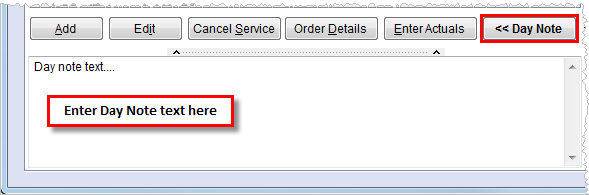
A day note is a message attached to a particular service date that is accessible by all dispatchers. In Dispatch Center, when a note is attached to a particular date, the Day Note >> button will appear in bold-weight font when a service is selected that has a matching date (service date or Date column). Press the Day Note button to modify, view, and save message.
Figure 24: Day Note
To save a new day note or changes to an existing one simply press the << Day Note button a second time and the text area will become hidden and the message automatically saved.
Day Notes Tab
Day notes become a permanent record for the particular service date. To view day notes by selecting a date instead of selecting a service, open and use the Day Notes tab. The Day Notes tab allows a user to add, view, and modify notes for any date of service for a selected branch.
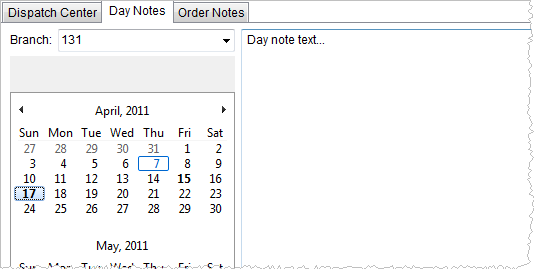
Figure 25: Day Note tab
The Branch field lists all branches in the common view of the Service Branch. Day notes associated to services for the selected branch for the day selected on the calendar will display in the text area. The calendar offers the following icons to assist the user.
|
Icon |
Description |
|
|
Use the left-pointing arrow atop the calendar to scroll to the previous month. |
|
|
Use the right-pointing arrow atop the calendar to scroll to the next month. |
|
|
Light-blue box indicates the current system date. |
|
|
Shaded-blue box indicates the date selected by the user, which is initial set to the service date of the selected record in Dispatch Center. Press the arrow buttons to view the previous and following two-month periods. Note: The initial selected date is based on the service date of the record selected within the Dispatch Center. |
|
|
Dates that have a day note attached to them appear in bold-weight font. |
All Local Dispatch users can add and modify Day Notes. Users with Read Only access will not be able to add notes through the Order Notes tab. See Security Profile Setup (Local Dispatch) for details.
When adding or editing a service with a day note(s) attached, the Edit Local Service screen will also display the content of the message within the Day Note section.
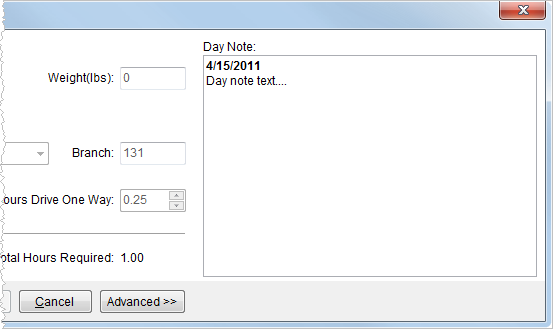
Figure 26: Edit Local Service screen with Day Note


