MoversSuite Administration > Administration > System Wide Options
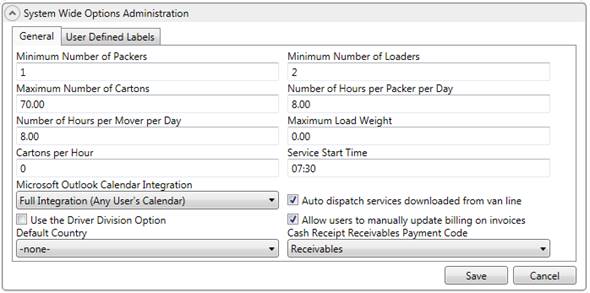
Use this setup to set the following global MoversSuite settings.
Figure 15: System Wide Options
|
Field |
Description |
|
General tab |
|
|
Note: The following six fields are used by Local Services in computing the necessary crew and equipment to be assigned. | |
|
Minimum Number of Packers |
This setting affects local services by establishing a minimum crew size based on the selected service in Add Local Service. Specifically, the Labor Type of “Packer” associated to a service determines whether this field’s value is referenced. See Service Type Setup for more information. |
|
Minimum Number of Loaders |
This setting affects local services by establishing a minimum crew size based on the selected service in Add Local Service. Specifically, the Labor Type of “Mover” associated to a service determines whether this field’s value is referenced. See Service Type Setup for more information. |
|
Maximum Number of Cartons |
This setting defines the maximum number of cartons manageable by a single crew member. If the number of cartons assigned to the service exceeds this amount then additional packers/hours will be added. |
|
Number of Hours per Packer per Day |
This setting is the number of hours that a typical packer will be able to perform in a given day. It is used when computing the additional crew hours needed. |
|
Number of Hours per Mover per Day |
This setting is the number of hours that a typical mover will be able to perform in a given day. It is used when computing the additional crew hours needed. |
|
Maximum Load Weight |
NOT IN USE |
|
Cartons Per Hour |
NOT IN USE |
|
Service Start Time |
This setting is the default start time assigned to a service when one is not provided (in Military Time). |
|
Microsoft Outlook Calendar Integration |
This setting controls the functionality behind Microsoft Outlook and related calendar options. See Microsoft Outlook Calendar Integration for usage. The following options are available:
-none- Same as the Turned Off option
Turned Off (No Calendar Access Whatsoever) Select this option will disable the Calendar button in MoversSuite. Users will not be able to access any calendar from within the application.
Full Integration (Any User’s Calendar) Enter this option to allow a user access to the calendar of any user set within the field next to the Calendar button in MoversSuite. When a user presses the Calendar button, a new window will open displaying the calendar of the specified person.
Note: This option requires that users be defined within the Microsoft Exchange Server (the server that driver Microsoft Outlook).
Partial Integration (User’s Calendar Only) Entering this option will enable a user to access their own calendar defined for their local system through the Calendar button; the user can only access their own calendar.
|
|
Auto dispatch services downloaded from van line |
Setting this flag will cause the application to automatically generate dispatch for services downloaded from a van line. See Auto Dispatching for more information. |
|
Use the Driver Division Option |
Set this flag to instruct the application to reference the Division set for the driver in their Personnel Setup when their Default Branch matches the branch of the Hauling Agent in Agents. See Divisions Setup and Administration for more information. |
|
Allow users to manually update billing on invoices |
Setting this flag will allow users to update the Billing Information in the Send Invoice To section of a new or supplemental invoice (see New Complete Invoice). If this flag is not set then the Billing Information data will be read-only. |
|
Default Country |
Select a country from the provided list (Country Code Setup) to be used as default when exchanging data with third parties. |
|
Cash Receipt Receivables Payment Code |
Setting this value assigns a default value to the Payment Code on cash receipt items created in Cash Receipts and processed through Payment Management (refer to Detail Processing and Payment Application). This setting does not affect the Payment Code shown when adding the cash receipt through Payment Application, i.e. it is not a default field setting for the Payment Code. Values available through this field are defined within Statement Payment Code Setup. |
|
User Defined Fields tab |
|
|
Enter up to 8 custom fields for storing data within the System Specific section within User Defined Fields tab. | |
|
User Defined Label 1 |
Enter the field label that will display next to the first System Specific field within the User Defined Fields tab in MoversSuite (up to 30 characters). |
|
User Defined Field 1 is active |
Check this flag to activate the User Defined Label 1 field and have the field and label display within the User Defined Fields tab in MoversSuite. |
|
User Defined Label 2 |
Enter the field label that will display next to the second System Specific field within the User Defined Fields tab in MoversSuite (up to 30 characters). |
|
User Defined Field 2 is active |
Check this flag to activate the User Defined Label 2 field and have the field and label display within the User Defined Fields tab in MoversSuite. |
|
User Defined Label 3 |
Enter the field label that will display next to the third System Specific field within the User Defined Fields tab in MoversSuite (up to 30 characters). |
|
User Defined Field 3 is active |
Check this flag to activate the User Defined Label 3 field and have the field and label display within the User Defined Fields tab in MoversSuite. |
|
User Defined Label 4 |
Enter the field label that will display next to the fourth System Specific field within the User Defined Fields tab in MoversSuite (up to 30 characters). |
|
User Defined Field 4 is active |
Check this flag to activate the User Defined Label 4field and have the field and label display within the User Defined Fields tab in MoversSuite. |
|
User Defined Label 5 |
Enter the field label) that will display next to the fifth System Specific field within the User Defined Fields tab in MoversSuite (up to 30 characters. |
|
User Defined Field 5 is active |
Check this flag to activate the User Defined Label 5 field and have the field and label display within the User Defined Fields tab in MoversSuite. |
|
User Defined Label 6 |
Enter the field label that will display next to the sixth System Specific field within the User Defined Fields tab in MoversSuite (up to 30 characters). |
|
User Defined Field 6 is active |
Check this flag to activate the User Defined Label 6 field and have the field and label display within the User Defined Fields tab in MoversSuite. |
|
User Defined Label 7 |
Enter the field label (up to 30 characters) that will display next to the seventh System Specific field within the User Defined Fields tab in MoversSuite. |
|
User Defined Field 7is active |
Check this flag to activate the User Defined Label 7 field and have the field and label display within the User Defined Fields tab in MoversSuite. |
|
User Defined Label 8 |
Enter the field label (up to 30 characters) that will display next to the eighth System Specific field within the User Defined Fields tab in MoversSuite. |
|
User Defined Field 8 is active |
Check this flag to activate the User Defined Label 8 field and have the field and label display within the User Defined Fields tab in MoversSuite. |
RELATED TOPICS:
Microsoft Outlook Calendar Integration