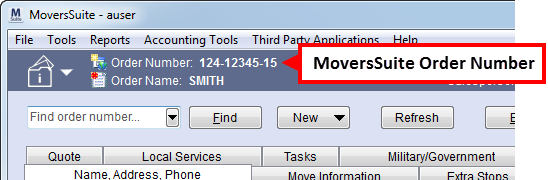
MoversSuite tracks all requests using an Order Number. This number must be unique and is formatted automatically based on styles created in Order Number Setup. The style links to an order through the Type of Move field in Move Information and are dependent upon the Branch and Authority settings, as well. MoversSuite users can enter an Order Number manually or it can or included as part of an import from a third party application.
MoversSuite creates an Order Number automatically when an order is booked (see Book Order Information). The order number is referenced throughout the application and is an integral part of tracking, reporting, accounting, invoicing, dispatching, document number generation, etc. See Order-Level Functions for a prominent usage. Users can find the Order Number displayed throughout MoversSuite, including the information bar.
Figure 4: Order Number display on information bar
Orders imported into MoversSuite for documentation and tracking purposes are based on what is imported from the third party. The Order Number for these third party orders will still need to be unique among all orders in MoversSuite.
MoversSuite users can enter an Order Number manually through Foreign Order Number and OA Order Number dialogs. Additionally, if the Type of Move specified does not have a predefined Order Number Style (see Move Type Setup), then a prompt to enter a unique Order Number when the order is booked will appear (Unique Order Number dialog).
When an order has been archived, it is no longer available for certain functionality and is identified by a “A” icon next to it. Refer to Order Archive for more information.
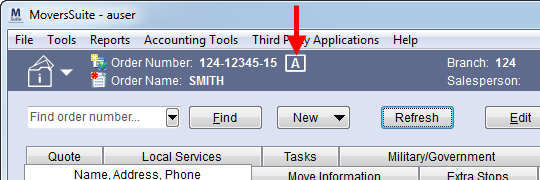
Figure 5: Order Archive flag in Order Information
RELATED TOPICS:
Change a MoversSuite Order Number or Branch