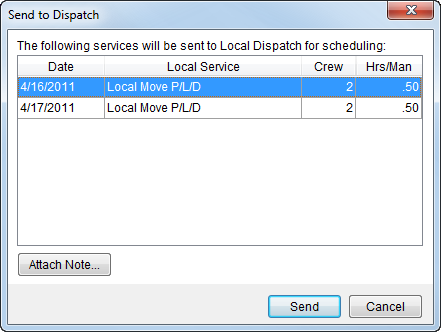
The Send to Dispatch screen allows users to confirm the request to submit services to Local Dispatch along with a note to the dispatcher. This screen is available through Local Services.
Figure 41: Send to Dispatch screen
|
Note |
|
All services appearing in the Send to Dispatch screen is included in the send. |
The following table describes the fields and functions available within this screen.
|
Field/Function |
Description |
|
Date |
This field displays the requested service date. |
|
Local Service |
This field displays the name of the requested service. |
|
Crew |
Displays the anticipated number of crew members estimated or requested to perform the service. |
|
Hrs/Man |
Displays the calculated number of hours needed per crew member to perform the scheduled task. |
|
|
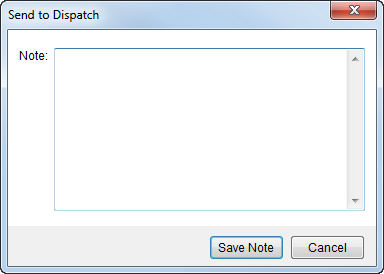
Attach Note Opens a dialog prompting the user to enter a note (text size not limited) to be attached to the service(s) that will be available to dispatchers.
Figure 42: Send to Dispatch note screen
The note will be available through the Note field
within the Dispatch
Center data grid. The subject of the note is set to Dispatch
Note. The note will also appear on the standard Work Ticket Report with a
label of Service Note. Tip: If notes are different for each service, they should be attached and sent under each separate service request.
|
|
|
Send (Alt+S) Sends the selected service(s) to Requested Services to be cleared for dispatching.
Note: Only one record appears highlighted within the services listing, however all records displayed included in the send.
|
|
|
Cancel (Alt+C) This function closes the screen without sending the request. |