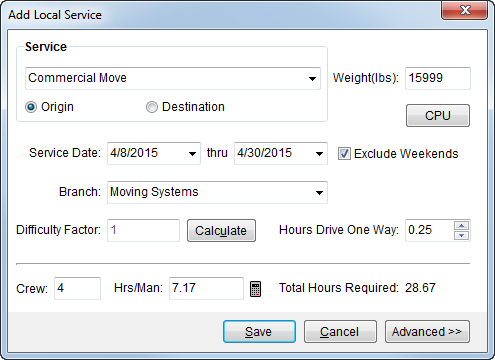
Add Local Service screen defines a local service request based on a selected service, service date, and required logistical data. It provides a user the ability to calculate and implement a degree of difficulty to apply to the service and to set the estimated crew and hours per man values.
Access to this screen is through the Add and Edit option in Local Services and through the Dispatch Center.
Figure 37: Add Local Service screen
|
Note |
|
Local services with a Local Services Status of “Dispatched” cannot be edited. |
Described in the table below are the fields and functions of the Add Local Service screen.
|
Field/Function |
Description |
|
Service |
Select a service from the list of available types as defined within Service Type Setup. |
|
Origin/Destination |
Assign the service to the origin or the destination address. Only services with the same origin or destination setting for the same service date under a particular order can be combined on the same Work Ticket. |
|
Weight/Cartons |
Enter the weight or the carton count associated to the service depending on the selected service type. The anticipated average number of cartons per hour or number of pounds per hour that a worker can reasonably perform is set within Service Type Setup and is used to determine crew size and hours per man (Hrs/Man) refer to Unit field description in Service Type Setup for more information).
Cartons If the service is based off units handled, then this field is labeled “Cartons” and computes from what is entered for the service through CPU (Containers, Packing and Unpacking (CPU)).
Weight (lbs) For weighted services, the field label reads “Weight (lbs)” and the field value defaults to what is set for the Estimated Weight in the Move Information tab. If the Estimated Weight is not available, the application checks the Hauled Weight field and references its value for the weight of the service.
The weight and CPU counts can affect rates. Refer Rating Systems to for more information. |
|
|
CPU Open the Containers, Packing and Unpacking (CPU) dialog to add/modify the estimated counts for this service. Estimated counts are visible within Local Dispatch where dispatchers assign actual counts; these actual counts can import as revenue in Revenue Entry. |
|
Service Date |
Enter the scheduled date(s) for the service. If the service is to cover a single day, leave the thru date empty. If you enter both dates, the application creates duplicate services for each day in the range. |
|
Exclude Weekends |
When scheduling services over a date spread that includes weekends, you can check this option to instruct the application to not create services for Saturday or Sunday. This is the default setting. Optionally, you can uncheck this flag and the application will create services that include the weekend (based on crew availability and hours defined within the Dispatch tab in Personnel Setup). |
|
Branch |
This is the branch of your company that performs the service. The branch selected here affects dispatching and possibly revenue. The Branch selector provides the name and identification number (as assigned through Branch Setup). The branch defaults to what was selected (through Select a Branch) when the service was defined. |
|
Difficulty Factor |
Displays the factor currently applied to the service. A default difficulty of “1” indicates no additional difficulty applies. “1.25” indicates a 25% increase in difficulty applies to the service, etc. This setting directly affects the crew and man hours of the service. This value computes automatically based on the service and can be manually set through the Calculate option (below). |
|
|
Calculate (Alt+U) Opens Calculate Difficulty Factor screen to manually compute and apply a factor used to increase the amount of time needed to perform the service based up the difficulties involved. See Difficulty Factor Setup for more information. |
|
Hours Drive One Way |
Enter the amount of time (in hours) anticipated for the
crew to get to the scheduled service location. Use the arrows keys ( The amount entered here is added twice to the hours per man value (Hrs/Man) to compute the Total Hours Required, taking into consideration the drive time to and from the service. This field defaults to what is set for the branch of the order, as administrated through the Local Service Default Drive Time setting within Branch Setup. If no default is specified for the branch, then the system default of “0.25” (or 15 minutes) applies. |
|
Crew |
Displays the number of crew members calculated or requested as being needed to perform the service. The computed amount of crew can be manually overwritten. The minimum number of crew assigned set within System Wide Options. |
|
Hrs/Man |
Displays the calculated number of hours needed per crew member to perform the scheduled task. The minimum number of crew assigned set within System Wide Options. |
|
|
Clicking this button resets the Crew and Hrs/Man settings back to the original estimate values computed by the application. |
|
Total Hours Required |
Displays the total computed hours needed to complete this service for the give day. |
|
|
Save (Alt+S) Saves the changes made and closes the screen. |
|
|
Cancel (Alt+C) Discards any changes made or a newly created record and closes the screen. |
|
|
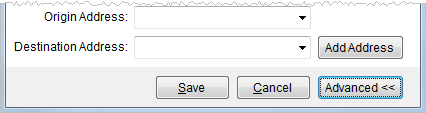
Advanced This option expands the Add Local Service screen to include an area to select an alternate origin and destination address from a list of extra stops. An Add Address function is also available where users can access the Add Extra Stop screen to create extra stop records. See Add Extra Stop for more information.
Figure 38: Advanced section
The origin and destination addresses print on the Work Ticket.
|


 ) to increase or decrease the time in
15 minute (.25) increments.
) to increase or decrease the time in
15 minute (.25) increments.