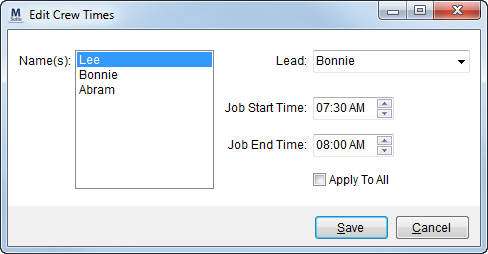
The Edit Crew Times and Edit Equipment Times functions available through right-click options in the Dispatch Center allow a user to define estimated job starting and ending times for crew members/equipment resources assigned to the selected service. Additionally, a user can apply times from one crew to all on others listed for the service (Apply to All option).
Figure 14: Edit Crew Times screen
Edit Crew and Edit Equipment Times screens are available through right-click options from the services data grid in Dispatch Center. See Right-Click Options (Local Dispatch) for more information.
The following table describes the fields and functions available within this screen.
|
Field/Function |
Description |
|
Name(s)/Unit Number(s) |
This field displays the name of the crew member(s)/equipment identification number(s) for those assigned to the service. Selecting a record will activate it for editing. |
|
Lead |
Select a member of the crew to lead the service request. Leads will display in bold weight font within the Crew Names field in the services data grid.
Note: Lead option is also available through the Assign Crew screen (see Assign and Remove Crew). |
|
Job Start Time |
Modify the estimated starting time of the service by
entering a time in MM:SS format or by clicking one of the hour, minute, or
AM/PM values and pressing the up and down arrow ( |
|
Job End Time |
Modify the estimated ending time of the service by
entering a time in MM:SS format or by clicking one of the hour, minute, or
AM/PM values and pressing the up and down arrow ( |
|
Apply To All |
Check this box to create the same entry for all crew members/equipment resources on the service when saving the record. |
|
|
Save (Alt+S) Press Save to keep the changes made and close the dialog. |
|
|
Cancel (Alt+C) This function closes the dialog without saving the changes. |
 ) to adjust.
