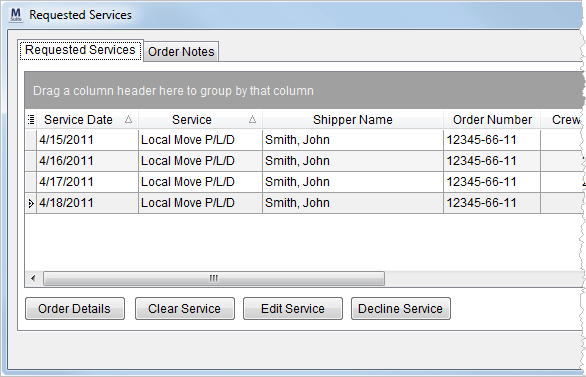
The Requested Services screen displays all pending requests sent to Local Dispatch through Local Services.
Figure 3: Requested Services screen
The Requested Services button will flash when requests are pending for the date range set within the Service Date fields and for the selected Service Branch common view.
|
Requested Services Button |
Description |
|
|
No pending requests exist when the Requested Services button is not blinking. |
|
|
When the button flashes intermittingly between gray and blue background then there are requests pending for the selected Service Dates from services requested from the common view of the Service Branch. |
Functions of the Requested Services screen are described in the below table.
|
Function |
Description |
|
|
Order Details (Alt+O) This button opens the Order Details screen to view key move data set for the order. |
|
|
Clear Service (Alt+L) Will prompt the user for confirmation and clear the service(s) for dispatch. Cleared services will appear within the Dispatch Center data grid for the appropriate Dispatching Common View. Users can select and clear multiples services at one time. Note: MoversSuite can be set up to automatically email key personnel a message describing the cleared services with a subject line of Cleared Service. See Email Options Setup for more information. |
|
|
Edit Service (Alt+E) Opens the Edit Local Service screen for the selected service allowing the dispatcher to update the service request prior to clearing or declining the request. Note: MoversSuite can be set up to automatically email key personnel a message describing the changed service with a subject line of Local Service Changed. See Email Options Setup for more information. See Add Local Service for more information. |
|
|
Decline Service (Alt+D) This function will send the service request back to Local Services using the Local Services (decline) screen, which allows the user to enter a reason for the decline. Users can select and decline multiples services at one time. Note: MoversSuite can be set up to automatically email key personnel a message describing the declined services with a subject line of Decline Service. See Email Options Setup for more information. Refer to Local Services for information on resending a declined service. |
|
|
Refresh (Alt+F) This updates the grid with the latest database records. |
|
|
Close (Alt+C) This function closes the screen. |
Fields of the Requested Services screen are described in the below table.
|
Note |
|
Requested Services screen contains a customizable, full-function data grid. See Data Grids for more information. Additionally, the application will save screen layout changes for each workstation. |
|
Field |
Description |
|
Service Date |
Displays the date of the service assigned to the request. |
|
Service |
Name of the service assigned to the request selected from a list defined within Service Type Setup. |
|
Shipper Name |
Displays the formatted shipper name combined from the Last Name/Company Name and First Name fields from the Name, Address, Phone tab. |
|
Order Number |
Displays the MoversSuite order number that may be associated to the service (see Order Number for more information).
Note: To generate a work ticket for a service, the service must be associated to an Order Number.
Note: “[A]” displays next to the Order Number when the order has been archived. See Order Archive for more information.
|
|
Crew |
Displays the number of crew requested (estimated) to perform the service. |
|
Hours |
Total hours requested to perform the service. |
|
Note |
A note attached to the service when it was submitted
through Send To Dispatch will be indicated by a note attached icon
( |
|
Origin Address Origin City Origin State Origin Zip |
Displays the Moving From address, city, state, and postal code set on the Name, Address, Phone tab for the order that the service is under. If the service is associated to an extra stop then the address set for the origin extra stop will display. Extra stops are associated to a service through the Advanced > Add Address function within Add Local Service. |
|
Destination Address Destination City Destination State Destination Zip |
Displays the primary Moving To address, city, state, and postal code set on the Name, Address, Phone tab for the order that the service is under. If the service is associated to an extra stop then the address set for the destination extra stop will display. Extra stops are associated to a service through the Advanced > Add Address function within Add Local Service. |
|
Account Number |
Displays the identification and name of the National Account set for the order (through Billing Information). |
|
Account Name | |
|
Driver |
The name of the Long Distance Dispatch driver assigned to the order. |
|
Van # |
Van number set for the driver (visible through the Agents tab). |
|
Estimated Weight |
Displays the Estimated Weight of the order (Move Information and Billing Information (Revenue Entry)). |
|
Weight |
Displays the Hauled Weight of the order (Move Information and Billing Information (Revenue Entry)). |
|
Created On |
Displays the date and time the service was created through Add Local Service along with the name of the MoversSuite user that created it. |
|
Created By | |
|
Last Edited |
If the service was edited (through Add Local Service), then the date and time and the name of the person that last edited the service displays. |
|
Last Edited By | |
|
Submitted On |
The Submitted By keeps track of the MoversSuite user that last assigned or removed crew on a service. It is set initially to the user who sent the service request (through Send to Dispatch) and is updated to reflect the user that last assigned or removed crew from the service. Submitted On records the date and time that the Submitted By field was updated. |
|
Submitted By | |
|
Cleared On |
The date and time the service was cleared along with the name of the dispatcher that cleared the service through Requested Services displays. |
|
Cleared By | |
|
Move Type |
Move type set for the order through the Type of Move field on Move Information. |
|
Hauling Agent ID Hauling Agent Name Origin Agent ID Origin Agent Name Destination Agent Name Booking Agent Name |
Name and identifier assigned to the agent displays in these fields for each agent category (Origin, Booking, Hauling, and Destination) assigned to the order through the Agents tab. Agent Name and Agent ID are defined within Agent Setup. |
|
Containerization Eligible |
If a service is eligible for containerization, then this flag is checked and you can update the Containerization Status through right-click options (see Right-Click Options (Local Dispatch)). Containerization indicates that your company manages packing the shipment directly, i.e. pack directly into containers (liftvans). The eligibility flag is set through Local Service Type Setup. |
|
Containerization Status |
If a service is eligible for containerization (Containerization Eligible flag checked), then the status assigned to the move displays in this column. You can update this status through right-click options (see Right-Click Options (Local Dispatch)). The values available to this field are defined within Containerization Status Setup. |
|
Coordinator |
Transportation Coordinator assigned to the order (Name, Address, Phone tab) is available in the data grid. |
The application will adjust the Service Date to
match that of the service selected within the Requested Services screen.
This is useful to the dispatcher by allowing them to have requests visible in
addition to providing a display within the Dispatch Center of all cleared services for the
same day.
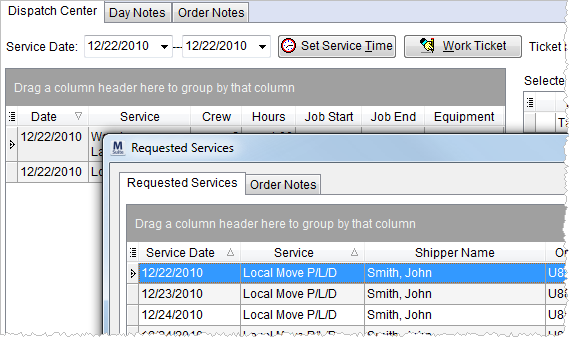
Figure 4: Requested Services display affecting Dispatch Center








 ) within this column.
Clicking on this icon will open the Note dialog allowing the user
to view details of the note as well as all notes associated to all
services of the order (through the All Note Details tab).
These notes will have a subject of Dispatch Note.
) within this column.
Clicking on this icon will open the Note dialog allowing the user
to view details of the note as well as all notes associated to all
services of the order (through the All Note Details tab).
These notes will have a subject of Dispatch Note.