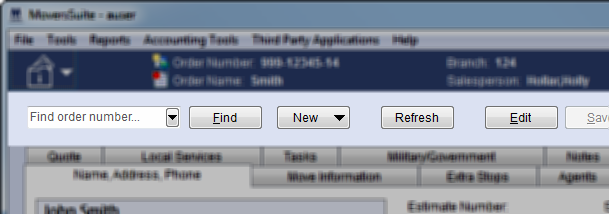
Users can access order-level functions from all modules and these functions are available within the Information Bar as well as the function row below it.
Figure 2: Order-Level functions
The following table describes the functions available at the order level. The functions available vary between modules.
|
Function |
Description | ||||||||||||
|
Refer to Information Bar topic for functions available within the Blue Bar. | |||||||||||||
|
|
Quick Find and Order History (Alt+Q) This function provides the users two options: (1) a quick find feature that produces a list of order numbers based on what the user enters beginning with three characters; and (2) the ability of a user to see and access their order history. See Quick Find for more information. | ||||||||||||
|
|
Locate an Order (press “F” or use Alt+F) | ||||||||||||
|
|
| ||||||||||||
|
|
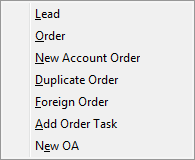
New Menu (Alt+N) The following options are available through the New menu:
Lead (Alt+N+L) Establish a lead with this option, which opens the Sales Lead Information screen after prompting the user to Select a Branch.
Order: Create a Blank Order (Alt+N+O) Create a blank order. This option opens a blank order record with an Order Status of “Lead” after prompting the user to Select a Branch and then opens the Book Order Information dialog.
Note: Refer to the Change a MoversSuite Order Number or Branch topic for related information.
New Account Order (Alt+N+N) Create a new order based on an existing Account Profile. Opens the Select an Account Profile dialog prompting the user to select a branch and profile for a new order. A new lead will be created that contains pre-populated data based on what is set for the selected profile. Refer to Account Profile topic for more information.
Duplicate Order (Alt+N+D) Create a new lead based on the order currently being viewed. This function opens the Create Duplicate Order dialog allowing a user to create a copy of the data of the open order.
Foreign Order (Alt+N+F) Document a foreign order in MoversSuite. Opens the Foreign Order Number screen after prompting the user to Select a Branch. The Foreign Order Number screen will prompt a user for a Van Line, Order Number, and POS information prior to entering the order information.
Note: A foreign order is one that has already been assigned to an order number and booked outside of MoversSuite.
Add Order Task (Alt+N+A) Add a task to the open order. Opens the Add Task screen allowing a user to enter data for a new task. See Tasks for more information.
New OA (Alt+N+E) Create a new Origin Agent order. This function opens the OA Order Number screen after prompting the user to Select a Branch. The OA Order Number screen will prompt a user for a Van Line, Order Number, and POS information prior to entering the order information or the user has an option to process the data as a Lead by pressing No Order Number.
| ||||||||||||
|
|
Refresh Use this function to perform a database refresh, which updates data for the displayed order with recent changes made by other users or processes, such as data imported from a third party application. In Revenue Entry, the Refersh retrieves all transaction data from MoversSuite and Dynamics GP and repopulates Order Personnel (updates commission status) as well. | ||||||||||||
|
|
Edit (Alt+E) and Save (Alt+S) or Cancel Changes (Alt+C) to an Order Edit will open the order to allow a user to make changes. After which, a user can choose to keep the changes with Save or discard them by pressing Cancel. | ||||||||||||
|
|
| ||||||||||||
|
MSS Order Status |
MSS Order Status (Alt+O) Set the status of a MoversSuite order with this option. When in Edit mode, a user can change the status assigned to the order through this field. Choose from the list of options available in the drop-down menu (defined within Order Status Setup). Setting the order status affects certain functionality on the order including updating the Shipment Status History.
See the MSS Order Status topic for additional information. | ||||||||||||
|
Shipment Status
|
Shipment Status Displays the status of the shipment from an external source. Displayed in this field is the current shipment status set for the order from an external source. Press the Shipment Status History button ( The Shipment Status can affect the MoversSuite Order Status, as well (see the field reference above).
| ||||||||||||
RELATED TOPICS: