MoversSuite Administration > Administration > Branch
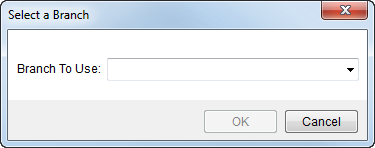
Branches can be defined to represent an agency, a region of operation or service, a geographic area, or an accounting or reporting area. Reporting and record retrieval are the two primary purposes of a branch and it is not generally associated to accounting within MoversSuite. A branch must be associated to all MoversSuite orders and is requested when New Order functionality is evoked.
Figure 1: Select a Branch dialog
MoversSuite suggests that consideration be taken when creating branch records: branch usage and the ability of the user to distinguish them from one another within MoversSuite are very important and can have an impact on the flow and effectiveness of an organization.
The Branch field setting is widely used throughout MoversSuite. Additionally, the following administrative areas associate to a Branch Setup record and may need modification or additions made based on changes to this setup.
Claim Settlement Clearing Account Setup
Payment Management Posting Account Setup
Use the table below when managing Branch records.
|
Field |
Description |
|
Branch ID |
Enter an identifier for the branch (up to 5 characters). This value typically represents the record in the application. Users will select this identifier when creating orders, generating revenue and storage billing, creating invoices, reporting, etc. A common practice is setting the Branch ID the Agent ID. Tip: Create Branch Name and Branch IDs that are easy to identify from within MoversSuite, avoid using all numeric values, etc. |
|
Name |
Enter the name used to identify the branch (up to 30 characters). This name entered here will appear throughout MoversSuite. |
|
Agent |
Select the agent affiliation for this branch from the list of those defined within Agent Setup. Note: This setting identifies the Sister Agent of the branch.
|
|
Van Line |
Select the van line affiliation for this branch from the list of those defined within Van Line Setup. Note: It is important to associate the Van Line at this time in order to enable searching, even if it serves no other purpose at this time. IGC Software requires that the appropriate van line be set for each branch referenced for an import. See IGC Setup. |
|
Estimate Prefix |
Estimates established in MoversSuite will begin with the entered here prefix (up to 4 characters). A common practice is to have the Estimate Prefix be similar to the Branch ID/Agent ID. Create estimates in MoversSuite through the Sales Lead Information screen. The IGC Software requires an Estimate Prefix (see IGC Software Integration). |
|
Estimate Sequence Number |
Read-Only Field The next number in sequence to determine the Estimate Number set in Name, Address, Phone displays here. Note: The Estimate Number follows the prefix, which combine in a hyphen-separated format of “NNNN-NNNNNNNNNN.” The Estimate Number value updates automatically when new sales lead are added through the Sales Lead Information. Currently, MoversSuite allows duplicate Estimate Numbers, as well.
|
|
Dispatching Common View |
Enter the area code that represents the branch service location (4 characters). Use the four-character code to associate a branch to other branch or branches; often the branches are of the same geographic area or the same area of service. Users will reference this value through the Service Branch field within the Dispatch Center of Local Dispatch. Selecting a Service Branch will display all branches with the same Dispatching Common View code. Example: A company may choose to associate all west coast branches to a code of “ALOC” and when any branch with this code is selected as the Service Branch in Local Dispatch, services for all the branches will appear with work grid for the specified date range. See Dispatching Common View topic for more information. |
|
Authority Type |
Select a default authority for the record from the list defined within Authority Setup. |
|
Image URL |
Specify the name of an image file that will be included on invoices, quotes, and customer statements generated through MoversSuite. This is typically a company logo (up to 2048 characters). The image file must be loaded into the report server and is dependent on the Include branch image on invoices flag being set (Invoice Properties Setup) in order for the image to appear on reports. Example: branch_logo.jpg See Invoices Setup and Administration and Invoice Properties Setup for more information. |
|
DOT |
Enter the Department of Transportation (DOT) number for the branch (up to 50 characters). |
|
Branch GL Code |
Enter the code that represents this branch component of the general ledger number used for recording accounting and financial transactions with (up to 10 characters). |
|
Company GL Code |
Enter the code that represents the company component of the general ledger number that this branch belongs to for the purpose of recording accounting and financial transactions with (up to 10 characters). |
|
GL Control |
Select the actual general ledger control account from the provided list (defined in GL Control Code Setup) that represents the control component of the general ledger number used for recording accounting and financial transactions with. |
|
Advance Company Number |
Enter the identifier supplied by a banking service provider to distinguish advance transactions included in an upload file by branch (company) (up to 32 characters). The application will generate an upload file to a banking service provider in which the title contains the company number; initially set to “PC” followed by the company number. Refer to T-Chek Upload File Format for field settings and restrictions related to uploading to T-Chek. See Driver Advances Setup and Administration for more information. |
|
Advance FTP Host Directory |
Enter a name of the directory on the application server where the upload file will be stored and referenced by the automatic upload process when sending driver advance transactions to a banking service provider (up to 64 characters). Example: /tchek See Driver Advances Setup and Administration for more information. |
|
Cost/Benefits Percentage |
Provide an anticipated percentage added to wage calculations for estimating labor costs associated to dispatched services. See for Job Costing and Job Costing Setup and Administration more information. |
|
Local Service Default Drive Time |
Provide a default for the Hours Drive One Way
setting within Add Local
Service. The value entered here is in hours, e.g. “.25” is 15 minutes,
“1.00” is one hour, etc. |
|
Branch Address |
|
|
Address Type |
Select the record type for the record as one of Default, Invoice Header, Payment Remittance, Physical, Services, or Shipping Correspondence (see Address Types for descriptions). Important: At least one Address Type must be set up for each branch.
|
|
Title |
Enter the title for the branch address for the specified Address Type (up to 50 characters). |
|
Contact |
Enter the name or position of the person that is the contact person for this branch address for the specified Address Type (up to 30 characters). |
|
Address |
Enter the contact street address (up to 256 characters). |
|
City |
Enter the contact city (up to 26 characters). |
|
State |
Enter the contact state (up to 2 characters). |
|
Zip |
Enter the contact postal code (up to 10 characters). |
|
County |
Enter the contact county code (up to 3 characters). |
|
|
Enter the contact email address (up to 120 characters). |
|
Phone |
Enter the contact phone number (up to 30 characters). |
|
Phone Extension |
Enter the contact phone extension (up to 6 characters). |
|
Fax |
Enter the contact fax number (up to 30 characters). |
|
Default Division |
Select the Division to be set as the default for this branch when generating transactions imported into MoversSuite for orders belonging to this branch. Manage Division records through Division Setup. Note: This option is only available when Division is turned on. See Divisions Setup and Administration for details. |
|
Division Item |
|
|
Use this section to link this branch record to Division records (defined within Division Setup). These Division records will appear as options on orders and transactions associated to the branch. Note: This option is only available when Division is turned on. See Divisions Setup and Administration for details. | |
RELATED TOPIC:
Driver Advances Setup and Administration
Invoices Setup and Administration