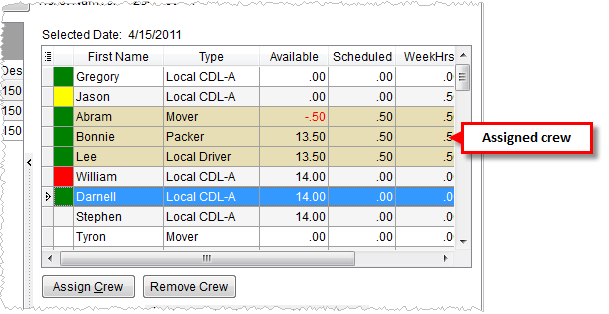
The crew assignment grid allows a user quick access to all crew available to be assigned to local service requests. Users can select one or more services within the main Dispatch Center grid and assign and remove crew through the available buttons and right-click options.
Figure 27: Assign crew section
|
Note |
|
Crew that display in the crew assignment grid are those that have Status set to ACTIVE in Personnel Setup and a Labor Type linked to those defined in Labor Type Setup with the Is Local Dispatch flag set as well as having an Assigned Branch within the same Dispatching Common View. |
The following right-click options are available to users. See Right-Click Options (Local Dispatch) for details.
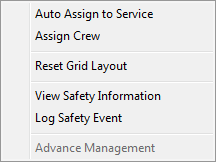
Figure 28: Assign crew right-click options
|
Note |
|
Users can select more than one employee at a time by pressing SHIFT + Click to select a range or CTRL + Click to select multiple records individual. |
The following table describes the fields and functions available within the assign crew section.
|
Note |
|
Adjust the columns by rearrangement and setting which columns display (see Data Grids for details), and the application will save changes made layout for each workstation. |
|
Field/Function |
Description |
|
Safety Status Indicator |
Displays a color code identifying the safety state of the crew member. See Safety Information for more information. |
|
Last Name |
Displays the Last Name of the shipper as defined with Personnel Setup.
Note: Crew members that display in the crew assignment grid are those that have Status set to ACTIVE in Personnel Setup and a Labor Type linked to those defined in Labor Type Setup with the Is Local Dispatch flag set as well as having an Assigned Branch within the same Dispatching Common View.
|
|
First Name |
Displays the First Name of the shipper as defined with Personnel Setup. |
|
Role(s) |
Displays the roles available for the crew member. Roles are defined as Labor Types set for the employee within Personnel Setup. |
|
Available |
Lists the number of hours remaining after other assignments that this crew member is available to work for on the service date. This value is computed from the number of Available Hours set for the crew member in their Personnel Setup less the Scheduled number of hours.
Note: It is possible to assign work beyond the hours available and beyond the 24-hour work period for contractor work, etc. When workers are assigned beyond their availability, the crew data grid will show this overage as a negative value (in red font).
|
|
Scheduled |
Total number of hours this crew member has been allocated to work from all services for a particular date (date of the service selected). |
|
Week Hours |
Total number of hours this crew member has been allocated to work from all the service assignments for the week. |
|
|
Assign Crew (Alt+C) Opens the Assign Crew screen allowing users to set times and a lead while assigning all selected crew to services selected within the main Dispatch Center grid. Auto Assign Crew Choose the right-click option of Auto Assign to Service or double-click a crew member automatically assigns the selected crew member(s) to the service(s) without opening the Assign Crew screen. See Auto Assign Crew for more information. |
|
|
Remove Crew This function removes the select crew from the selected service or services. The user will receive a prompt requesting confirmation of the removal. |
RELATED TOPIC:

