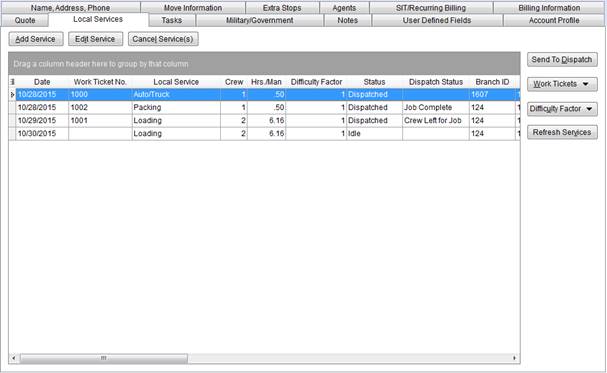
The Local Services tab allows a user to define and send service requests to Local Dispatch. It also provides a means of checking the status of service request.
Figure 34: Local Services tab
The following table describes the fields and functions available within this tab.
|
Function |
Description |
|
|
Add Service (Alt+A) This function opens the Add Local Service screen after the user enters a branch in the Select a Branch dialog. Refer to Add Local Service topic for more information.
Note: Users can add services directly from Local Dispatch. These services will display as cleared.
|
|
|
Edit Service (Alt+I) This function opens the Edit Local Service screen allowing users to update an existing service request. Users can make changes to services not yet dispatched.
Notes: Once a service request has been edited its status is set back to Idle and the service will need be resent to dispatch. The service will also need to be cleared again from within Local Dispatch. Users cannot edit dispatched services through Local Services. Users with full access to Local Dispatch can edit dispatched services in Local Dispatch.
If day notes exist for the date of service, then they will also appear within this screen. See Add Local Service for more information. |
|
|
Cancel Service (Alt+L) Cancels the selected service request and deletes the request from the system. You can select and cancel multiple records using the SHIFT or CTRL keys.
Note: Cancel services sent and received in Local Dispatch through Local Services If the service is non-dispatched and has no work ticket.
Note: Services cancelled within Local Dispatch will show with a Status of Not Cleared. These services can be resubmitted to dispatch through the Send To Dispatch function.
|
|
DATA GRID DATA |
|
|
See Add Local Service for more information on most of fields below and Data Grids for information on the functions available to you through the grid. | |
|
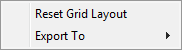
Right-Click Options The following options are available through this data grid through a right-click menu:
Reset Grid Layout This option changes the grid layout back to the application defaults. See Data Grids for more information.
Export To This option allows exports grid data to Microsoft Excel worksheet or HTML window. See Export To for details.
| |
|
Field |
Description |
|
Date |
Displays the date of the service assigned to the request. The data in this grid sorts by the earliest (oldest) services listed at the top. |
|
Work Ticket No. |
Work Ticket number associated to the service. |
|
Local Service |
Name of service selected. |
|
Crew |
Number of crew estimated or requested to perform the service. |
|
Hrs./Man |
Number of hours per man set for the service. |
|
Difficulty Factor |
This option displays the difficulty factor(s) computed for the service. See Calculate Difficulty Factor for more information. |
|
Status |
This field displays the status of the service in the dispatch process. The application sets this status automatically. See the Local Services Status for more information. |
|
Dispatch Status |
Status of the service set by the dispatcher within Local Dispatch. Refer to the Local Dispatch Status Setup topic for more information. |
|
Branch ID |
Branch assigned to the service. |
|
Created On |
Displays the date and time the service was created through Add Local Service along with the name of the MoversSuite user that created it. |
|
Created By | |
|
Last Edited |
If the service was edited (through Add Local Service), then the date and time and the name of the person that last edited the service displays. |
|
Last Edited By | |
|
Submitted On |
The Submitted By keeps track of the MoversSuite user that last assigned or removed crew on a service. It is set initially to the user who sent the service request (through Send to Dispatch) and is updated to reflect the user that last assigned or removed crew from the service. Submitted On records the date and time that the Submitted By field was updated. |
|
Submitted By | |
|
Cleared On |
The date and time the service was cleared along with the name of the dispatcher that cleared the service through Requested Services displays. |
|
Cleared By | |
|
Voided On |
These two columns display the date and time along with the name of the dispatcher that voided the work ticket associated to this service. Dispatchers can void a work ticket through a right-click option within the Dispatch Center grid. |
|
Voided By | |
|
Job Start |
The date and time that the service starts and ends for the service displays. Dispatchers can set these times through the Set Service Time function. |
|
Job End | |
|
Crew Names |
Crew members assigned to the job through Local Dispatch display in this column. Crew lead displays in bold font. |
|
|
Send To Dispatch (Alt+D) This function opens the Send to Dispatch screen allowing a user to attach a note to the request and to send it to the Requested Services queue in Local Dispatch.
Note: Multiple services can be selected at a time and be included in the same send.
See Send to Dispatch for more information. |
|
|
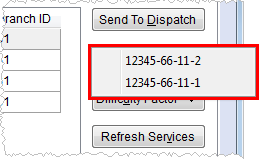
Work Tickets (Alt+W) Clicking this button will cause it to change into a list of all work tickets associated to the order.
Figure 35: Work Tickets button display
Note: Create work tickets through Local Dispatch. See Work Ticket for more information. |
|
|
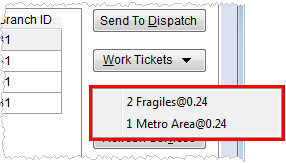
Difficulty Factor (Alt+U) Clicking this button will cause it to change into a list of all risk factors defined for all local services.
Figure 36: Difficulty Factor button display
Note: Define difficulty factors for a service through the Add Service or Edit Service functions.
|
|
|
Refresh Screen (Alt+V) Performs a data refresh on the order to ensure that the most up-to-date information displays. |