MSWeb Navigation Menu >
Messages > Order Level messages
MSWeb Header > Global
Messages
This is an overview of “Conversations” within MSWeb. For
guidance and instructions on starting a conversation or message, see MSWeb Messages Quick
Start.
|

|
As currently designed,
there is a single conversation per phone number. Additionally, multiple
orders can link to a single conversation. Therefore, messages sent for one
order appear on all connected orders. Unsubscribing a phone number
disconnects the phone number from the conversation and all orders linked
to it. |
“Conversations” is a tab located within MSWeb Messages and MSWeb Global Messages.
Within MSWeb
Messages, conversations are organized by contact within the Conversations
tab. Click a contact, such as “Alan” in the image below, to list the messages
for that conversation. These messages list on the right side of the screen. To
start a conversation, see MSWeb Contacts (Messages) or MSWeb Initiate
Conversation.
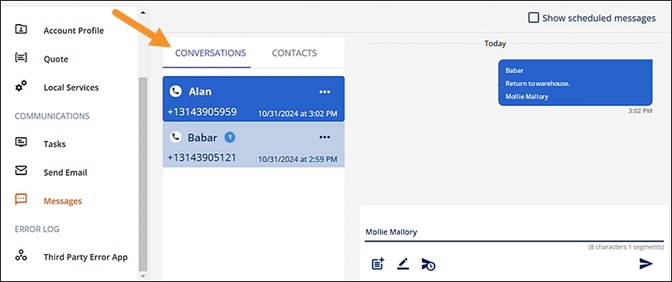
Figure 220: Order Level Messages
> Conversations tab
MSWeb Global Messages (Figure
221) also has “Conversations.” Conversations are organized by Order Number.
Only conversations for which you are subscribed can be viewed. Messages can be
sent from this Global Messages, as well; however, conversations may not be
initiated within MSWeb
Global Messages. Notice there isn’t the Contacts tab, where Messages are
initiated. See MSWeb
Messages Quick Start for instructions on starting or joining conversations.
See MSWeb Global
Messages for more details on this area.
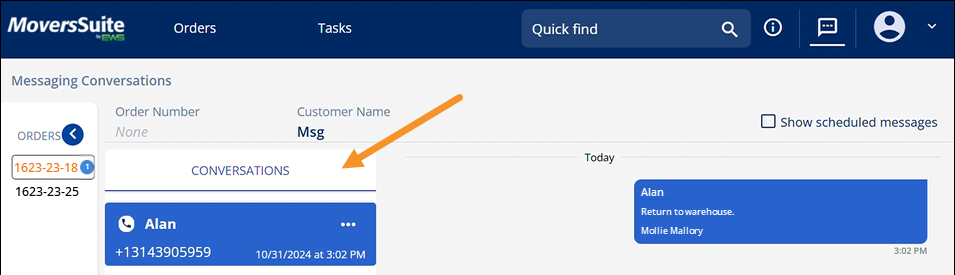
Figure 221: Global
Messages Conversations screen
This topic, MSWeb Conversations (Messages), is focused
on the order level messages (MSWeb
Messages). Conversations that are displayed on the Conversations tab are
sorted with the most recent activity appearing at the bottom of the listing.
Click on any Conversation to open the messages for that conversation.
Use the three white dots to edit/change that contact name
(see MSWeb Change
Contact Name) or Unsubscribe from Conversation (see MSWeb Unsubscribe from
Conversation.) Notice the three dots in Figure 222 in the upper
right side of the conversation with Alan.
If you set a signature (see MSWeb Message Signature), it is
automatically placed at the bottom of your screen with the options to “Edit
Signature” provided below the message typing area. There is also the option to
use a template (see MSWeb
Message Template.)
When composing a message, under the message line will be “(XX
characters XX segments)”. MSWeb’s messaging service is Sakari and Sakari charges
by segment;
therefore, this counter is useful to remind you to be mindful of your segment
use. Each message totals the characters and spaces of the message and signature.
Keep in mind that your signature is added to every outbound message. Currently,
one segment is equal to 160 characters. The tally for characters goes counts
from 1 – 160 with 1 segment, as shown in Figure 222. At the
161sth character, the tally will read (1 character 2 segments), as
shown in Figure 223.

Figure
222: Tally shows 160 characters and 1 segments.
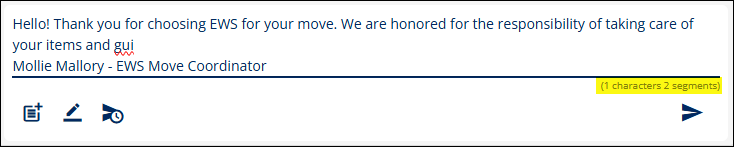
Figure
223: With the addition of more letter than that in Fig. 203, the tally is
now 1 characters and 2 segments.
Conversations that list on the order level will list within
MSWeb Global Messages,
if the logged in user is subscribed to the conversation.
RELATED INFORMATION:
MSWeb Conversations (Messages)
MSWeb No Conversation Found
MSWeb Subscribe to
Conversation
MSWeb Initiate Conversation
MSWeb Unsubscribe from
Conversation
MSWeb
Message Signature
MSWeb Message Edit Signature
MSWeb
Message Template
MSWeb
Schedule Send
MSWeb Edit Scheduled Message
MSWeb Delete Scheduled Message