
Please watch the video MSWeb Messages for an overview on its use and functions. Click the video names to open the video. This video, along with other MSWeb videos, are located within the Training Center > MSWeb section.
|
|
Please watch the video MSWeb Messages for an overview on its use and functions. Click the video names to open the video. This video, along with other MSWeb videos, are located within the Training Center > MSWeb section. |
Messages, or text messaging, is available within two areas of MSWeb:
•“Messages” typically refers to order-level Messages and are accessed from an orders > MSWeb Navigation Menu > Communications > Messages (Figure 212).
•“Global Messages” are accessed through the Global Message icon within MSWeb’s header. Global Messages lists all conversations for all orders to which you are subscribed. See MSWeb Global Messages for information on that functionality.
For instructions on how to get started using MSWeb Messages, see MSWeb Messages Quick Start.
|
|
In the current version, only a single conversation per phone number is allowed. Additionally, multiple orders can link to a single conversation. Therefore, messages sent for one order appear on all connected orders. Unsubscribing a phone number disconnects the phone number from the conversation and all orders linked to it. |
Messages (on the order level) includes a Conversations tab and a Contacts tab.
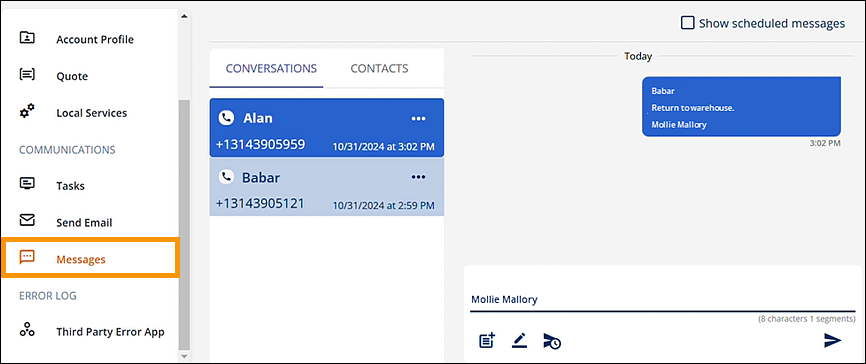
Figure 212: Opening Messages from here opens Messages at the Order Level.
The Conversations tab includes only Contacts for which there are conversations. Each conversation has a card that includes a Contact’s name, phone number, and date and time of the last message lists within that tab. Click any name within Conversations to open the messages for that contact. Change a Contact Name or Unsubscribe from Conversation by clicking the three dots on their card. See MSWeb Change Contact Name and MSWeb Unsubscribe from Conversation for more details on those features. For complete details on the Conversations tab, see MSWeb Conversations (Messages).
Should you see a blue number icon on conversation card, that number indicates how many scheduled messages there are for that contact, such as “Sam” having one scheduled message in Figure 213. To see any unsent scheduled messages on a conversation timeline, click the “Show scheduled messages” box (Figure 213). (MSWeb Schedule Send includes instructions on scheduled messages.) A red number icon indicates unread message(s) in that conversation.
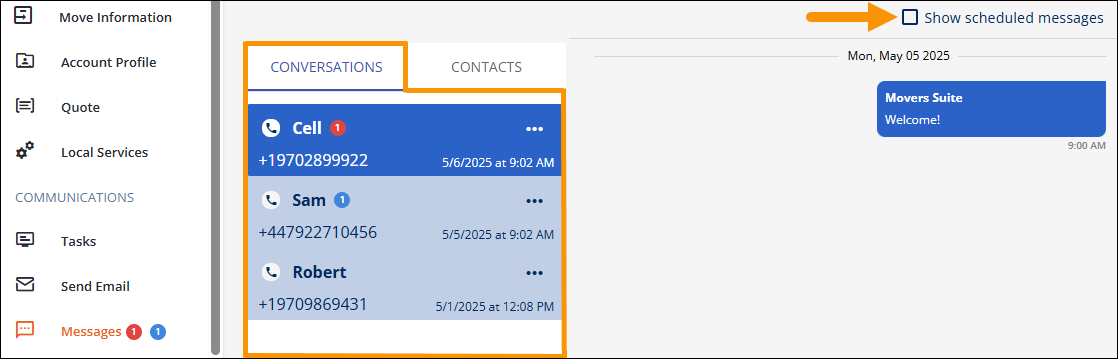
Figure 213: Conversations tab and “Show scheduled messages” option
The Contacts tab will automatically list the contacts and their phone numbers entered within MSWeb Order Information when creating the order or lead. It will also list any additional phone numbers added within MSWeb Move Information> Customer Contact. There are icons next contacts which indicate the following:
|
Icon |
Description |
|
|
This icon means there is not a conversation started with this contact. Click the icon to start a conversation and be subscribed to that conversation. |
|
|
This icon means that there is a conversation started and you are a part of that conversation. You are considered “subscribed” to that conversation. This conversation will show within MSWeb Global Messages. |
|
|
This icon means that there is a conversation started and you are not a part of that conversation. Click the icon to subscribe to that conversation. Once subscribed, the icon will change to one above. |
To start a conversation for a contact or phone number not already listing within Contacts, use the “Add Customer Number” to initiate a conversation. to add a new cell number and contact. See MSWeb Initiate Conversation for more details of the next steps in the process.
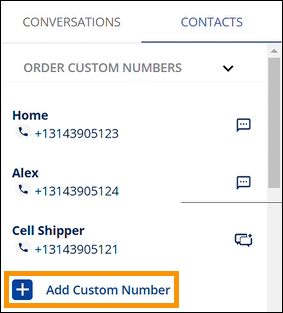
Figure 214: Add Custom Number option
To send a message, choose an order > click Messages > choose to send via Conversations or Contacts. In the image below, “Alan” is selected.
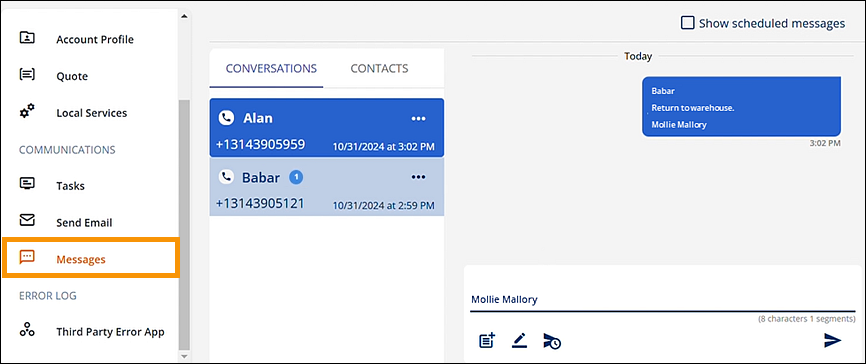
Figure 215: Message is being started within Messages > Conversations.


