NOTE: See the video MSWeb Messages in the Training Center > MSWeb section for further information on MSWeb Messages and MSWeb Global Messages.
Not sure where to begin? The following scenarios offer guidance or instructions when using MSWeb Messages.
•How to start a message when no conversation has been started: See MSWeb No Conversation Found then MSWeb Initiate Conversation.
•How to start the very first conversation with a Contact: See MSWeb Initiate Conversation.
•How to add a contact within MSWeb Messages: See MSWeb Initiate Conversation.
•How to send a message when a conversation is already started:
1. From MSWeb Navigation Menu > Messages > choose a conversation. If there isn’t a conversation started with whomever you need to contact, see MSWeb Initiate Conversation to get started.
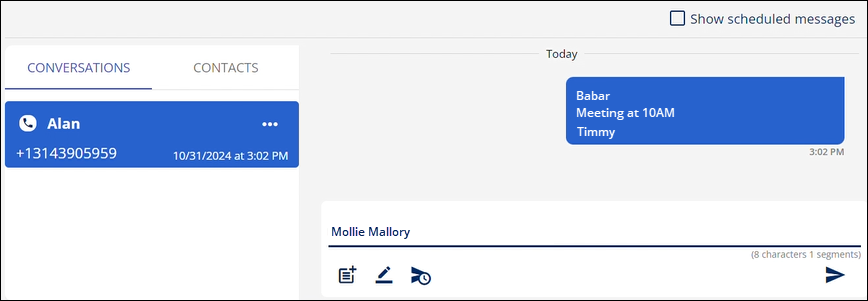
Figure 216: Messages at the Order Level into Contacts tab.
2.
Click above the line (or above the signature if using) to enter your message.
The counter under the message line keeps track of how many characters and
segments were entered for that message. The counter includes characters used in
the signature. Click the send icon  to send the message.
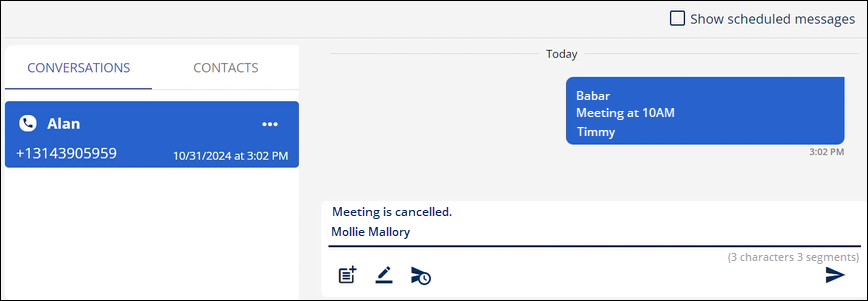
Figure 217: Message includes signature.
3. The message is sent from that order and will now list to whomever it was sent, anyone else subscribed to the conversation, within the Local Level Message and with MSWeb Global Messages.
NOTE: Messages from multiple orders can show within a single conversation, at this time.
For other instructions on functionality within MSWeb Messages, refer to the RELATED INFORMATION listed below.
RELATED INFORMATION:
MSWeb Conversations (Messages)
MSWeb Subscribe to Conversation
MSWeb Unsubscribe from Conversation
MSWeb Delete Scheduled Message
SETUP INFORMATION
MSWeb Setup and Administration
Text Messaging Setup