MSWeb Navigation Menu > Communications > Messages > Conversations tab
MSWeb Header > Messages > Conversations
A text message can be scheduled through MSWeb Messages within either the Order Level Messages (MSWeb Messages) or the Global Messages (MSWeb Global Messages.) Add, edit, and delete scheduled text messages in a conversation with an existing contact. A message can be scheduled for anytime; however, the background process will send the scheduled message based the time intervals of on :15, :30, :45, or on the hour. For example, if you schedule a message to send at 3:10pm, it will send at the next interval, which is 3:15pm. Also, the soonest a scheduled message can be processed and sent is 15 minutes.
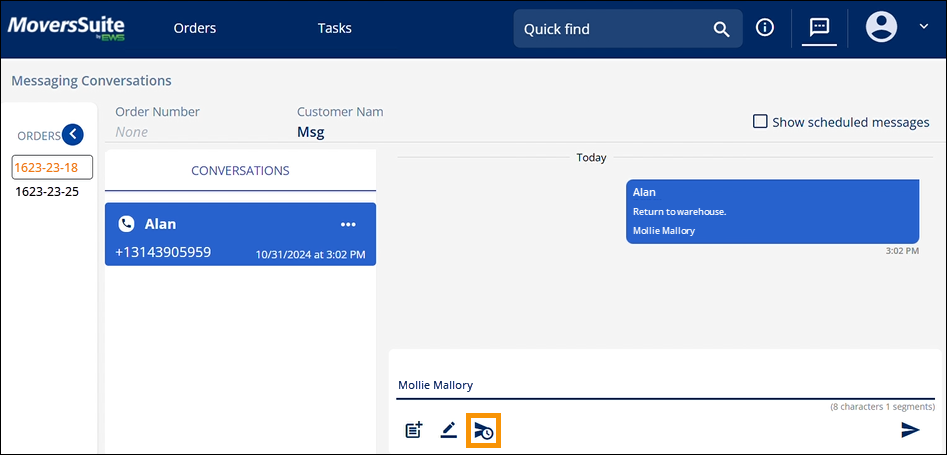
Figure 243: Schedule Message icon
To schedule a
message, click the  icon to pop open
the Schedule Send screen. Enter a message or
choose a Template, if set. The Signature, if any has been set, is shown.
(Signatures can be added or edited at any time.) Enter a date or click the
calendar icon to choose the Send Date. Improperly entered dates or dates prior
to the current date will show an error. Enter or click the clock to set the Send
Time. As per the note, messages are sent on quarter hour intervals. The example
below has a 3:50 PM set for the Send Time and it will be sent on the next
interval which is 4:00 PM. When sent, the time indicator for that Message will
show within Conversations as 4:00 PM.
icon to pop open
the Schedule Send screen. Enter a message or
choose a Template, if set. The Signature, if any has been set, is shown.
(Signatures can be added or edited at any time.) Enter a date or click the
calendar icon to choose the Send Date. Improperly entered dates or dates prior
to the current date will show an error. Enter or click the clock to set the Send
Time. As per the note, messages are sent on quarter hour intervals. The example
below has a 3:50 PM set for the Send Time and it will be sent on the next
interval which is 4:00 PM. When sent, the time indicator for that Message will
show within Conversations as 4:00 PM.
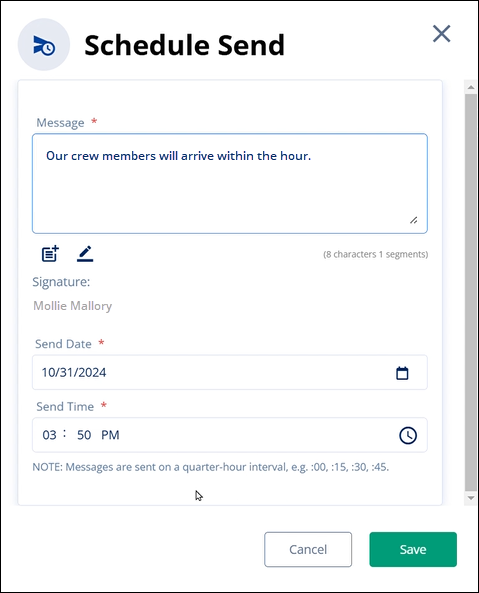
Figure 244: Schedule Send
To show Messages that have been scheduled to send, click the “Show scheduled messages” box at the top of Messages.

Figure 245: Click this checkbox to show scheduled messages.
If any Messages are schedule and not yet sent, they will list show with the “Scheduled” banner and indicate when the message is scheduled.
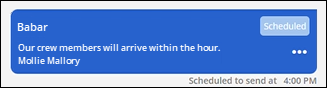
Figure 246: Scheduled icon on a message
Messages sent on future dates will appear under that date in the Conversation timeline.
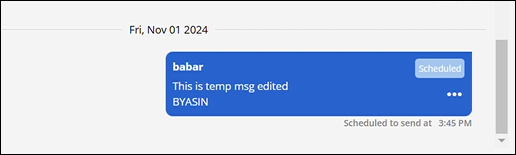
Figure 247: Schedule messages will list according to the date they are to be sent.
Within Messages > Conversations and the Orders Listing within MSWeb Global Messages, number icons represent how may scheduled messages are for that Conversation Contact.
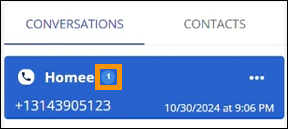
Figure 248: Scheduled message indicator
|
|
Data from the Scheduled Messages screen can be found within the MoversSuite database through the SakariScheduledMessage table. |
RELATED INFORMATION:
MSWeb Delete Scheduled Message
