MSWeb Navigation Menu >
Communications > Messages > Contacts tab
NOTE: Currently, one
conversation is allowed per phone number.
“Contacts” is a tab within MSWeb
Messages (shown in Figure 219.) “Contacts” automatically lists
phone information entered within MSWeb Order
Information when creating the order or lead. It will also list any
additional phone numbers added within MSWeb Move
Information > Customer Contact. These contacts will list under the
“Order Phone Numbers” section. Of note, “Contacts” are not available when
accessing Messages within MSWeb Global
Messages, where only conversations are available (see MSWeb Conversations (Messages).)
Click an icon to do the following:
|
Icon |
Description |
|

|
No conversation has been started with this contact.
Click the icon to start a conversation. |
|

|
A conversation has been started with this contact and
you are subscribed to the conversation. Click the icon to view and send
messages for this contact from the Conversations tab. |
|

|
A conversation has been started with this contact and
you are not subscribed to the conversation. Click the icon to “Subscribe
to the conversation and view.” |
To start a conversation for a contact or phone number not
already listing within Contacts, use the “Add Customer Number” to add that
contact, add a phone number, and initiate a conversation. Once initiated, that
contact will list under the “Order Custom Numbers” section of the Contacts tab.
NOTE:
A single conversation is allowed per phone number, at this time.
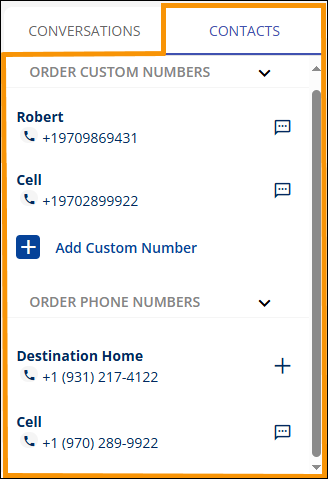
Figure 219: Contacts tab
within Communications > Messages.
RELATED INFORMATION
MSWeb Initiate Conversation
MSWeb Unsubscribe from
Conversation