 , such as in the Figure 239.
MSWeb Navigation Menu > Communications > Messages > Conversations tab
MSWeb Header > Global Messages > Conversations
Templates within MSWeb are created within the Admin Tool, just like the templates used within the Legacy desktop application. Details on setting up templates can be found within Template Message.
Within
MSWeb,
insert a Template within a message wherever you see the template
icon , such as in the Figure 239.
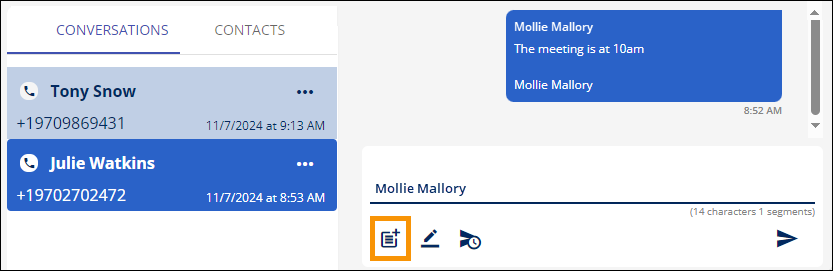
Figure 239: Template icon is indicated.
When clicked, the Select Template screen opens. Click the template needed from the list and it will be inserted into the message. Use the Search function, if needed. To exit without choosing a template, click either the x or the arrow (to the left of Select Template.)
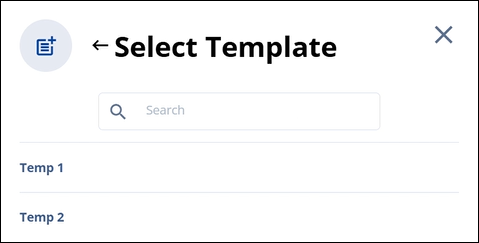
Figure 240: Select Template
After the template is chosen, it is inserted above the Signature, if one has been set.
Edits can be made to the template before sending. Changing the template through MSWeb does not update the default template stored within MoversSuite Administration.
NOTE: If a message is manually entered, selecting a template afterwards clears that previously entered message.
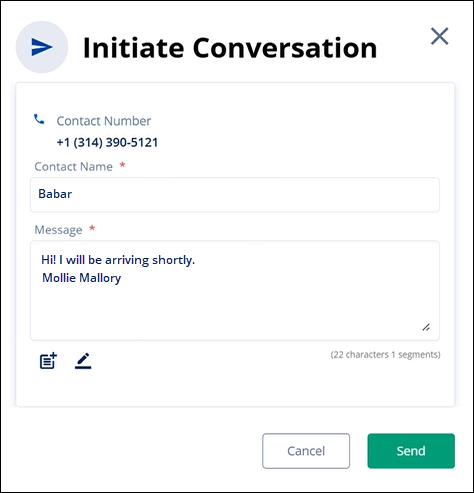
Figure 241: Template has been inserted into the message.
The message will look like this on the Order’s Conversation:
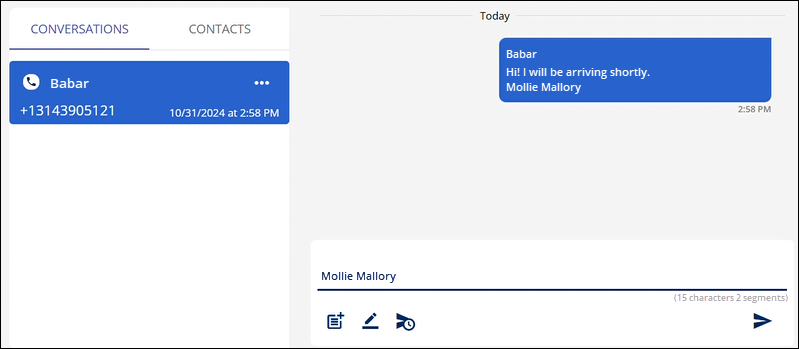
Figure 242: Sent message.