This section details instructions required for the Claims module, as well as
additional setup areas that may need attention. These are located in the table
below the step-by-step instructions.
|

|
While no specific setup
option in the Claims System was meant to directly affect potential fraud,
the MoversSuite team strongly recommends separating the ability of a user
to create and manage claims from being able to print checks. The
MoversSuite Claim process specifically separates these two processes
by putting the printing of checks back into the general accounting
realm. |
These are step by step instructions for the required setup
for the Claims modules with detailed instructions following:
1.
Review Security Profile
Setup.
2.
Add Claims
Adjuster to personnel record(s) within Personnel Setup.
3.
Add Claims as the Security Profile within Personnel Setup.
4.
Enter Email Addresses for Claim
Alert within Email Options
Setup.
5.
Enter claim Type options within Claim Type Setup.
6.
Enter Status options within Claim Status Setup.
7.
Enter Phone Type options within Claim Phone Type Setup.
8.
Enter Insurance Provider options within Claim Insurance Provider Setup.
9.
Enter Damage Type options within Claim Damage Type Setup.
10. Map Claim Type to Claim Damage Map within Claim Type to
Claim Damage Type Map Setup.
11. Enter
options for a Claim Item’s status within Claim Item Status Setup.
12. Enter
options for Denial Codes within Claim Denial Code Setup.
13. Map
Claim Type to Claim Denial Code within Claim Type to Claim Denial Code
Map Setup.
14.
Review Claim Settlement Clearing
Account Setup.
15. Enter
options for Chargeback Types within Claim Chargeback Type Setup.
16. Enter
options for Handling Type within the Claim Handling Type Setup.
17. Enter
a record for your Van Line within Van Line Setup.
18. Enter
a Task Group and add Task Items for Claims within Tasks Setup.
Other setup areas and information that relate to Claims:
|
Agent
Setup |
Create agent records specific to claims. |
|
Note Type
Setup |
Establish types for “Claims” and “Claim Notification” in
this setup. The application requires the “Claims” type to evoke note
functionality in Claims. Claim Alert functionality requires a type of
“Claim Notification.” |
|
Claim
Number Setup |
Establish claim record formats using this setup. Values
created here link to a claim through the Claim Type Setup. |
|
Report
Setup |
Link report and letter documents to the
Reports/Letters menu through the Report System Location setting of
“Claims Letters/Reports.”
Provide user access to the Claims Out of Balance Report
through Report Setup and
user Report Profile assignments.
Define letter and form documents available to this
module through Forms
Designer. |
|
Review XXXX Claims Handling Details to understand
positive and negative numbers entered within XXX. See notes
mollie. |
|
Remember: A positive number entered under
Receivables will debit AR and credit the claim clearing account.
A negative number credit AR
and debit the claim clearing account. |
1.
Review Security Profile Setup.
Admin Tool > Personnel >
Security Profile
From the Security Profile Setup, ensure that there is a
Security Profile Setup record for Claims. The Claims Security Profile will be
set on the Personnel Setup records of users with the Labor Type of Claims
Adjusters. This step is detailed later in these instructions.
If there is a record named Claims, verify the record is for
the appropriate Branch.

Figure 40: Security Profile Setup
record named Claims.
Click View Details to review the Security Profile Details.
Click the arrow highlighted in Figure 41 to expand
the record. Keep in mind the following Access Type on a Security Profile Setup
record affect the Security Profile Detail on a Personnel Setup record for
Claims:
•
If the Branch is not set for
the “Claims” module in this setup, Orders will not be available or visible to
the user.
•
If the Branch
is set here for the “Claims” module and the Access Type is set to
“Read-Only” access, then users will be
unable to add or edit claim records associated to orders with these branches.
•
If the Branch is set here for the
“Claims” module and the Access Type is set to “FULL” access, then users
will be able add and edit claims associated to orders with these
branches.
Additionally, The Claims option will not be available through
the Contents Menu or through
the Contents Screen unless at
least one branch is associated to the “Claims” module in Security Profile Setup.
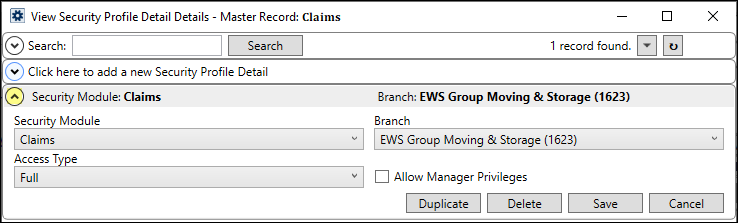
Figure
41: Expanded Security Profile Detail.
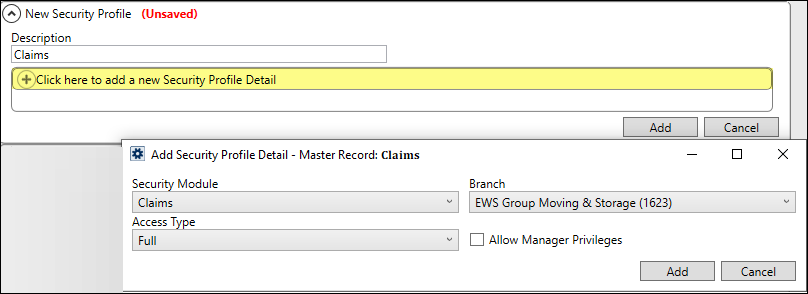
To add a Security Profile for Claims,
1. Use Click here to add a new
Security Profile at the top of the Security Profile Setup screen.
2. Enter the Description, which is
the record name.
3. Use Click here to add a new
Security Profile Detail.
4. Select Claims within Security
Module.
5. Set the Branch.
6. For Access Type, select Full (or
see notes above detailing other Access and Branch combination results).
7. Click Add on the Add Security
Profile Detail screen.
8. Click Add on the record to save.
2. Add Claims Adjuster to
appropriate Personnel Setup record(s).
Admin
Tool > Personnel > Personnel > Labor Type tab
For those who are to have the Labor Type designation of
Claims Adjuster, locate their Personnel Setup record. From the Labor Type tab,
click the highlighted area named Click here to add a new Labor Type Item.
This opens the Labor Type dropdown. Select “Claims Adjuster.” Set the checkbox
for Default Labor Type for that user, if that is their main role. Click
Save.

Figure 42: Personnel Setup record
> Labor Type set to Claims Adjuster
NOTE: Be sure to not
select the “Claims Expense” role. The Labor Type of “Claims Expense” serves the
purpose of mapping to item codes for payment processing.
RELATED INFORMATION:
Labor Type
Setup
Personnel
Setup
3. Add Claims as
the Security Profile within Personnel Setup.
Admin Tool > Personnel >
Personnel > User tab
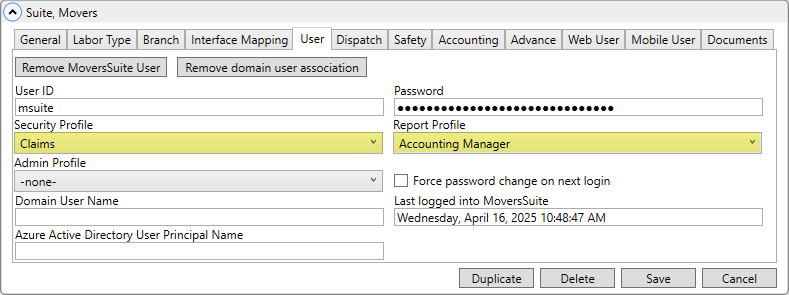
From the Personnel Setup record > User tab, select Claims
within Security Profile. Optionally, if this user is to have access to Claims
Out of Balance Report, set the Report Profile to Accounting Manager. Is this
correct and needed here?
RELATED INFORMATION:
Personnel
Setup
4.
Enter the email address(es) for the Claim Alerts.
Admin Tool > Administration
> Email Options
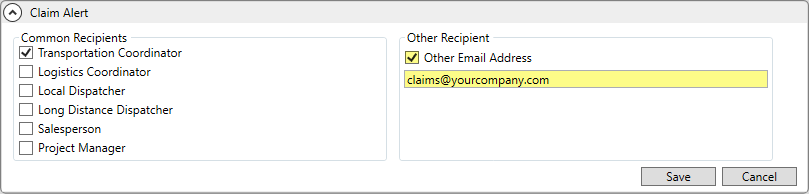
Enter the email addresses of those who are to receive the
Claim Alerts within Email Options Setup. As there
isn’t a listing for Claims within the Common Recipients sections, click the
checkbox for Other Email Address and enter the address or addresses within the
box, as shown in the image below. Multiple email addresses can be
entered. Separate email addresses with a comma or semicolon. Click
Save.
5. Enter Claim Types
options.
Admin Tool > Claims >
Claim Type
Use Claim Type
Setup to enter the options available within the Type dropdown within the
Claim Detail.
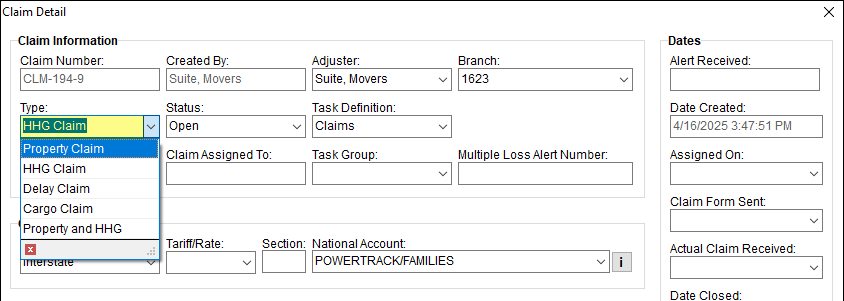
Figure
43: Type drop down menu options are set within Claim Type Setup.
This is the Claim Type Setup record for the option “HHG
Claim” selected in Figure 43.

For more details on this field and instructions for creating
a new Claim Type, see Claim Type
Setup.
6. Enter Claim Status
options.
Admin Tool > Claims >
Claim Status
Use Claim
Status Setup to enter the options available within the Status dropdown
within the Claim Detail.
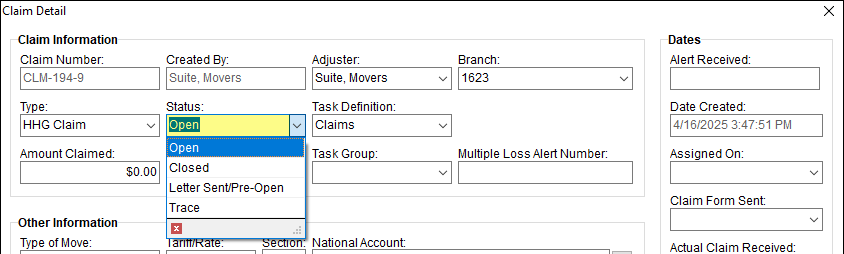
Figure
44: Claim Status drop down menu options are set within Claim Status
Setup.
This is the Claim Status Setup record for the option
selected in Figure 44.

For more details on this field and instructions for creating
a new Claim Type, see Claim
Status Setup.
7.
Enter Phone Type options.
Admin Tool > Claims >
Claim Phone Type
Use Claim
Phone Type Setup to enter the options available within the Phone Type
dropdown within the Claim Detail > Shipper Information.
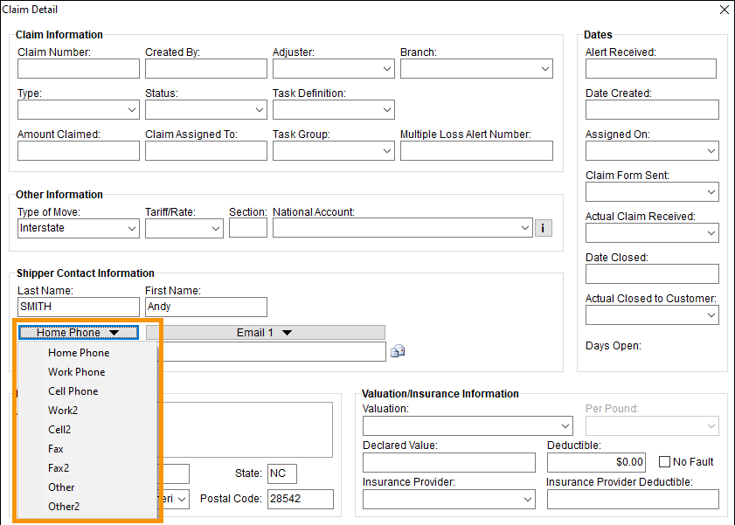
Figure
45: Options listed are set within Claim Phone Type Setup.
The Claim
Phone Type Setup record for the option selected in Figure 45 is the
following:

For more details on this field and instructions for adding
another Phone Type within Claims, see Claim Phone Type Setup.
8.
Enter Insurance Provider(s).
Admin Tool > Claims >
Claim Insurance Provider
Use Claim Insurance Provider Setup to
enter the options available within the Insurance Provider dropdown within the
Claim Detail > Valuation/Insurance Information.
The deductible set on the Claim Insurance Provide Setup will
automatically populate the Insurance Provider Deductible field when an Insurance
Provider is selected.If a deductible is not set within in the record, it will
default to zero. This field can be edited within the Claim Detail. Or,
preferably, the deductible would be added to that Claim Insurance Provider Setup
record.
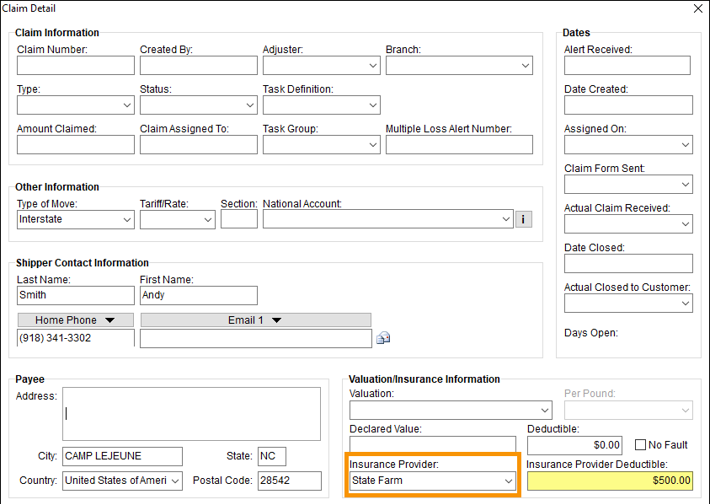
Figure
46: Options within the Insurance Provider drop down menu are set within Claim Insurance
Provider Setup.
The Claim Insurance Provider Setup
record for the option selected in Figure 46 is the
following:

For more details on this field and instructions for adding
another Insurance Provider, see Claim Insurance Provider Setup.
9.
Enter Damage Type options.
Admin Tool > Claims >
Claim Damage Type
Use Claim Damage Type Setup to enter the
options available that can me made available within the Damage Type dropdown
within Claim Detail > Add Claim Item. Setting up Damage
Type records alone does not enable options to list within the Damage Type
dropdown. Damage Type records, such as “Breakables,” is required so that
“Breakables” can be mapped to a Claim Type within Claim Type to Claim Denial Code
Map Setup. Only once mapping is completed will the Damage Type option list
within the Damage Type dropdown (when the appropriate Claim Type is set on the
claim.)
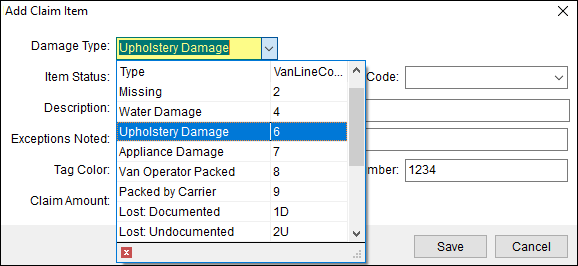
Figure
47: Damage Type options are created within Claim Damage Type Setup.
The Claim Damage Type Setup record for the
option selected in Figure 47 is the
following:

For more details on this field and instructions for adding
another Insurance Provider, see Claim Damage Type Setup.
RELATED INFORMATION:
Add Claim
Item
10.
Map Claim Type to Claim Damage Type.
Admin Tool > Claims >
Claim Type to Claim Damage Type Map
After setting up Claim Type Setup records and Claim Damage Type Setup records, these two
type records can be mapped together within Claim Type to Claim Damage Type
Map Setup.
This mapping is required so that within the Add Claim Item screen, the only
Damage Type options available within that drop down menu are ones that are
relevant to the Claim Type set on the claim. For this to happen, there needs to
be a “mapping” – or an association - between a Claim Type and a Claim Damage
Type.
In Figure 48, the
options in the dropdown menu are ones that have been mapped to the Claim Type
set within Claim Detail on the
claim.
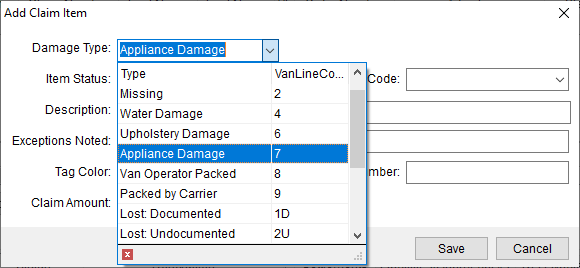
Figure
48: Add Claim Type > Damage Type menu options
Because the Claim Type was set to “HHG
Claim” within Claim Detail, the record for the Damage Type option above is the
Claim
Type to Claim Damage Type Map Setup record shown in Figure 49.

Figure
49: Claim Type to Claim Damage Type Map Setup record
To map another Claim Damage Type to a Claim Type, see Claim Type to
Claim Damage Type Map Setup for instructions.
More information on this setup is available within this
topic, Claim
Type to Claim Damage Type Map Setup, as well.
11. Enter Claim Item Status options.
Admin Tool > Claims >
Claim Item Status
Use Claim Item Status
Setup to enter the options available within the Item Status dropdown
within the Claim Detail > Add Claim Item.
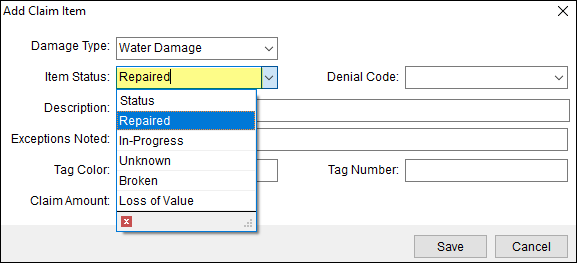
Figure
50: Item Status is set to "Repaired."
The Claim Item Status Setup record for the option selected in
Figure 50 is
below:

To add a new Item Status option, see Claim Item Status Setup.
RELATED INFORMATION:
Add Claim
Item
12.
Enter options for Denial Codes.
Admin Tool > Claims >
Claim Denial Code
Use Claim Denial Code Setup to establish the
options that can be made available within the Denial Code dropdown. This setup
is required to map Denial Codes to Claim Types within Claim Type to Claim Denial Code
Map Setup. Setting up Denial Code records alone does not enable options to
list within the Denial Code dropdown. Denial Code records, such as “Packed by
Owner,” is required so that “Packed by Owner” can be mapped to a Claim Type
within Claim
Type to Claim Denial Code Map Setup. Only once mapping is completed will the
Denial Code option list within the Denial Code dropdown (when the appropriate
Claim Type is set on the claim.)
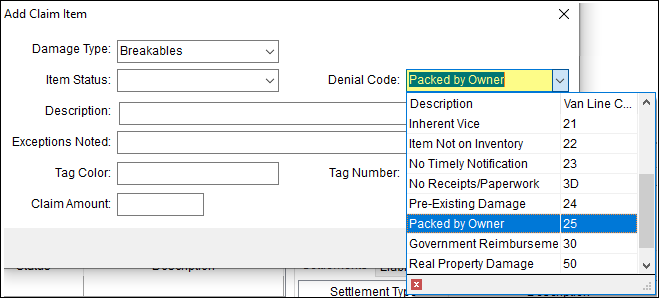
Figure
51: Denial Code dropdown menu
The Claim Denial Code Setup record for the
option selected in Figure 51 is the
following:

For more details on this field and instructions for creating
a new Denial Code, see Claim Denial Code Setup.
13.
Map Claim Type to Decline Code within Claim Type.
Admin Tool > Claims >
Claim Type to Claim Denial Code Map
After setting up records within Claim Type Setup and Claim Denial Code Setup, it is necessary to
map – or create an association – between the two type records. The records that
are created within Claim Type to Claim Denial Code
Map Setup will create the options that are listed within the Denial Code
drop down menu and based on the Claim Type set within Claim Detail.
Figure 52: Denial Code drop down
menu options
In our example, Claim Type was set to “HHG Claim” within Claim Detail. The Claim Type to
Claim Denial Code Map Setup record that created the “Packed by Owner” option
is shown in Figure 53.

Figure
53: Claim Type to Claim Denial Code Map Setup record named " Packed by
Owner."
To map another Claim Denial Code to a Claim Type, see Claim Type to Claim Denial Code
Map Setup for instructions.
More information on this setup is available within this
topic, Claim
Type to Claim Denial Code Map Setup, as well.
14.
Review Claim Settlement Clearing Account Setup.
Admin Tool > Claims > Claim Settlement
Charging Account
The Claim Settlement Charging Account is the account used to
process claim transactions. This is most likely setup by Support when
establishing the Claims module for your company. Review the Claim Settlement Clearing
Account Setup record(s). See Claim Settlement Clearing
Account Setup to review the details of this setup.

15.
Enter options for Claim Chargeback
Types
Admin Tool > Claims
> Chargeback Types
Use Claim Chargeback Type Setup to create
the options within Chargeback Type dropdown menu within Liabilities/Chargebacks. TheChargeback
Type field appears on this screen only when the Apply To is “Participating
Agent” or “Warehouse.”
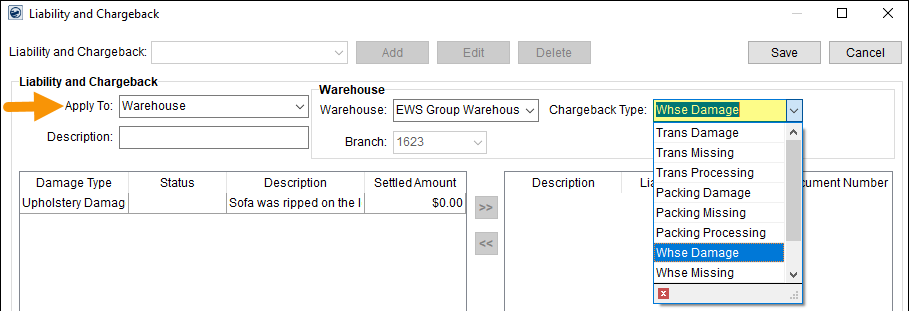
Figure
54: Chargeback Type dropdown menu
For the Chargeback Type selected in Figure 54, the Claim
Chargeback Type record is below. The option listed in the menu is set in the
Description.

For more details on this field and instructions for creating
a new Chargeback Type, see Claim Chargeback Type Setup.
16.
Enter Handling Type options.
Admin Tool > Claims >
Claim Handling Type
Use Claim Handling Type Setup to create the
options that list in the drop down menu for the Type field within Add
Handling Expense and Add
Handling Revenue screens.
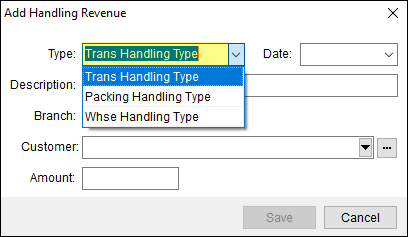
Figure
55: Add Handling Revenue screen > Type field options are set within
Claim Handling Type
Setup.
For the Type selected in Figure 55, the Claim Handling Type
Setup record is below.

For more details on this field and instructions for creating
a new Handling Type, see Claim Handling Type Setup.
17.
For Van Line Customers, enter your Van Line on a record within Van Line
Setup.
Admin Tool > Administration
> Van Line
Create a Van
Line Setup record for the van line to which your company associates, such as
Allied, Unigroup, etc.
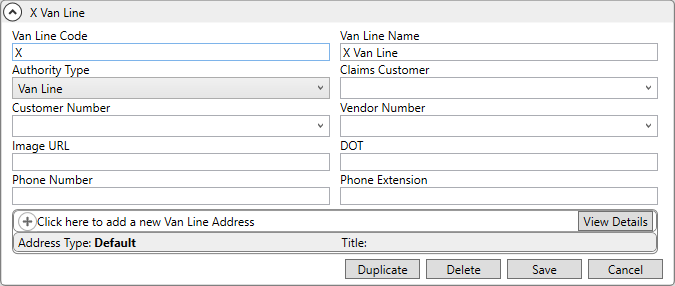
See Van Line
Setup for instruction and details on the fields within this setup.
18. Create a Task Group and Task Items within that
Task Group.
Admin Tool > Customer
Service > Tasks Setup
Define a set of task items specific to Claims through Tasks Setup. The Task Definition is
set on a claim within the Claim
Detail screen. When a Tasks Setup record is created named “Claims,” then
Claims will list in the Task Definition drop down menu. Further, if Task Groups
are defined on that Claims Tasks Setup record, then those options will list in
the Task Group drop down menu.
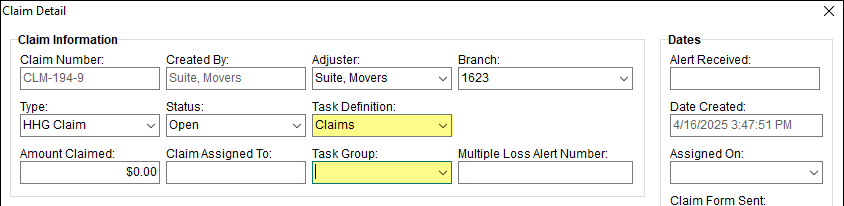
When a Task Definition is set within Claim Detail, the tasks will list within the Tasks
tab. If the claim is clicked/highlighted on the Claims tab, then clicking the
Tasks tab will open the list of tasks for that claim. Or, use the Find to locate
the Claim. The list of tasks will also list within the Tasks module.
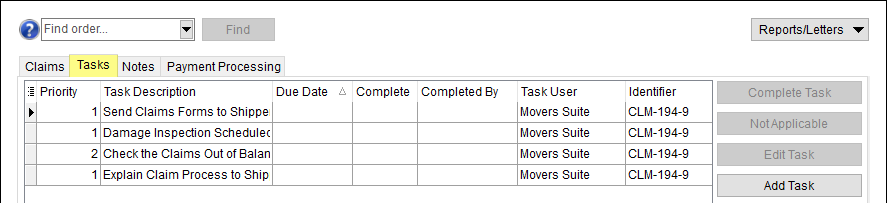
Figure 56: Claims > Tasks
tab
To create a Tasks Setup record for claim:
1.
Click the Click here to add a new Task on the top of the screen within Tasks
Setup.
2.
Enter the Task Definition Name, which is “Claims.”
3.
Set the Account, which is typically a Generic Account.
4.
Choose “Claims” for the module.
5.
Then, use Click here to add a new Task to create the first Task Detail.
(See “Add Tasks” after Figure 57 for details
on setup specific to Claims.)
6.
Continue to add tasks.
7.
Task Groups can also be defined to further categorize Task Definitions. This is
an option and it’s primary use in Claims is to narrowing down search
results.
8.
Click Save.
This is an example of the Tasks Setup record once it has been
saved.
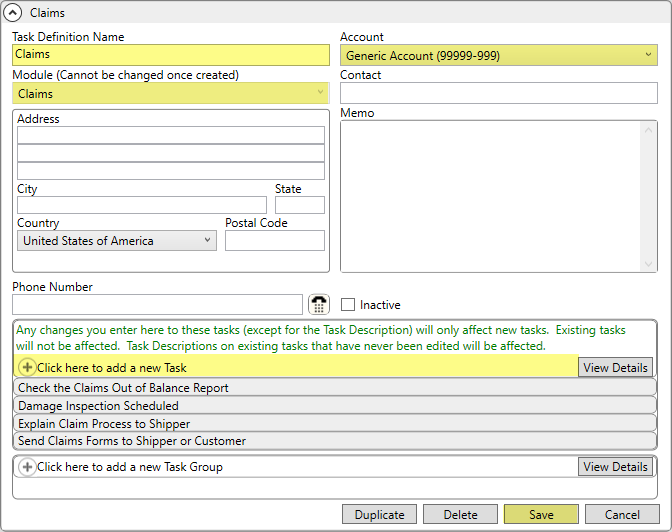
Figure
57: Tasks Setup record named "Claims."
Add Tasks within
Claims
When adding a task item to the record, clicking Click here
to add a new Task at the top of the Tasks Setup screen will open the Add Task
screen.
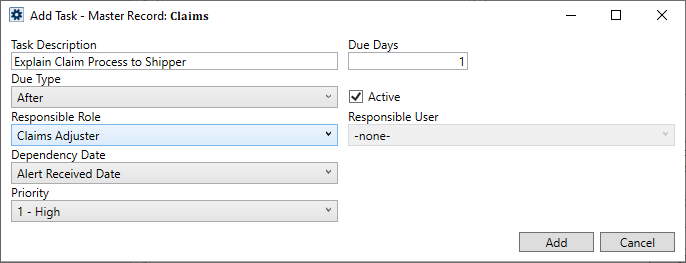
Figure 58: Add Task
When creating a Tasks Setup records for Claims, the tasks can be set
with to use the following Task Dependency Dates which link to claim-specific
dates:
Actual Claim Received Date
Actual Closed to Customer
Alert Received Date
Claim Closed Date
Claim Created Date
Claim Form Sent Date
Claim Settlement Assigned to Vendor Date
Claim Settlement Invoice Date
To complete the Add Task screen for Claims:
1.
Enter the Task Description. This is what will list within the Tasks module and
under the Claims > Tasks tab.
2.
Set whether the task needs to be due before or after the Dependency Date.
3.
Who is the person responsible for completing the task? This can be set according
to role or by user. If assigned by role, choose “Claims Adjuster” within the
Responsible Role field. Or, choose a user from the Responsible User
dropdown.
4.
Choose the Dependency Date. This means the task will be based on this date and
will be either before or after as set witihn Due Type.
5.
Set Due Days. This is the number of days – either before or after the Dependency
Date – that the task’s due date will be calculated.
6.
Check Active so that this task is in use.
7.
Set the Priority of the task.
8.
Click Add.
See Add Task for
details on the fields and functions found on that screen.