Claims > Claims tab
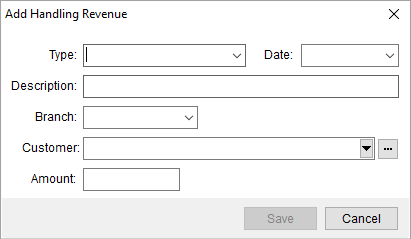
Use the Add Handling Revenue screen to declare revenue received by the company from one of its affiliates for handling the claim (or part of the claim) for them. Access this screen through the Revenue tab in Handling Revenue/Expenses.
Figure 19: Add Handling Revenue screen
To use the Add Handling Revenue screen:
1. From Claims > Claim tab, click the Handling Revenue/Expenses button.

2. Click on the Revenue tab, which is underlined in Figure 20.
3. Click Add.
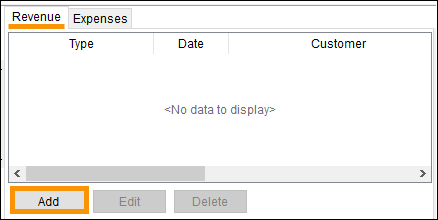
Figure 20: Handling Revenue/Expenses > Revenue tab
4. From the Add Handling Revenue screen, enter Type.
5. Enter the Branch
6. Enter the Customer. In this example, it is the van line.
7. Enter the amount. If the van line is charging you the fee for the handling of the claim, enter a negative number such as -75.00. If you are charging the van line, enter a positive number, such as 75.00.
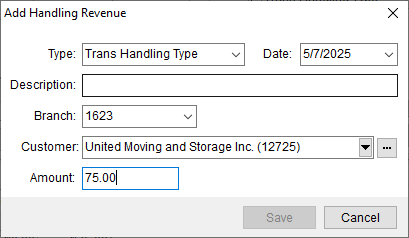
Figure 21: Add Handling Revenue screen
8. Click Save.
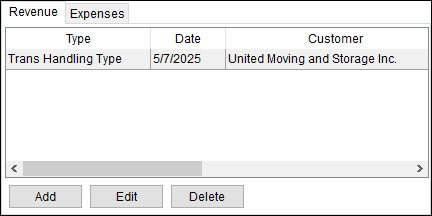
Figure 22: Use the scroll bar to see all the data set on the Revenue.
To edit a revenue from the Handling Revenue/Expenses pane > Revenue tab, click on the revenue and then Edit. Edit as needed and click Save.
To delete a revenue, from the Handling Revenue/Expenses pane > Revenue tab, click on the revenue and then Delete. A confirmation screen appears to make sure you would like to continue with the deletion.
To exit out of the Revenue/Expenses pane, click the Handling Revenue/Expenses button to collapse that pane and go back to being able to view the Claims grid.
The following table lists the fields and functions within this screen.
|
Field/Function |
Description |
|
Type |
Select type from the list of values defined in Claim Handling Type Setup to link the record to an Item Code. |
|
Date |
Select a handling date for the item. See Date Fields for entry options. |
|
Description |
Enter a text description of the item (up to 128 characters). |
|
Branch |
Select a posting branch from the list of those defined in Branch Setup. |
|
Division |
Select a division to post transactions under from the available list. See Divisions for more information. |
|
Customer |
Use the Customer Quick Find to locate and select
a customer to associate this record. The list of options customers pulls
from those defined within Microsoft Dynamics GP or from within Customer Setup (depending
on setup). You can also access a list of recent customers through the |
|
Amount |
Enter a dollar amount for the handling revenue item. |
|
|
Save (Alt+S) Press Save to add the transaction item forhandling revenue. |
|
|
Cancel (Alt+C) This function discards changes made. |
 button and utilize the
advanced
button and utilize the
advanced  .
.
