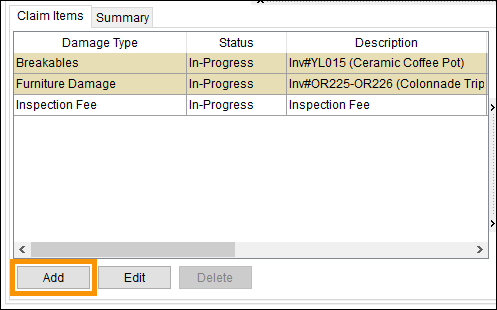
Claims module > Claim Items section > Add button
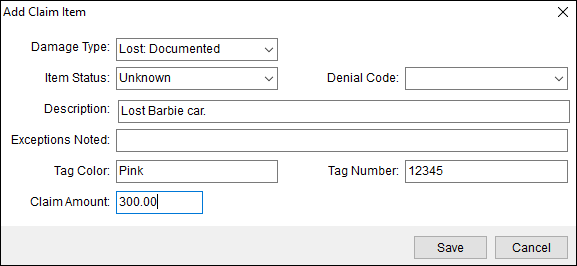
Once a claim has been entered into Claims using Claim Detail, the claim can list within the Claims Grid. (Use the Find to locate the claim, if needed.) Then, use the Add Claim Item screen to define individual items that comprise the claim. A Claim Item is a particular defined item of a claim, such as a “Rip in couch,” “Door frame scuffed,” or even could be “Delay.” The Damage Type options listed within the Damage Type dropdown menu are based on the Claim Item Type set within Claim Detail.
Figure 28: Add Claim Item screen
To enter a new Claim Item:
1. From Claims > Claims Items tab, click the Add button to open the Add Claim Item screen.
9. From the Add Claim Items screen (Figure 28), select Damage Type.
10. Set Item Status.
11. Enter a Description of the claim item or it’s situation.
12. If noted, enter the Exception information, such as “Crew called in notified us of this damage.”
13. If applicable, enter the tag color.
14. If applicable, enter the tag number.
15. Enter the Claim Amount.
16. Click Save. The Claim Item will now list within the Claims Items tab.
The following table describes the fields and functions available within this screen.
|
Field/Function |
Description |
|
Damage Type |
Classify the claim item by selecting a value from the list defined in Claim Damage Type Setup. Note: The Damage Type values available within this menu are based by the Type selected within the Claim Detail screen; the Claim Type to Claim Damage Type Map Setup is the setup that determines availability.
|
|
Item Status |
Select a value to identify the state of the item from the list defined in Claim Item Status Setup. |
|
Denial Code |
If the denying the claim item, select code to reflect the reason from the list defined in Claim Denial Code Setup.
Note: The Denial Code values available within this menu are based by the Type selected within the Claim Detail screen; the Claim Type to Claim Denial Code Map Setup is the setup that determines availability.
|
|
Description |
Provide a description for the item (up to 128 characters). |
|
Exceptions Noted |
Provide a description of any damage observed not directly reported for the item (up to 128 characters). For example, if the claim is for couch rip, users may want to report that they also observed stains on the couch, as well. |
|
Tag Color |
Enter location identifier for the item (up to 64 characters). |
|
Tag Number |
Enter location identifier for the item (up to 64 characters). |
|
Claim Amount |
Enter the dollar amount claimed by the payee for the stated damage, i.e. estimated damage amount. |
|
|
Save (Alt+V) This function saves changes made to the item. |
|
|
Cancel (Alt+C) Discard changes and close the screen. |

