MoversSuite Administration > Claims > Claim Phone Type
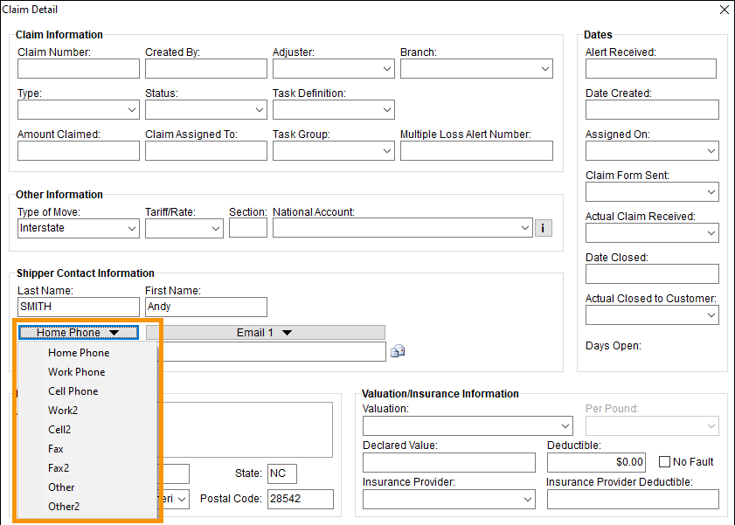
Use this setup to define the dropdown menu options available within the phone menu in Claim Detail > Shipper Details.
NOTE: Home Phone and Work Phone will populate with the Move To Home Phone and Move To Work Phone, when set.
Figure 62: Phone dropdown options.
This is an example of a Claim Phone Type Setup record. This record will list the option “Home Phone” within the Phone Type dropdown.

Figure 63: Claim Phone Type Setup record named "Home Phone."
To add a new Phone Type:
1. At the top of the Claim Phone Type Setup screen, use Click here to add new Claim Phone Type.
2. Enter the name of the phone type within Type Name.
3. Click Add to save.

The following technical table describes the details for each field.
|
Field |
Description |
|
Type |
Enter the names of the options available within the phone menu in Claim Detail (up 50 characters). Examples: Home Phone Work Phone Cell Phone Spouse Phone Fax Other
Pulling Phone Numbers in from the Order MoversSuite automatically pulls in phone numbers for the order for the phone types that match those defined within the Claims module when a new claim is created (Claim Detail). For example, if a phone type of “Cell Phone” is defined within Claims and also within the Order Information module and has a number set for it (through the Name, Address, Phone tab), then this number is automatically available within the phone number field in Claim Detail.
NOTE: Home Phone and Work Phone will populate with the Move To Home Phone and Move To Work Phone, when set.
The phone type must match in both the Claim Phone Type Setup and Shipper Phone Type Setup and cannot be either “Home Phone” or “Work Phone,” since the application already pulls in data for the claim for these two types through the Shipper Phone Types of “Moving To Home” and “Moving To Work” already. Refer to Claim Phone Type Setup for more information.
Forms Designer Bookmarks All custom phone types defined within this setup are available as bookmark fields within the Forms Designer system. For example, if you have a phone type of “Cell Phone,” then this lists as a “Cell Phone” type bookmark within Insert Bookmark under the Claims group. |
|
Set as the primary phone type |
Set this flag on the record that will display in the phone menu button within Claim Detail. |