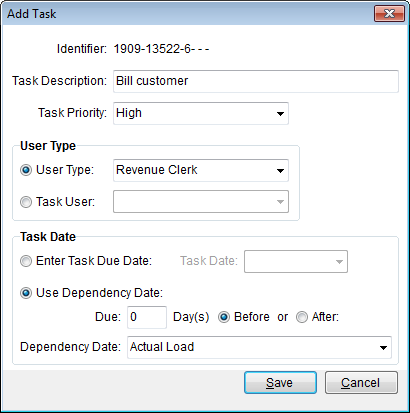
Use the Add Task screen to create an order task. This screen is available through the Add Task and Copy Task functions found within Workflow and Tasks.
Figure 9: Add Task screen
|
Note |
|
The New Order Task option in the Customer Web Portal provides similar task creation functionality. |
The following table describes the fields and functions available within this screen.
|
Field/Function |
Description |
|
Identifier |
The Order Number or Claim Number depending on the origin source of the task record displays. The new task will list under this identifier. |
|
Task Description |
Enter a title for the new task (up to 60 characters). |
|
Task Priority |
Assign a value of importance to the selected records. Setting the Priority to one of the following values provides an additional level of organization to be placed on the data grid. (No Priority) 1-High 2-Medium 3-Low
|
|
User Type |
Assign the new task to order personnel based on the User Type or choose a particular user from the list of available personnel.
User Type Refer to the Responsible Person field within Tasks Setup for details on this setting.
Task User Select a user from the provided list to be assigned to complete the task. The drop-down menu displays the Name and Role of the user within the organization. This field defaults to “No Change.” Leaving this option selected will retain the current user assignment to the task.
Note: Users that display in the menu are active employees that are associated to the branch of the order; they have a Status of “ACTIVE”, must be assigned a Labor Type (role), and have an Assigned Branch matching that of the order (all set through Personnel Setup).
|
|
Originally Due On |
The initial due date of the task displays in this field. |
|
Change Due Date To |
Users can choose to Enter Task Due Date and enter a Task Date by hand or choose to Use Dependency Date to base the due date on.
Enter Task Due Date Manually enter a date within the Task Date
Use Dependency Date Users can enter the number of days Before or After a particular Dependency Date. See Task Dependency Dates for a listing. Set Due to “0” to have the due date set to the exact date of dependency date. The application will automatically set the new date as a weekday. If the calculated date falls on a weekend (Saturday or Sunday) the application will set the Due date as the Friday preceding the weekend.
See Date Fields for entry information. |
|
|
Save This function adds the task for the order. |
|
|
Cancel This function closes the screen without adding a task. |

