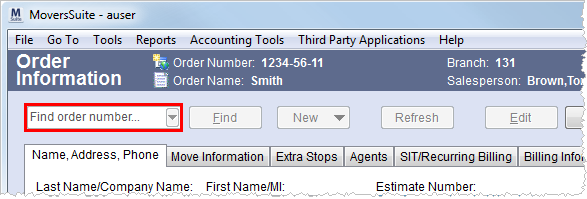
The Quick Find (ALT+Q) feature provides the users two options: (1) a quick find feature that will produce a list of order numbers based on what the user enters beginning with three characters); and (2) the ability of a user to see and access their order history.
Figure 26: Quick Find
To use the quick find feature, users can access an auto-populated list of orders based on what they enter that will automatically display upon entry of three or more characters.
|
Note |
|
Users can enter wildcard characters to search within values: The percentage character (%) replaces any number of characters while the underscore characters (_) replaces a single character. For example, to see all orders containing “1234” enter “%1234% in the Quick Find. |
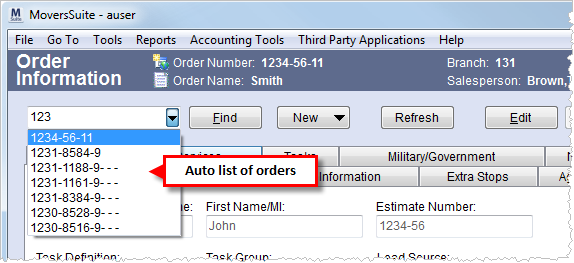
Figure 27: Auto-populate find feature
To see a user’s order history, users can click on the
drop-down icon ( ) or use a shortcut
keystroke of ALT+Q to view and access a list of past orders.
Scrolling down (use up and down keys to scroll through the list) or clicking on
an order will open that order.
) or use a shortcut
keystroke of ALT+Q to view and access a list of past orders.
Scrolling down (use up and down keys to scroll through the list) or clicking on
an order will open that order.
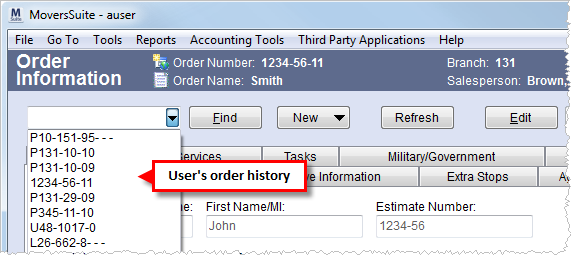
Figure 28: Order history example
The Quick Find is available in all modules and within the Payment Application screen.
|
Note |
|
Archived orders do not appear nor are available to the Quick Find. |