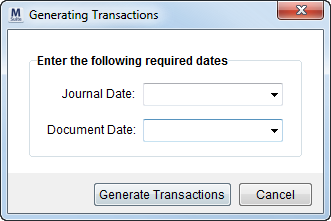
The Generating Transactions dialog appears when a user opts to Generate Transactions from within the Summary tab. This dialog requires the user to enter the Journal Date and Document Date for transaction generation.
Figure 37: Generating Transactions dialog
A warning displays if the Journal Date specified is not in the same month as the date of the actual move, as compared to the Delivery Date set within the Actual tab in Move Information.
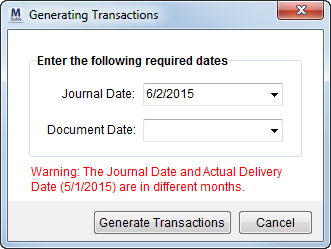
Figure 38: Generating Transaction dialog with warning
Generating Transactions creates a batch file of un-posted transactions that import into Microsoft Dynamics GP. The Journal Date and Document Date must fall within an open posting period (as set within Microsoft Dynamics GP system).
During the processing phase, the application prompts the user to verify certain data, such as Under Allocated Groups. Errors encountered during processing display for the user in the Error Report Log.
The following is a recommended flow of operations to perform when generating transactions:
1. Verify the accuracy of the data within the Transactions grid and by viewing MS Order Transactions Report
2. Review the Summary tab data and Generate Transactions
3. Process invoices if needed (see Invoice Management)
4. In Generating Transactions, enter Journal Date and Document Date (both must be within an open posting period)
5. Optionally update Bill Date and Order Status through the Transactions Generated dialog; this dialog appears automatically and indicates the number of successful transactions generated.)
6. Update the order from Billing Information (Revenue Entry):
a. Set the Bill Date
b. Change Order Status to Completed
c. Set the actual dollar amounts for Total Amount and Discounted Linehaul fields
A successful completion of the transaction creation process will be noted when the “Transaction generation has completed with no errors” dialog appears.