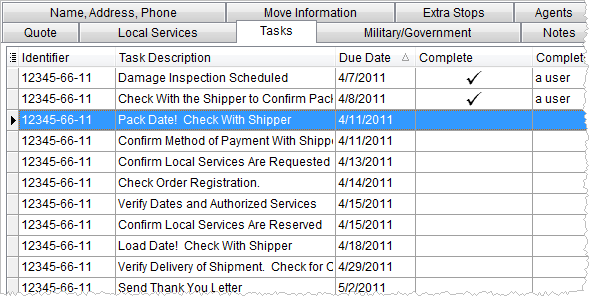
The Tasks tab provides a user with a view of tasks for a particular order.
Tasks tab is available through the following:
Figure 10: Tasks tab
|
Important |
|
To view tasks created in Claims and tasks set to Not Applicable, use the Show All option. |
The following table describes the fields and functions available within the Workflow tab.
|
Function |
Description |
|
|
Complete Task/Undo Complete Task (Alt+C) This function marks the task as being completed and removes it from the listing. Revert completed tasks by pressing the Undo Complete Task option, when available. The application places a checkmark ( |
|
|
Not Applicable/Undo Not Applicable (Alt+P) This function marks the task as being not applicable and removes it from the listing. The ability to Undo is available when the Show All option is selected; this function reverses the not applicable status The application places a checkmark ( |
|
|
Edit Task (Alt+E) Use this function to change the date or user assigned to the task (through the Edit Task dialog). Use this function to add a note to the particular task. |
|
|
Add Task (Alt+K) This function opens the Add Task screen allowing a user to define a new task under the same identifier as that of the selected record. |
|
|
Copy Task (Alt+Y) This function opens the Add Task screen allowing a user to generate a new task based on the selected task. All fields within the Add Task screen will default to the values from the copied record. This option is useful for defining a second request based on a modified version of a prior order requirement. |
|
|
Set Priority (Alt+R) Assign one of the following Priority values to one or more selected task to-do items allowing you to divide up your work load accordingly. (No Priority) 1-High 2-Medium 3-Low
|
|
|
Refresh Tasks (Alt+S) This function refreshes the data grid with the latest data from the database. |
|
|
Add Note (Alt+E) This function opens the Add Note screen allowing a user to attach a note to the order record. |
|
|
Show All This function allows a user to see all tasks associated to a particular order including those marked as complete and not applicable across all modules. |
|
Right-Click Options |
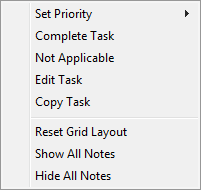
Right-Click Options The following is a list of options available to users through a right-click on a record in the data grid.
Figure 5: Right-Click menu in Tasks
Set Priority Assign a value of importance to the selected records. Setting the Priority to one of the following values provides an additional level of organization to be placed on the data grid. (No Priority) 1-High 2-Medium 3-Low
Complete Task/Undo Complete Task This function marks the task as being not applicable and removes it from the listing. The ability to Undo is available when the Show All option is selected; this function reverses the not applicable status.
Not Applicable/Undo Not Applicable This function marks the task as being not applicable and removes it from the listing. The ability to Undo is available when the Show All option is selected; this function reverses the not applicable status.
Edit Task Use this function to change the date or user assigned to the task (through the Edit Task dialog).
Copy Task This function opens the Add Task screen allowing a user to generate a new task based on the selected task.
Reset Grid Layout This function resets the grid layout to the application defaults, removing any customization that may be in effect.
Show All Notes This function expands all notes in the display.
Hide All Notes This function collapses all notes in the display.
|
|
Column |
Description |
|
Priority |
This column displays the priority assignment for the service. Assign the Priority on one or more selected services through the Set Priority option available to your through a button and through a right-click menu. Setting a Priority provides an additional level to organize the tasks, through sorting, and filtering functions available through the data grid. |
|
Identifier |
This column displays the Order Number or Claim Number depending on the origin source of the task record. The Identifier will be set to the claim settlement description (set in Claims > Manage Settlement) when the due date is based on a Claim Settlement type.
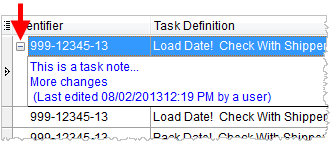
Task Note If a note is attached to the task item, then an option
to expand (
Figure 11: Expand/collapse option in data grid
|
|
Task Description |
Displays the action item associated to a manually added task or those defined for the Task Definition record through Name, Address, Phone (and defined within Tasks Setup). |
|
Complete |
A completed task will display a checkmark ( |
|
Completed By |
The MoversSuite user that marked the task as complete will display in this column. |
|
Due Date |
This column displays the date that the task is due. As a default, the grid will display tasks in ascending order by this field value; records with no due date appear at the top. |
|
Task User |
The user assigned the task displays in this column. See Responsible Person setting within Tasks Setup for a listing of users. |
|
Transportation Coordinator |
Person assigned as the Transportation Coordinator for the order (set within Name, Address, Phone) displays. |
|
Date Completed |
Displays the date that the task was marked completed. |
|
N/A |
A task set as not applicable will display a checkmark
( |
|
Not Applicable User |
The name of the user that set the task as not applicable displays in this column. |
|
Not Applicable Date |
The date the user set the task as not applicable displays in this column. |
|
Module |
This column will display the name of the module that the task originated from as one of Claims or Order Information. |
|
Original Due Date |
Displays the date originally set for the task. This date will not change and will always reflect the first date set for the task. |
|
Task Changed On Date |
The date and time that the task was changed displays in this column. |
|
Task Changed By |
This column displays the name of the user that changed the task date. |
|
Created By |
The name of the MoversSuite user that created the task displays. |
|
Created On |
The creation date and time of the task show in this column. |
|
Pack Date |
Earliest packing date assigned to the move is available in this column. The data referenced is from the first date in the Range spread for the Pack Date in Move Information. |
|
Load Date |
Earliest load date assigned to the move is available in this column. The data referenced is from the first date in the Range spread for the Load Date in Move Information. |
|
OA Surveyor |
Access information on the originating agent through these fields. Both fields are set/managed through the Agents tab. |
|
OA Coordinator | |
|
OA Agent |
Origin Agent information managed through the Agents tab is available in these columns. |
|
OA Agent Name | |
|
OA Contact | |
|
OA Phone | |
|
National Account |
View the account assigned to the order through the National Account > Account setting on the Billing Information tab. |
|
Account Profile |
View the account assigned to the order through the Account Profile setting on the Account Profile tab. |


 ) in the Complete column and sets the
Date Completed and Completed By fields when a task is marked
Complete.
) in the Complete column and sets the
Date Completed and Completed By fields when a task is marked
Complete.








 ) and collapse (
 ) will be present within the data
grid. Expanding will allow the user to view the note (add/modify
task notes through
) will be present within the data
grid. Expanding will allow the user to view the note (add/modify
task notes through