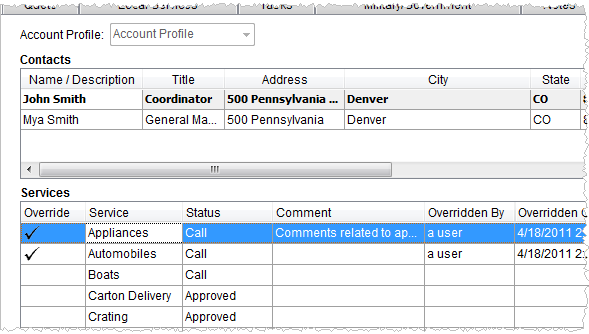
The Account Profile tab allows a user to set or update the profile of an order. Setting the Account Profile field will set default data for the tab as well as elsewhere on the order. Additionally, users can view contacts and general notes, and view and update the services assigned through the profile.
Figure 2: Account Profile tab
See Account Profile Setup for a list of defaults set using a profile.
Changing the Account Profile will also change the defaults associated to the profile. Users will receive a confirmation dialog upon changing this field.
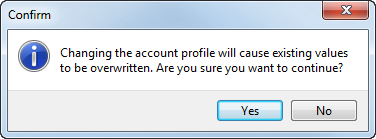
Figure 3: Account profile change confirmation
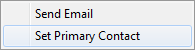
In addition to setting the Account Profile, users have other options including right-click options within the Contacts and Services sections.
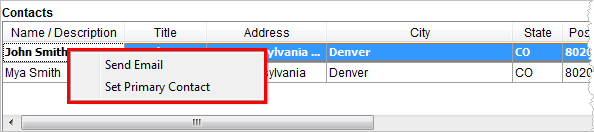
Figure 4: Right-click options in Contacts section
The following table lists the fields and functions available within this tab.
|
Field/Function |
Description |
|
Account Profile |
Select the name of the account representing this order from the list of those defined within Account Profile Setup. |
|
Contacts |
Contacts defined for the profile within Account Profile Setup display within this section. |
|
|
Send Email This function, available through right-click options, opens a new mail message using the default mail server with the email address of the selected contact set as the recipient. See Monitor Orders Service for more information. |
|
|
Set Primary Contact This function, available through right-click options, sets the selected record as the primary contact for the order on the account. Primary contacts will appear in bold-weighted font for easy identification. |
|
Name/Description |
The name of the person or role description of the contact for the account displays in this column. |
|
Title |
The title of the contact person displays in this column. |
|
Address |
The physical mailing address for the contact displays in this column. |
|
City |
The city for the contact displays in this column. |
|
State |
The state for the contact displays in this column. |
|
Postal Code |
The postal code for the contact displays in this column. |
|
Country |
The country name for the contact displays in this column. |
|
County |
The county code for the contact displays in this column. |
|
|
The email address for the contact person displays in this column. |
|
Phone |
The phone number and phone extension for the contact person displays in this column. |
|
Fax |
The fax number for the contact person displays in this column. |
|
Monitor Orders |
The checkbox setting of the Monitor Orders flag displays in this column. See Monitor Orders Service for more information. |
|
Services |
|
|
|
Override Service This function is available through right-click, opens the Service Override screen allowing the user to set a Status and to attach a comment to the service. |
|
Override |
A checkmark ( |
|
Service |
Name of the service provided by the account displays in this column. |
|
Status |
The status value assigned to the service displays in this column. |
|
Comment |
Comments attached to the service by default or through Service Override display in this column. |
|
Overridden By |
The name of user that performed the Override Service displays in this column. |
|
Overridden On |
The date that the user performed an Override Service displays in this column. |
|
General Notes |
|
|
This column displays the default memo attached to the service. Additionally, users with appropriate access can edit text within this field. | |

 )
will display if the service has its status overridden.
)
will display if the service has its status overridden.