Field/Function
Description
General tab
Name
Enter the name of the profile representing this record (up to 30 characters). The value entered here will show as options within the Account Profile field in Select an Account Profile, Sales Lead Information and Account Profile (up to 30 characters).
Customer
Select a customer to be associated to the profile using the drop-down menu or through the Customer Find. The selected customer is assigned to an order through Billing Information.
Note: Manage customer data through Microsoft Dynamics GP.
Bill To
Bill To
This function opens the Choose Billing Address screen allowing a user to select an alternate billing address from a list of address records for the selected Customer.
Note: The Bill To fields on the right side of the screen is read-only data for the selected Customer.
Invoice Terms
Set the default terms options for invoicing to this Customer or Account.
Selecting “from System” instructs the application to look to the settings made within Invoice Terms Setup for the selected Account to determine the terms that print on an invoices associated to the Account.
Selecting “from Customer” instructs the application to retrieve the invoice terms from the record for the selected Customer.
Select “None” to not default Invoice Terms for this account.
Account
Select an account from the list of those defined within Account Setup. Selecting an account will associate the profile to a default that will link to the order through the National Account in Billing Information.
Inactive
Setting this flag marks this record as inactive and users will no longer see this record as an option within the Account Profile menu found throughout MoversSuite, such as within the Account Profile and Sales Lead Information tabs.
Marking a record as inactive is useful if you are unable to delete the records from the system and do not want it available as a selectable option within MoversSuite. Of note, you cannot delete a record that is assigned to an order.
Options exist through the selected records option menu
( ), available in the upper
right-hand corner of the screen that allow you to mark all records
displayed in the grid as inactive or active.
), available in the upper
right-hand corner of the screen that allow you to mark all records
displayed in the grid as inactive or active.
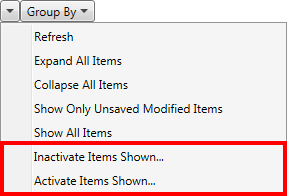
Figure 7: Options menu for selected records
General Notes
Enter a memo that will be visible to users accessing the Account Profile tab.
Account Profile Contact
Use this section to define contact records for the profile. Contact data displays within the Account Profile tab.
Monitor Orders
Check this option to enable the Monitor Orders Service for the contact.
Contact
Enter the name of the person or role description that will be a contact for the account profile (up to 61 characters).
Title
Enter a title for the contact person (up to 50 characters).
County
Enter the country code of the contact address (up to 3 characters).
Enter an email address for the contact person (up to 120 characters).
Fax Number
Enter the fax number of the contact person.
See Phone Number Entry for details.
Phone Number
Enter the phone number and extension of the contact person.
See Phone Number Entry for details.
Contact Address
Enter the physical address of the contact (up to 256 characters for each line).
City
Enter the city of the contact address (up to 26 characters).
State
Enter the state of the contact address (up to 2 characters).
Country
Select the name of the country for the contact address.
Postal Code
Enter the zip code of the contact address (up to 10 characters).
Order Defaults tab
Set defaults in Order Information, Billing Information, and Move Information
Task Definition
Select a record from a list of those defined within Tasks Setup for a default for this profile.
See Tasks for more information.
Task Group
Select a group assigned to the Task Definition to be a default for orders assigned to this profile. See Tasks Setup for group listing for the selected Task Definition.
Salesperson
Select a person to be the default salesperson assigned to orders associated to the profile. The person selected here will be the default Salesperson within Sales Lead Information and Name, Address, Phone.
Salesperson is one with Status of “ACTIVE” and a Labor Type of “Sales” within Personnel Setup.
Coordinator
Select a person to be the default coordinator assigned to orders associated to the profile. The person selected here will be the default Transportation Coordinator within Name, Address, Phone.
Coordinator is one with Status of “ACTIVE” and a Labor Type of “Coor” within Personnel Setup.
Revenue Clerk
Select a person to be the default revenue clerk assigned to orders associated to the profile. The person selected here will be the default Revenue Clerk within Order Information (Revenue Entry).
Revenue clerk is one with Status of “ACTIVE” and a Labor Type of “Revenue Clerk” within Personnel Setup.
Logistics Coordinator
Select a person to be the default coordinator assigned to orders associated to the profile. The person selected here will be the default Logistics Coordinator within Name, Address, Phone.
Coordinator is one with Status of “ACTIVE” and a Labor Type of “Coor” within Personnel Setup.
Tariff/Rate
Select the value to be the default set for the Tariff/Rate field within Billing Information and Billing Information (Revenue Entry) for orders associated to the profile.
See Rating Systems for more information.
Contract
Select the value to be the default set for the Contract field within Billing Information and Billing Information (Revenue Entry) for orders associated to the profile.
Valuation
Select the value to be the default set for the Valuation field within Billing Information (Revenue Entry) and Move Information for orders associated to the profile.
See Valuation Setup for more information.
Per Pound
If the selected Valuation requires a per pound specification then select the amount to use as a default for orders associated to the profile. External applications, such as SIRVA, reference this setting. See Valuation Setup for more information.
Services tab
Use this tab to associate services offered by the account that display within the Account Profile tab. For each service associated, set a Status and Comment as needed. Services are defined within Account Profile Service Setup.
Status
Select a default value for the service from the list of those defined within Account Profile Service Status Setup. Users will be able to override this status through the Service Override screen in Account Profile.
Comments
Enter a default comment to display for this service (up to 256 characters). Users will be able to override this status through the Service Override screen in Account Profile.
Special Instructions
Special Instructions Origin
Enter a memo for instructions needed at the origin of the move request. These instructions are visible within the Move Information tab.
Special Instructions Destination
Enter a memo for instructions needed at the destination of the move request. These instructions are visible within the Move Information tab.