) found associated to several customer fields
throughout MoversSuite including:
) found associated to several customer fields
throughout MoversSuite including:
The Customer Find allows a user to quickly locate and set a
customer field by Customer Name and/or Customer Number and is
evoked by users pressing the ellipses icon () found associated to several customer fields
throughout MoversSuite including:
Add Task (AR Credit & Collections)
Order Information (Revenue Entry)
Workflow (AR Credit & Collections)
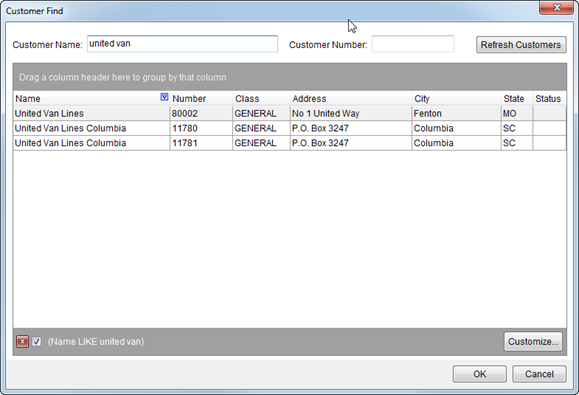
Figure 22: Customer Find window
Described in the table below are the columns of data that display within a Customer Find.
|
Note |
|
Maintain customer data through Microsoft Dynamics GP database. |
|
Field |
Description |
|
Customer Name Customer Number |
Enter the name and/or identifier of the customer you wish to search by. Partial values are accepted and these two fields work in conjunction with each other to narrow the search results. The application automatically starts narrowing down results once a value, or partial value, is entered in either field. Press “OK” once a record is selected or double-click the record to accept it.
Tip: Data Grids functions are available that assist in searching, sorting, grouping, and filtering data in this grid.
|
|
|
Refresh (Alt+R) Available through most Customer Finds, this function allows you to repopulate the list of customers with the latest data from the Microsoft Dynamics GP. This function ensures you are working with the latest information.
Note: Not available in the find evoked through Payment Application.
|
|
Data Columns: |
|
|
Checked |
Available only through AR Collections Inquiry, this column allows a user to check the customers they want included in the search. Right-click menu options work in conjunction with this column. |
|
Name |
Name of the customer displays. This field corresponds to the Customer Name search field. |
|
Number |
The identifier of the customer displays. This field corresponds to the Customer Name search field. |
|
Class |
The class assigned to the customer through Microsoft Dynamics GP displays. |
|
City |
This field displays the city associated to the address for the customer. |
|
State |
This field displays the state associated to the address for the customer. |
|
Status |
This field displays the customer account status in Microsoft Dynamics GP. |
|
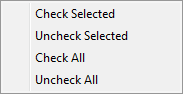
Right-Click Options Available only through AR Collections Inquiry, the following right-click menu options allow you to perform the following functions related to the Checked column.
Check Selected Choose this option to place a check in the Checked column next to the customers selected within the data grid.
Uncheck Selected This option removes the check within the Checked column for all selected customers.
Check All Places a check in the Checked column for all customers listed within the data grid.
Uncheck All Removes the check from the Checked column for all customers listed within the data grid.
| |
|
|
|
|
|
OK (Alt+O) |
|
|
Cancel (Alt+C) Press “Cancel” to cancel the search and close the screen. |