
There are numerous videos found within the MSWarehouse Online Help. Click the links below to view the videos that relate to this section and are also available by clicking Customers Videos.
Navigation Menu > Customers
|
|
There are numerous videos found within the MSWarehouse Online Help. Click the links below to view the videos that relate to this section and are also available by clicking Customers Videos.
|
Clicking Customer from the menu opens a Customer List with their primary information. Only Customers with an active Status show in the list, by default. To include inactive Customers within the list, check “Display Inactive Customers.” To add a new Customer, click blue New Customer button.
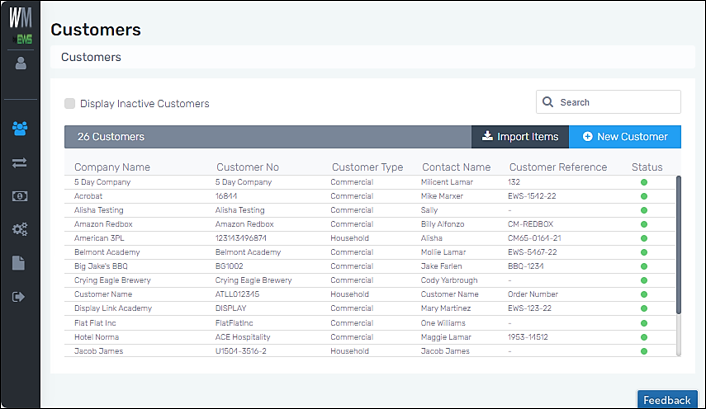
Figure 1: Customers
Click on any name to open their account information, which is organized within the following tabs: Profile Tab, Contact Info Tab, Item Numbers Tab, Kitting Tab, Custom Rates Tab, and Additional Charges. The information on the screen will be for the tab name that is underlined in blue, as shown in the image below. To open other tabs, click on the tab name to access that information.
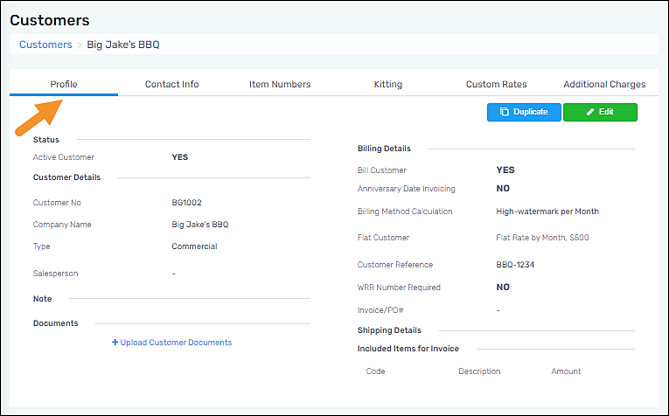
Figure 2: The Profile tab is the active tab on the screen denoted by the blue underline.
Each tab is detailed within other topics in this document.
To add a new Customer, see Customer Setup. To use the Import Items button, see Imports.
RELATED INFORMATION:
Customer Setup
Add Customer Facing Web Access
Add Additional Charges to Customer
FOR TABS LOCATED WITHIN THIS SETUP: