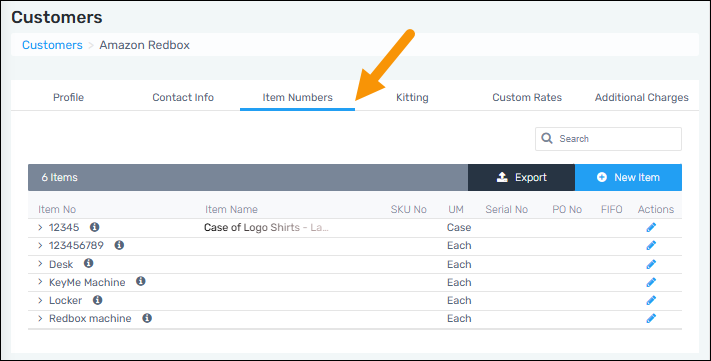
Customers > Click on a customer > Item Numbers tab
The Item Numbers tab lists all the Customer’s items and detailed by Item Number, Item Name, SKU Numbers, Unit of Measure, Serial Number, PO Numbers, FIFO and Attributes information - if these are set on the item number. Items that list here will be available as options within Inbound and Outbound transactions > Item Numbers dropdowns. Items can be added by clicking New Item, which is best for one or two items, or add numerous items at one time by using Item Import within Customer Setup.
To edit an existing Item Number:
From Item Number > Actions column, click the blue pen of that Item Number. This opens the Edit Item Number screen. Update as needed and save. Attributes can only be edited if the Item Number has not been associated to any type of transaction.
To add a new Item Number:
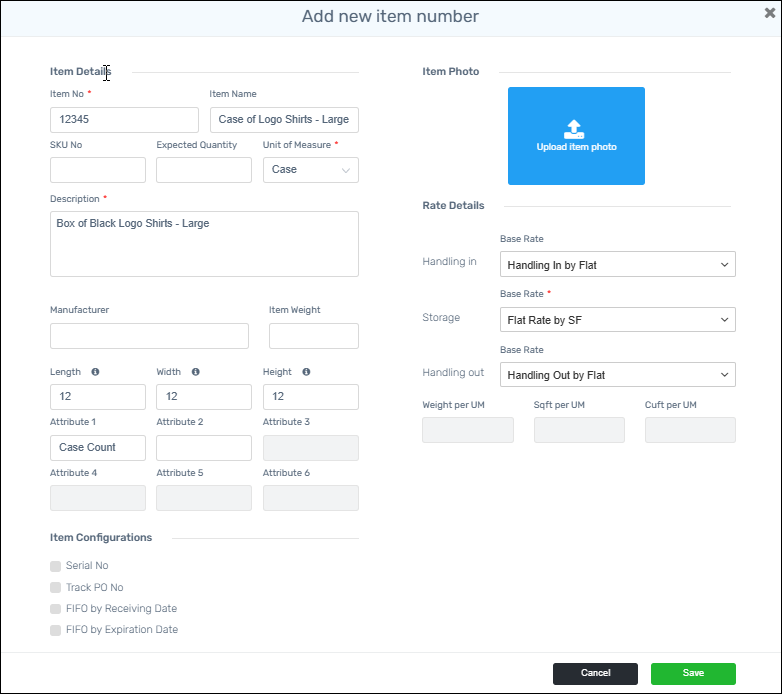
To add a new item to the list, click the “New Item” button. This opens the Add New Item screen where details can be set for that item. Required fields are denoted with the red asterisks by the field name. Click Save to save the item.
Of note:
•Be sure to refer to Attributes for more information when adding Attributes to an Item Number, as they do affect several areas within MSWhse - especially Outbound Transactions.
•Images are included in Warehouse Receiving Reports.
FOR RELATED TABS