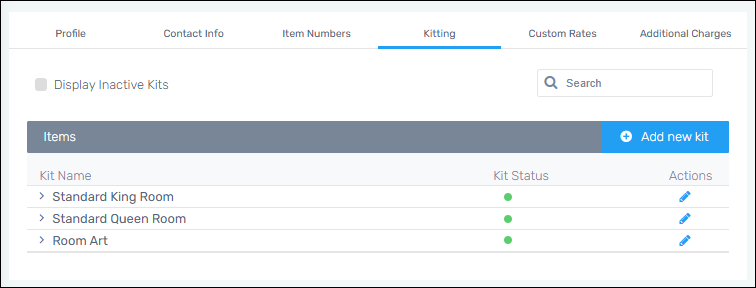
Customers > choose a Customer > Kitting
Within this topic are the following instructions:
•What is a Kit?
•How to add a kit to an Outbound transaction
•How to create a Kit
•How to edit a Kit
•How to inactivate a Kit
What is a Kit?
“Kitting” is the use of “kits” when processing outbound transactions. A “kit” is simply a group of items – specific item numbers and specific quantities of those items. Create as many kits as needed for any Customer. Kits can be defined based on the inventory items regardless of the current inventory; therefore, kits can be defined prior to the items being inbounded into the warehouse. Inventory items can be used in multiple kits, such as the lamps which are required for both the King Room and the Double Queen Room.
To add a kit to an Outbound transaction:
When established, Kits can be quickly chosen within Outbound Transactions. Use the new “Add Items from Kit” button located next to the “Add Items from Grid” button.

1. From the Outbound transaction > Items, click the “Add Items from Kit” button.
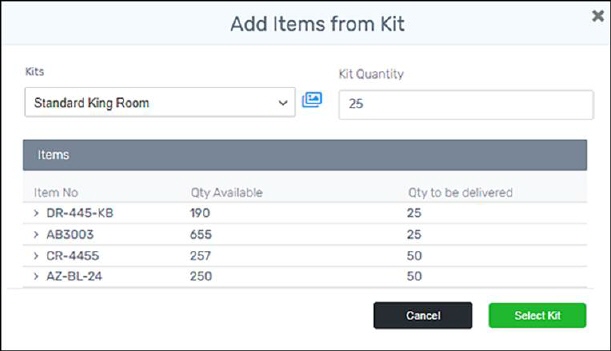
2. Choose the Kit from the dropdown and enter the quantity of kits needed.
Entering the Kit Quantity updates the “Qty to be delivered” for each line item. Before entering a “Kit Quantity,” the screen will list the quantity for each Item Number required for one kit. In the example below, the original quantities for one kit were (reading down the list) 1, 1, 2, 2. Within the image below, “25” was entered for Kit Quantity; therefore, when “25” was entered the items adjusted to the total quantity required – 25, 25, 50, 50.
3. Click Select Kit and proceed as normal with the Outbound Transaction.
How to create a kit:
IMPORTANT: To create a kit, the Item Numbers must already be listed within Customer > Item Numbers.
To illustrate the use for kitting, let’s use an example to create a kit. Hotel Norma is installing new room furnishings and has several room options. Each room will have its furnishings grouped into a kit, such as the Standard King Room. The Standard King Room for this project includes a king bed, two nightstands, a dresser, and two lamps.
To create a kit:
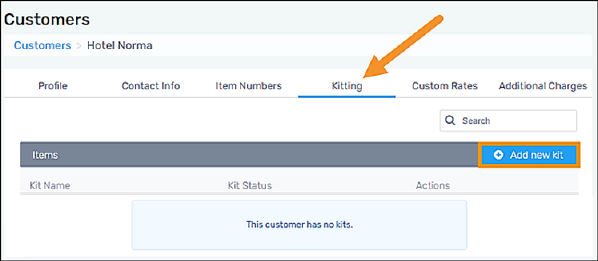
1. From Customers > choose the Customer > go to the Kitting tab. Click “Add a New Kit.”
2. Enter the Kit Name. Choose the Item No. from the dropdown. Enter the Item Quantity. Click Add Item.
NOTE: If the Item Number has Attributes, the Attribute fields list under the Item No. field and Item Quantity fields. The name of the Attribute fields will be the name that lists within Item Numbers Tab. The type in the Attribute within the field(s). Attribute Fields have auto-complete functionality once three characters have been added within the field. Attributes can be added that are not already in inventory. For an example of an Item Number with Attributes within the Add new Kit screen, see Figure 9.
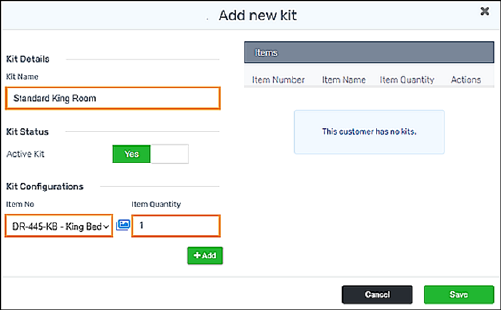
Figure 12: This Item Number does not have Attributes.
3. Continue entering all the items required for the kit. Items will list as they are added. If needed, edit an item by clicking the edit icon (blue pencil) under Actions. When ready, click Save.
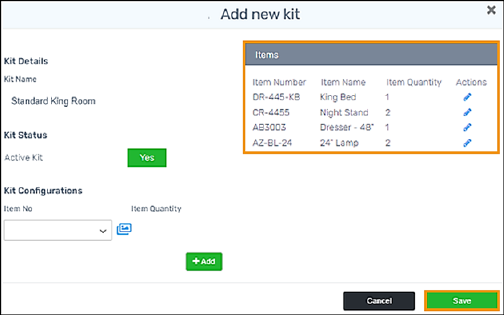
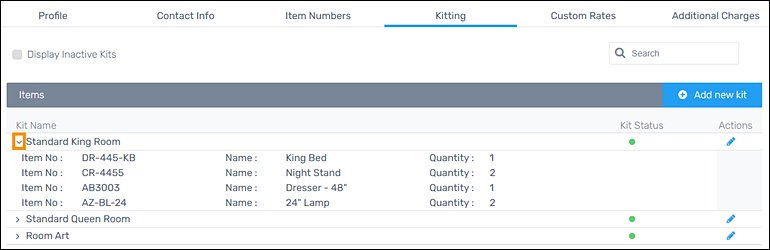
When saved, the kit will list under Customer > Kiting. Use the dropdown indicated in the image below to see details on that kit. Continue using “Add new Kit” to add as many kits as needed for that Customer.
How to edit a Kit:
Instructions in this section include:
•How to edit the Quantity of an Item Number
•How to delete an Item Number from a Kit
How to edit the Quantity of an Item Number:
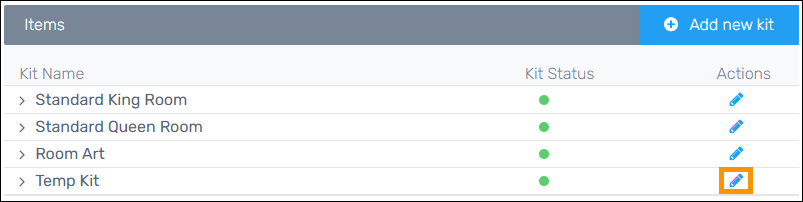
1. From Customer > choose a Customer > Kitting tab, click the edit icon for the Kit to be marked Inactive.
2. From the Edit Kit screen, click the edit icon for the Item Number to be edited.
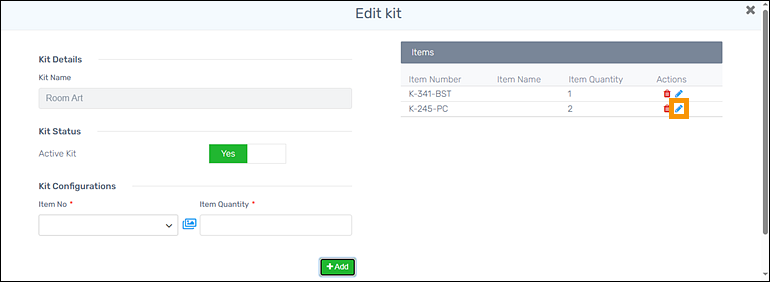
3. Clicking the edit icon autofills the Kit Configurations section with that Item Number and the current Item Quantity.
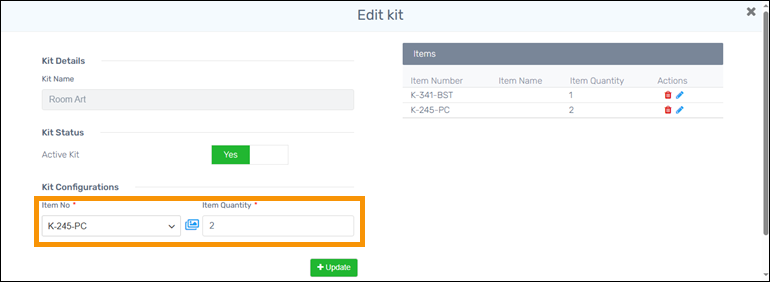
4. Update the Item Quantity and click the green +Update button. This updates the Item Number quantity under “Items.” Click the Update button at the bottom and this saves the update.
How to delete an Item Number from a Kit:
From the Edit Kit screen > Items, click the delete icon (red trashcan in the image above on the right side of the screen) to remove that Item Number from the Kit. The Item is immediately removed from the list. The item will not be permanently deleted until the Update button is clicked. If, however, the Item Number was removed in error, click Cancel.
How to make a Kit inactive:
6.
From the Edit Kit screen, move the Kit Status > Active Kit toggle to No.

7. Click Update on the Edit Kit screen to save the change.
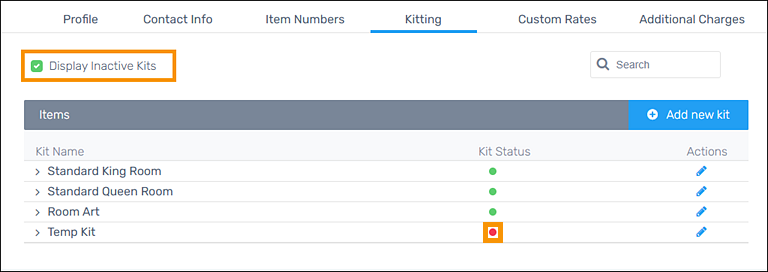
By default, inactive Kits will be hidden from the Kit selector, as the new checkbox, “Display Inactive Kits”, is not checked by default. To show inactive Kits within this list, check the “Display Inactive Kits” checkbox. Notice the kit rendered inactive “Temp Kit” is listed with the red dot in the Kit Status indicating it is inactive.
FOR RELATED TABS
Additional Charges Tab (Customers)