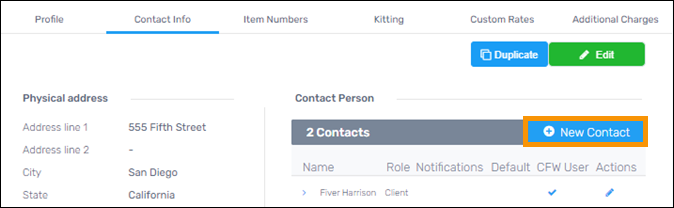
Navigation Menu > Customers > Contact Info Tab
Use this screen to add a new contact under a Customer/Project.
To add additional Contacts:
1. Go to Navigation Menu > Customers.
2. Click on the Company Name/Customer profile.
3. Click the second tab, the Contact Info Tab, and click the blue “ + New Contact” button.
4. Enter the required information on the Add New Contact Person screen. If the contact person is to receive email notifications for Inbound, Outbound, or Adjustments, select the needed options from the “Receive features notifications from” dropdown. If they are the default contact for the Customer, check that box. If the contact will be utilizing the Customer Facing Web product, check that box.
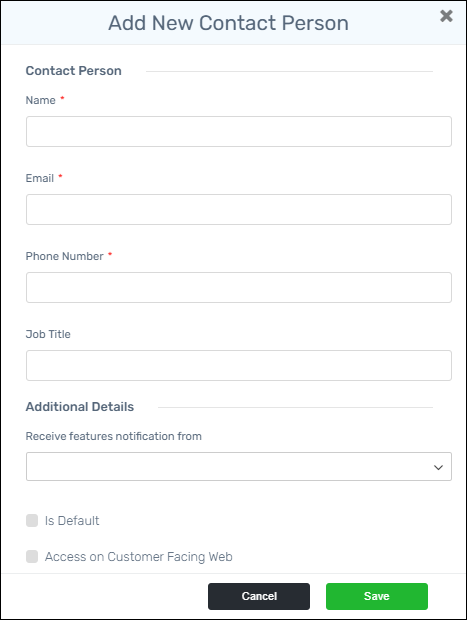
5. Click Save.