
There are numerous videos found within MSWhse Support. Click the link below to view the video that relates to this topic.
Under Setup Guides: Defining a Flat Rate Customer
Customers > Click on a customer > Profile tab
Customers > New Customer > Profile tab
|
|
There are numerous videos found within MSWhse Support. Click the link below to view the video that relates to this topic.
Under Setup Guides: Defining a Flat Rate Customer |
For existing customers, click on a Customer Name within the Customer list to open to the Profile tab. When creating a new customer, the Profile tab is prompted after clicking the “+New Customer” button. For creating a new customer, see Customer Setup.
Edit information by clicking the green Edit button on a Customer’s Profile tab or Contact Info tab. Doing so opens the “Edit Customer” screen which defaults to the Profile tab. To duplicate a record, use the Duplicate button, which duplicates all the information on data set on the Customer record.
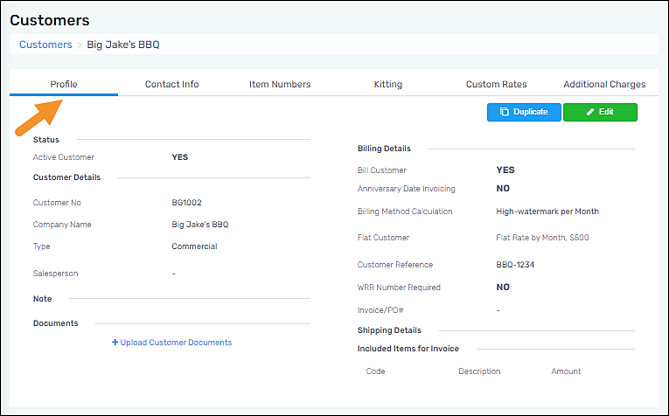
Figure 4: Menu > Customers > Profile tab
Technical Field and Function Information
The following table contains the fields and functions available within the Profile tab. Some of the fields are not apparent on the Profile tab until they are set. Use the green Edit button to open the Edit Customer screen, set the field, save, and then the field(s) will show on the Profile tab.
|
Field/Function |
Description |
|
Status | |
|
Active Customer |
This toggle defaults to Yes. To make the customer inactive, click the white space on the right to toggle to No. |
|
Customer Details | |
|
Customer Number |
If you are a MoversSuite customer who uses Great Plains (GP) for accounting, we recommend that the Customer Number match your GP Customer Number, since you can import your monthly MSWhse billing in to MSS/GP through our WMS Import Tool. If you use QuickBooks (QB) for accounting, we recommend that the Customer Number match your QB account number since there are QB import tools available. One of the following two tools might work. We do not support them; however, we have tested and successfully imported the MSWhse billing summary into QB Online: •https://apps.intuit.com/app/apps/appdetails?shortName=excel%20transactions& •https://apps.intuit.com/app/apps/appdetails?shortName=transactionpro& If you do not import monthly billing into an accounting system, enter a number according your company’s guidelines, such as a local move order number, an interstate order number, etc. |
|
Company Name |
The Company Name can be entered however you choose. It can simply be the Shipper Name or more project specific. For commercial accounts, enter the name of the company you are billing, such as “ABC Corp.” You may also add a specific project name after the company name, for example: “ABC Logistics – Hilton Garden Inn GJT.” For HHG shipments, enter the customer’s name; for example, “John Doe”, or “Doe, John.” |
|
Type |
Select one of the following from the dropdown list: •Household •Commercial •Records Note: MSWhse is not a record storage system that provides file-level access, handling out and back in of the same item with a variety of different rates for the actions performed. This selection is intended for box-level storage. •Special Note: Often, this is used for internal company equipment such as pads, dollies, etc. |
|
Note | |
|
This is a field to add any notes pertaining to the storage project as a whole. This note will show on the Profile. This holds up to 300 characters. As an example: Receiving all goods over a 6 month period then delivering all at once. To add a note, click the Edit button. | |
|
Associated Warehouse(s) | |
|
This field is only shown when creating a new Customer. Once a Customer is created, this field is no longer accessible. Click the dropdown to choose the warehouse(s) that are to be associated to this Customer. More than one option is allowed. | |
|
Default Rates | |
|
Options within the dropdowns for each of the fields are set within Administration > Base Rates. This option may not appear initially on the Profile Tab if not already set. When Default Rates are set, by clicking the green Edit button, the options set will appear on the Profile Tab. | |
|
Handling In |
The option set here will default as the rate for all Handling In rates. The Default Rate set here can be overridden by rates set within Customers > Item Numbers Tab. |
|
Storage |
The option set here will default as the rate for all Storage In rates. The Default Rate set here can be overridden by rates set within Customers > Item Numbers Tab. |
|
Handling Out |
The option set here will default as the rate for all Handling Out rates. The Default Rate set here can be overridden by rates set within Customers > Item Numbers Tab. |
|
Billing Details | |
|
Bill Customer |
The Bill Customer toggle defaults to Yes. Note the following: •The setting for a commercial project, such as an FF&E, should be Yes. •MoversSuite Premier customers (using QuickBooks Online) should select Yes since you can import the billing summary to QB with an add-on product. •MoversSuite Ultimate customers (using Great Plains) should select Yes since you can import the billing summary to MoversSuite with the Generic revenue import feature. •Customers using another system should consult with that system to see if you can import the billing summary into that system or into another accounting software application. •If the record is for an HHG shipment; and you are a MoversSuite customer with GP; and you use Recurring Billing, you may wish to select No and use MSWhse for tracking of shipments and vaults. |
|
Billing Method Calculation |
Monthly High-watermark is set by default. Chose Daily High-watermark if that is preferred. Both are on a high-watermark basis. |
|
Anniversary Date Invoicing |
The default is No. For customers with a non-calendar month billing cycle, select Yes. Once the first inbound transaction is received, the billing cycle will begin. The billing cycle is not editable and is based solely on the first transaction. |
|
Weight Per Transaction |
The default is No. For example, commercial projects like FF&E are typically set at No. A core reason that MSWhse was built was to be able to bill based on item weight calculations. For commercial work, such as an office move involving used furniture going back to your warehouse for storage, select Yes on Weight per Transaction. This allows you to, for example, receive a light-weight item and heavy-weight item, and then bill your W/H in, your storage, and your W/H out by the weight of each activity. For HHG shipments, select Yes on Weight per Transaction.
When Yes is set, the following fields are prompted to set the criteria: Handling In: When set, a dropdown appears to choose the option for Handling In. It is the top toggle. Storage: Is set by default, the dropdown that shows by default is for the Storage. Handling Out: When set, a dropdown appears to choose the option for Handling In. It is the bottom toggle. |
|
Flat Customer |
The default is No. For customers billed on a monthly flat rate basis, select Yes. Then, select the storage flat Base Rate from the dropdown list. |
|
Customer Reference |
Enter as needed. |
|
WRR Number Required |
Checking this box makes entering a WRR Number required within an Inbound Transaction. |
|
Auto Generate WRR Number |
If “WRR Number Required” is checked, this option becomes available. If this option is checked, then the . Then, if that box is checked, both “Prefix” and “Next in Sequence” number become required. |
|
Prefix |
See “WRR Number Required” and “Auto Generate WRR Number” for details on making this box available. |
|
Next in Sequence |
See “WRR Number Required” and “Auto Generate WRR Number” for details on making this box available. |
|
Invoice/PO# |
Enter as needed. |
|
Included Items for Invoice |
Optional. Enter information within these fields to have custom charges applied to this Customer. The Items entered will be printed on this Customer’s invoices. Enter a Code, Description, and the amount of the Charge to be applied to this Customer. |
|
Shipping Details |
Enter as needed. |
|
Number of business days required for outbound delivery. |
For Customer Facing Web customers, any requested Outbound transaction cannot be submitted for any number of days less than the amount set in this field. |
FOR RELATED TABS
Additional Charges Tab (Customers)