
Navigation Menu > Customers > Contact Info Tab > Contact Person Section
To authorize Customer Facing Web access for a new contact:
1. Refer to the Add New Contact Person topic and follow those steps.
2. Click on the blue pencil to the right of the contact’s name to edit the contact.
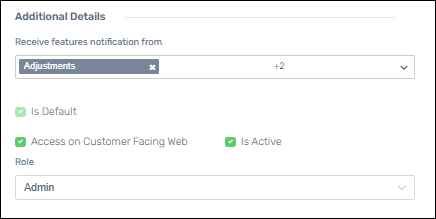
3. Be sure to check the box “Access on Customer Facing Web” at the bottom of the screen.
4. Click Save. The Contact will receive an email with a link to set their password to MSWhse.
To authorize Customer Facing Web access for a new contact:
1. Go to Customers > choose a Customer > Contact Info > Contact Person Section.
2. Click on the blue pencil to the right of the contact’s name to edit the contact.
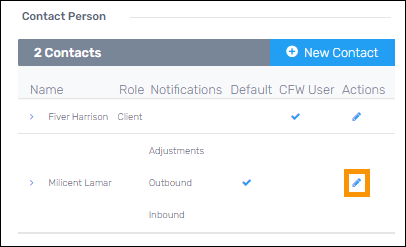
3. Check the Box “Access on Customer Facing Web” at the bottom of the screen.
4. Click Save. The Contact will receive an email with a link to set their password to MSWhse
By default, the user will have the “Is Active” option set after completing the above steps. The “Is Active is not visible when “Access on the Customer Facing Web” is first checked. If you return to the settings by clicking the edit icon for that user, it will then be visible. For information on making the user inactive, see “How to Make a Customer Facing Web (CFW) User Inactive?”
See Partner Warehouse for topics specific to Customer Facing Web users associated to the Partner Warehouse program.
RELATED INFORMATION