
There is a video within the Customers Videos topic on this topic. Click the link below to view.
|
|
There is a video within the Customers Videos topic on this topic. Click the link below to view.
|
“Attributes” are fields that, when defined on an item, require an entry into that field when inbounding and outbounding the item. As they are required, they are noted with the red asterisk as a reminder that the field is mandatory. Attributes are totally customizable on the Item Level and can be anything, such as Color, Case Count, Dye Lot, Condition, etc. Attributes remain associated to the Item Number within Transactions and the storage process, including billing.
Attributes are assigned within Customer Setup > Item Import or within the Item Numbers Tab. Attributes can be added to an Item Number or existing Attributes can be edited up until the Item Number is added to a transaction, such as Expected Inbound. When creating “Attributes,” the text entered within the field will be the name of that field for that Item. There are six fields that are available for Attributes. Use however many are needed as it is not necessary to use them all. When creating Attributes, Attribute 1 must be entered first, then Attributes 2 becomes available for use. Once Attribute 2 is set, then Attribute 3 becomes available, and so on.
Attributes affect the following areas. Additionally, more details and instructions specific to Attributes for these areas follow this list:
3. Inbound Transaction
4. Outbound Transaction
6. Adjustments
7. Reports
8. Kitting Tab
1. Customer Setup
Customers > Import Items
NOTE: Be mindful of the order in which Attributes are entered. The order of entry is of importance when Outbounding. See the Outbound Transactions section in the detail that follows this topic.
Attributes can be assigned to multiple Item Numbers at a time and imported within Customer Setup > Import Items. Attributes added this way are editable within the Item Numbers Tab until an Item Number is used in any transaction, even if the transaction is not Completed.
2. Item Numbers Tab
Customers > Choose Customer > Item Numbers
NOTES:
•Be mindful of the order in which Attributes are entered. The order of entry is of importance when Outbounding. See the Outbound Transactions section in the detail that follows this topic.
•When assigning Attributes, Attribute 1 must be set before Attribute 2 is available for use. Likewise, Attribute 2 must be set before Attribute 3 is available for use, etc.
•If an Item Number is assigned Attribute(s), those Attributes are viewable within Edit Item Number. Access this screen by clicking the blue pencil in the Actions column for that Item Number.
For existing Item Numbers: Attributes can be added or edited to an existing Item Number until that Item Number is used in any transaction, even if the transaction is not Completed. To edit an existing Item Number, click the blue pen under the Actions column for the Item Number to be edited. Add the Attribute(s).
When adding a new Item Number within Item Numbers Tab:
From the Item Numbers Tab, click New Item. Proceed to enter information needed.
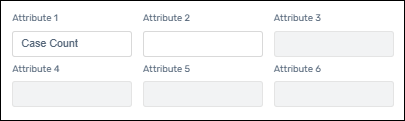
Figure 6: Attribute fields are still active and can be added or edited. Note their white background.
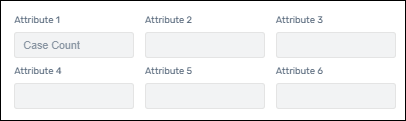
Figure 7: Attribute fields can no longer be added or edited. Note their grey background.
3. Inbound Transactions
Transactions > Inbound
Transactions > Inbound > Warehouse Receiving Report
When inbounding items, if an Item Number has Attribute(s) assigned to it, the Attribute(s) will appear as required fields when that Item is selected. The name of the Attribute within the image below is “Case Count” and is “Attribute 1.” All Attributes assigned to that Item Number appear in that area.
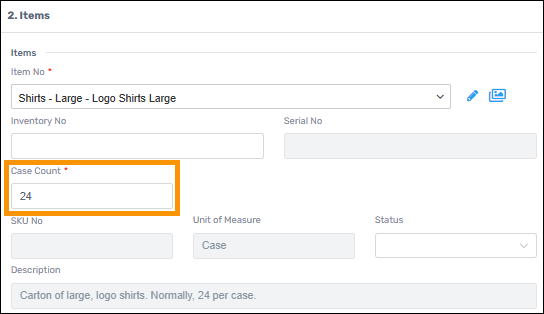
Attributes list beneath each Item Number within the Warehouse Receiving Report (WRR).
4. Outbound Transactions
Transactions > Outbound
Transactions > Outbound > Generate Delivery Ticket
Transactions > Outbound > Generate Delivery Ticket 2
Transactions > Outbound > Generate Pick Ticket By Item
Transactions > Outbound > Generate Pick Ticket By Location
When outbounding an Item Number that has Attribute(s), the Attribute fields are required and each field includes a dropdown. The dropdown options include whatever has been entered for that Attribute when Inbounding. Further, what is chosen for Attribute 1 determines the dropdown options within Attribute 2. Attribute 2 determines the dropdown options with Attribute 3 and so on.
Within Figure 7, “Case Count” is Attribute 1 and the option chosen is 24. “M” and “Black” are set for Attribute 2 and Attribute 3. Attribute 4 is “Logo Color” and the dropdown option are Green and Pink.
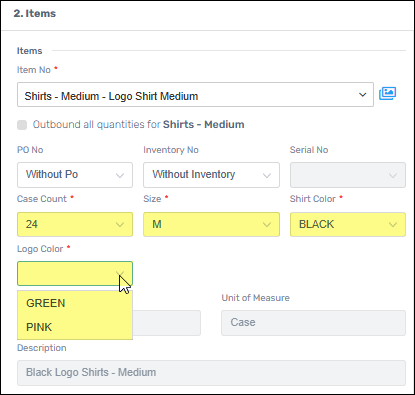
Figure 8: Attributes within Outbound Transactions
Within Figure 8, however, the Case Count is set to 48. Though the next two Attributes are the same as in Figure 7, it is only because the Case Count of 48 came in “M” and the Shirt Color “Black.” To illustrate how one choice determines remaining Attributes options, for Case Count 48 > M > Black, the only Logo Color (Attribute 4) option is Pink.
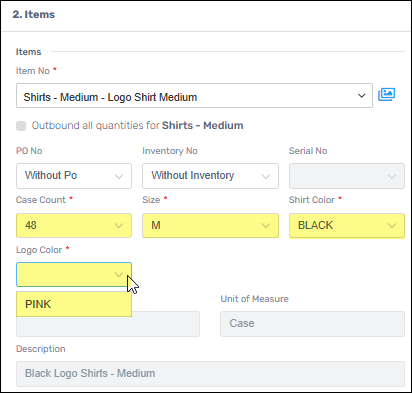
Figure 9: Same Item Number with a different Case Count
Attributes list beneath each Item Number within Generate Delivery Ticket, Generate Delivery Ticket 2, Generate Pick Ticket By Item, and Generate Pick Ticket By Location.
5. Move Quantity
Transactions > Move Quantity
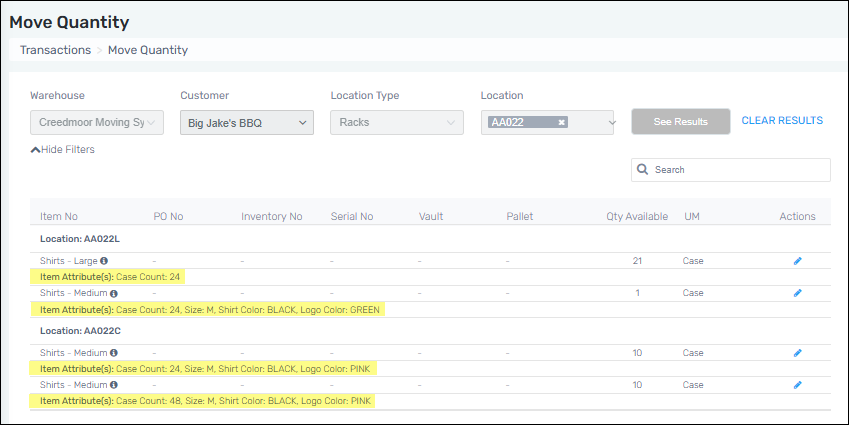
Attributes list within Move Quantity.
6. Adjustments
Transactions > Adjustments
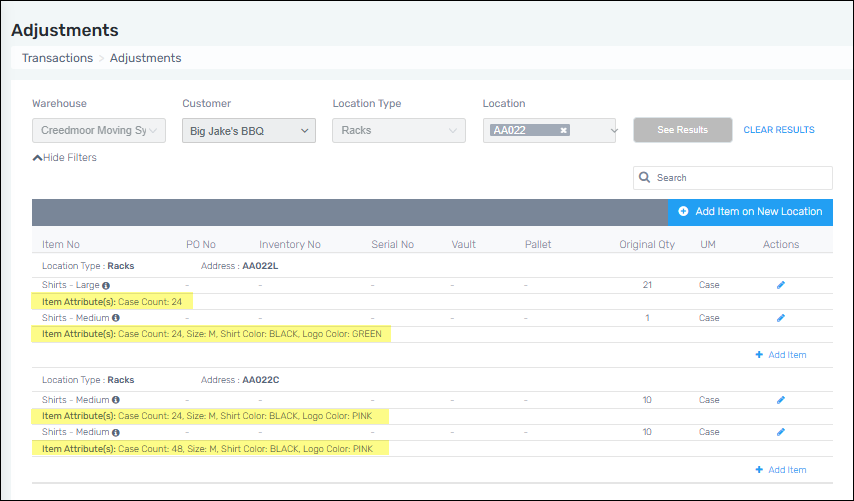
Attributes list within Adjustments.
7. Reports
Reports > Inventory Report
Reports > FIFO Inventory Report
Reports > Expected Quantity Report
Reports > Transaction Report
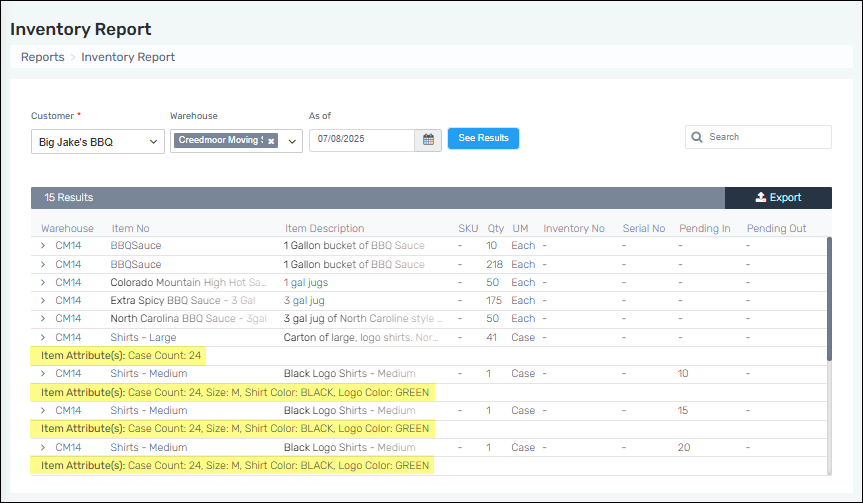
Attributes are included within the Inventory Report, the FIFO Inventory Report, Expected Quantity Report, and Transaction Report.
8. Kitting
Customers > Choose Customer > Kitting
Attributes are included when creating Kittings to ensure you assign the exact item(s) needed.
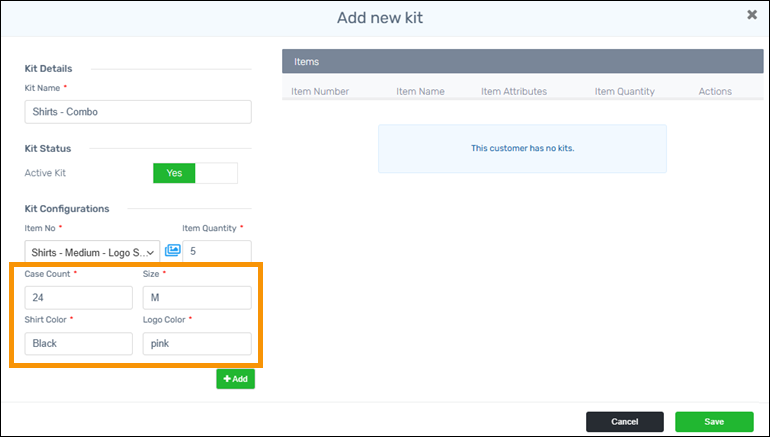
Figure 10: This Item Number selected has four Attributes, which are required fields.
The indicated column shows where Item Attributes list within the Add new kit and Edit kit screens.
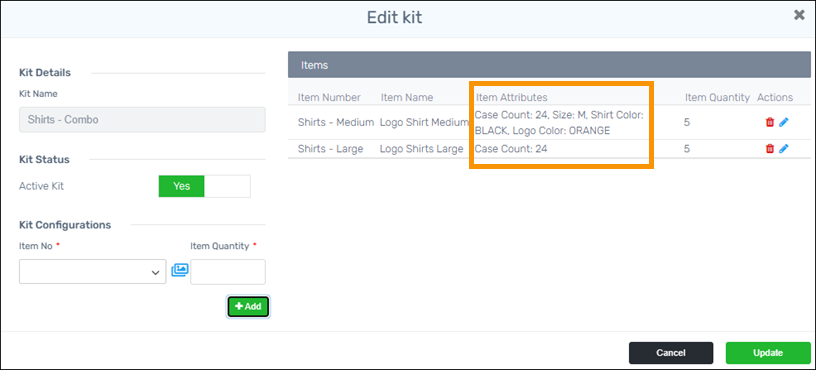
Figure 11: Attributes list within the Kitting grid.