Navigation Menu > Reports
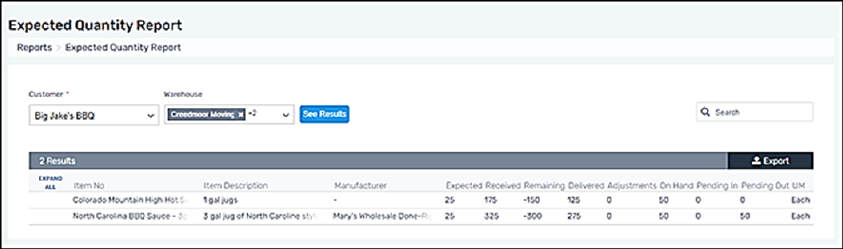
Generate an “Expected Quantity Report” to view by customer by item the expected quantity, received quantity, remaining to be received, delivered quantity, any manual adjustments, and current on hand quantity.
To create an Expected Quantity Report, follow these steps:
1. Go to Navigation Menu > Reports > Expected Quantity Report.
2. Select a Customer.
3. Filter by Warehouse, if needed.
4. Click “See Results” to generate the report.
5. Further filter the report using the Search function.
If Attributes are assigned to an Item Number, they will show in this report.
Figure 5: Expected Quantity Report
For a master list of all reports, go to Reports.