Navigation Menu > Transactions > Adjustments
Use Adjustments to edit an Item’s quantity or location. This functionality is based on Warehouse and Customer. When Adjustments are made, those with email notifications set within Customers > choose Customer > Contact Info > Contact Person > Adjustments will be emailed a notification of the adjustment.
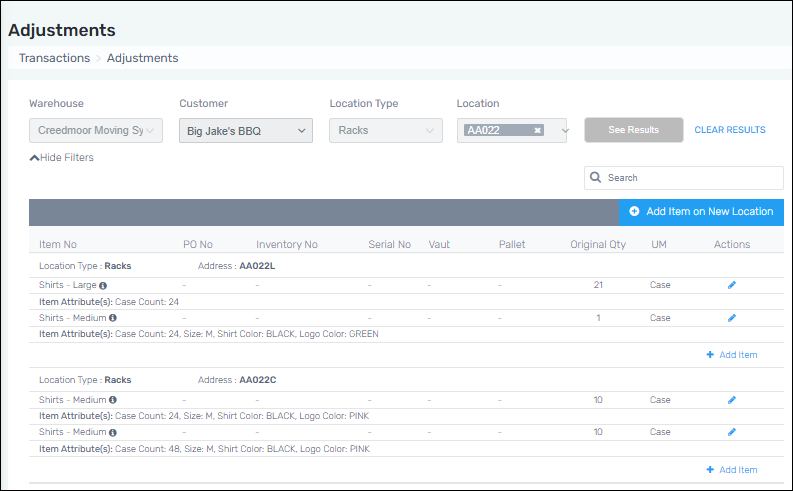
If an Item Number has Attributes, the Attributes will list under the Item Number in the results. In Figure 9, the Item Number “Shirts – Large” has one Attribute listed and “Shirts – Medium” has four Attributes listed.
Figure 9: Adjustments
To use Adjustments:
1. Go to Navigation Menu > Transactions > Adjustments.
2. Enter a Warehouse and a Customer.
3. Click “Search Results.”
4. Scroll through the list to find the Location. Or, if searching by Item Number, use the search box to easily filter the list.
To add an Item Number to a Location in the list:
1. Complete Steps 1 -4 above.
2. Click + Add Item to open the Add Item Number screen.
3. Complete as needed.
4. Click the green Add Item button at the bottom of the screen.
To edit the quantity of a listed Item Number in a Location:
There are two ways to complete this.
1. Complete Steps 1 -4 above.
2. Click the blue “Add Item on New Location” button to open the Add item number screen.
3. Enter the Item Number, the reason, the Quantity, and Location Type.
4. Click Add Item.
Or this way which easily generates a Location Sheet in the process:
1. Complete Steps 1 -4 above.
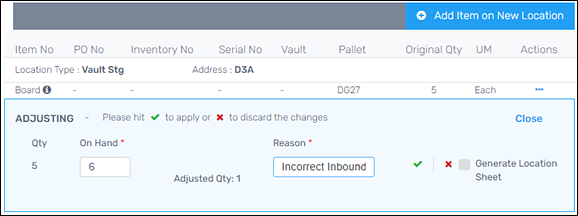
2. Click the blue pen icon on the Location.
3. Edit the “On Hand” and enter a “Reason.”
4. Click “Generate Location Sheet” to update with the new quantity.
5. Click Close to save.
6. The new Location Sheet will generate as a PDF.