Navigation Menu > Reports
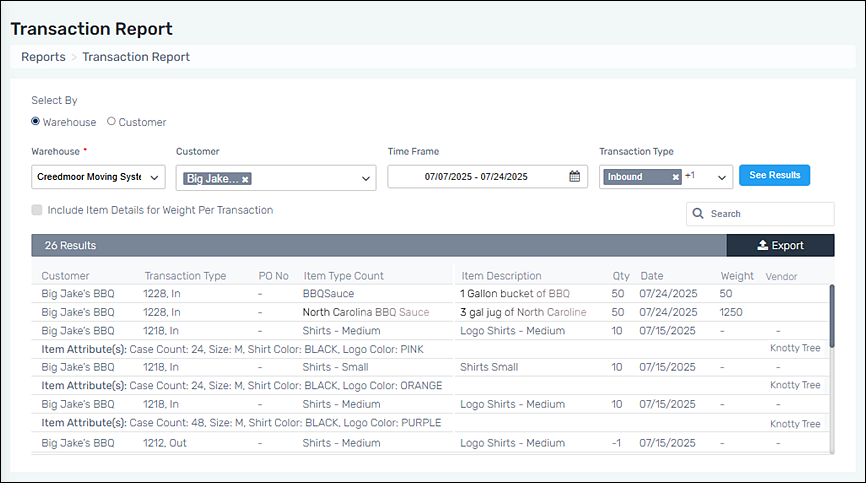
Generate a Transaction Report by Customer or Warehouse. Only a Customer or Warehouse is required; however, if no other options are set, the result defaults to the current date and All Transactions. It is possible to use a combination of Warehouse and Customer for the report. Use the Export button to create a file of the report.
To create a Transaction Report, follow these steps:
1. Go to Navigation Menu > Reports > Transaction Report.
2. From “Select By” choose whether the report is to be for a Warehouse or Customer.
3. The option set in Step 1 will determine what field is required.
•If Warehouse was chosen, choose the Warehouse from the Warehouse dropdown, which is required.
•If Customer was chosen in Step 1, choose the Customer from the Customer dropdown.
4. To set the Time Frame, click the field to open the calendar. Click on a beginning and then an end date. Move between months by clicking the arrow keys to maneuver to the month needed.
5. Filter further by Transaction Type, if desired.
6. Click “See Results” for the results.
Use the search to quickly find the exact details you need. The search looks for a match within the following columns: Customer, Transaction Type, PO Number, Item Type Count, Item Description, Quantity, and date as well as the Attributes fields, if used.
Figure 1: Transaction Report
For a master list of all reports, go to Reports.