Navigation Menu > Reports
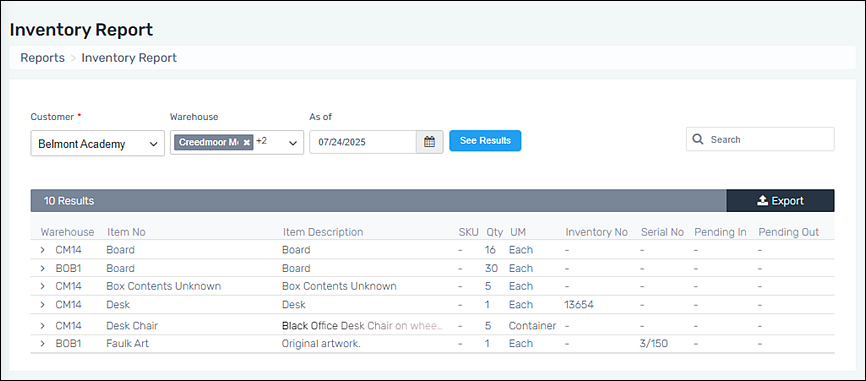
Use Inventory Report to see a snapshot of a Customer’s inventory based on a date.
To create an Inventory Report, follow these steps:
1. Go to Navigation Menu > Reports > Inventory Report.
2. Choose a Customer.
3. Filter by Warehouse to narrow the results, or all warehouses are set by default.
4. Enter a date within “As of.”
5. Click “See Results” to generate the report.
6. Use the Search function to further filter the report.
When the Search is used, it looks for a match within all columns and Attributes, if used.
Figure 2: Inventory Report
If an Item Number has Attributes, they do list within the Inventory Report, as shown in Figure 3.
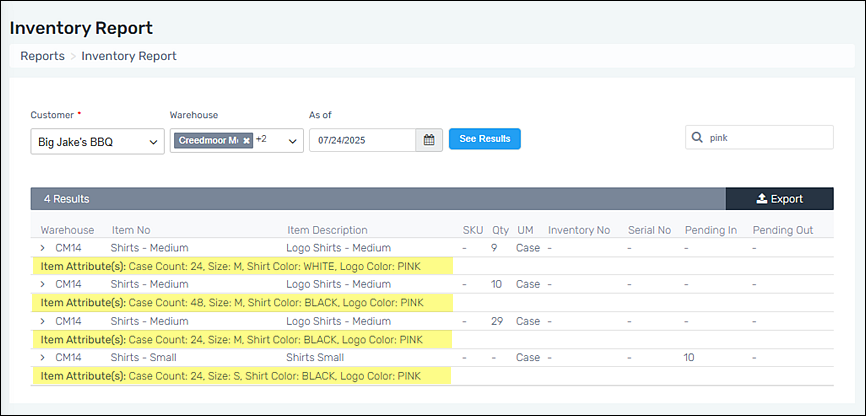
Figure 3: Attributes are highlighted for those Item Numbers with Attributes assigned to them.
For a master list of all reports, go to Reports.