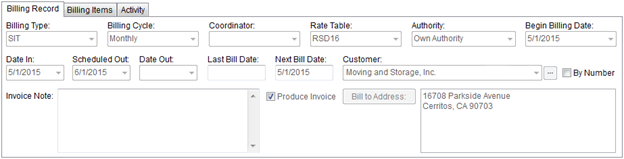
The Billing Record provides master data for the record including the Billing Type and Billing Cycle used to tie the record to an actually billing run and the key cycle dates.
Figure 4: Billing Record section
The Billing Record section includes the following field settings.
Note:
To initiate billing, the Billing Type, Billing Cycle, Date In, Begin Billing Date, Rate Table, and Authority must all be set and at least one Billing Items record must exist.
|
Field |
Description |
|
Billing Type |
Select a billing type from those defined within Storage Type Setup. The application will use this setting to determine the calculation type of either Monthly or Daily and whether the Produce Invoice option will appear or not (will appear when the Is SIT flag is set for the Billing Type record). Note: A user cannot change this setting once the record has been included in a billing run. |
|
Billing Cycle |
Select a cycle from the list of those defined within Storage Billing Cycle Type Setup. This setting defines the interval of the billing period and determines the number of days or months to include when calculating charges. Note: A user cannot change this setting once the record has been included in a billing run. |
|
Coordinator |
Select and display the name of the person responsible for storage associated to the billing record and/or the person that established the billing record. Note: Employees with a Status of ACTIVE and a Labor Type of Coor in their Personnel Setup will be available. |
|
Rate Table |
Select a value from the list of records defined within Rate Plan Setup. This setting affects the charges computed for the individual Billing Items. If left blank, the application will compute charges based on the Tariff/Rate setting within Billing Information. Refer to the Rating Systems guide for more information. |
|
Authority |
Select and displays the type of authority assigned to the move request as either Van Line or Own Authority. Note: Authority will default on a new record to that set in the Move Information for the Authority field. |
|
Begin Billing Date |
This setting is the effective start of the billing cycle. Once this date is set, the application will compute the Next Bill Date and include the record in the appropriate billing cycle. Note: A user cannot change this setting once the record has been included in a billing run. See Date Fields for data entry information. |
|
Date In |
This setting is the date that the billing begins and is it is required to activate the billing process and to trigger reporting. See Date Fields for data entry information. |
|
Scheduled Out |
This setting is the anticipated date that storage associated to the billing will be stop on. See Date Fields for data entry information. |
|
Date Out |
This setting is the date when storage is actually completed. Important: Setting this field to a date that is earlier than that of the Next Bill Date will effectively turn billing off for the record regardless of whether the Billing Items have been finalized or not (see Ending Recurring Billing). See Date Fields for data entry information. |
|
Last Bill Date |
This field displays the system-computed date of the last billing to occur on the record. Note: The Last Bill Date will become populated once a billing run has been generated that includes this record. |
|
Next Bill Date |
This field displays the system-computed date for the next billing to occur on the record. Note: The application updates the Next Billing Date after each successful billing run that includes this record. |
|
Customer |
If invoicing a customer for the storage charges that is
different than the customer set within Billing Information, then select
the alternate customer using the drop-down menu or the Customer Find ( Important: The Customer cannot be changed once the billing record has been included in a generated billing run (Recurring Billing Management). Check By Number to display by the customer Number. By default the application displays the customer by Name. |
|
|
Bill to Address By default, the application sets the Customer Bill To address as that of the “PRIMARY” source set in Microsoft Dynamics GP. Users can select an alternate address using this option and selecting a different address within Choose Billing Address. The billing address can be changed at any time. |
|
Invoice Note |
This note will appear on invoices generated for this billing record and will print on each recurring invoice that is generated for the order (up to 1024 characters). |
|
Produce Invoice |
Records with a Billing Type associated to SIT (through Storage Type Setup) will have the option to generate invoices when this option is set or not. When unchecked, the application will generate revenue for a billing record but it will not create an invoice. Note: This option is ignored when the Invoice Requirement is set to Required through Billing Information. Refer to Invoicing topic for more information. |
Note:
A user can find all changes made to a Billing Record within the Activity (Recurring Billing) tab.
 ).
).