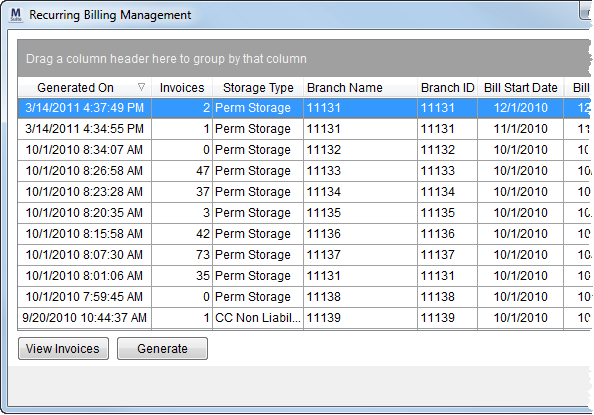
Use Recurring Billing Management to generating billing runs for storage records based on branch, storage type, and specified date range. Transactions generated by the billing will display within Transaction. Invoices created upon a successful run will be immediately available to the user.
Access to this screen is through the Recurring Billing Management option within the Tools Menu.
The data grid lists all previous billing runs. Users can select a run record and press View Invoices to see the invoiced generated for the run.
Figure 8: Recurring Billing Management
To preview a billing run, run the Storage Billing Summary Report.
The following table lists and describes the fields and functions available in the Recurring Billing Management.
Note:
This is a full function data grid where users can sort, filter, and group data. See Data Grids for more information.
|
Field/Function |
Description |
|
Generated On |
The date and time of the billing run displays in this column. |
|
Invoices |
This column displays a count of invoices associated to the billing run. |
|
Storage Type |
This column displays the Billing Type(s) associated to the billing run. The column will display “All” if the run included all defined types. |
|
Branch Name |
The name of the branch or branches included in the run will display in this column. The column will display “All” if the run included all available branches. |
|
Branch ID |
Displays the Branch of service linked to the billing run. The column will display “All” if the run included all available branches. |
|
Bill Start Date |
Displays the date selected as the start of the billing run. |
|
Bill End Date |
Displays the date selected as the end of the billing run. |
|
|
View Invoices (Alt+V) This function opens a Report Viewer window displaying all invoices generated by the selected billing run. |
|
|
Generate (Alt+G) This function opens the Recurring Billing Generation screen where a user can define and generate a new billing run. Errors that occurred in prior runs will appear within this screen as well. |
|
|
Cancel (Alt+C) This option closes the screen. |
RELATED TOPICS:


