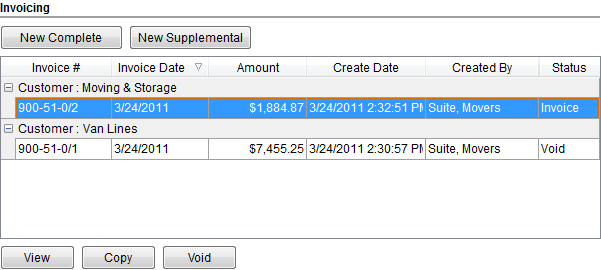
The Invoicing section allows a user to view existing invoices, create new or supplemental invoices, copy, and void invoices, as well. Invoicing is available from within the Summary tab and through Invoice Management.
Figure 1: Invoicing section
The following table contains the fields and functions available within the Invoicing section.
|
Field/Function |
Description |
|
Customer |
The customer of the invoice displays as a grouping for the invoice records of an order. |
|
Invoice Number |
Unique reference number is assigned to each invoice. See Invoice Number for more information. |
|
Invoice Date |
The date entered for the invoice through New Complete Invoice screen. |
|
Amount |
The total amount of the invoice displays in this column. |
|
Tax |
If Sales Tax Integration functionality is
enabled, then a Tax column will be present in this grid. If the
invoice was generated with Sales Tax data, then a checkmark (
Note: Users can hover over the Tax field to see the tax amount assessed for the invoice.
See for Sales Tax Integration and refer to the Sales Tax field description within New Complete Invoice more information. |
|
Create Date |
The date that the invoice was generated on. |
|
Created By |
The MoversSuite user that created the invoice displays in this column. |
|
Status |
This column displays the state the invoice is currently in as one of the following:
Draft Indicates that the invoice is in a draft state; users will only be aware of this state upon entry to New Complete Invoice or New Supplemental Invoice Invoice Indicates that the invoice is in an active state Voided Indicates that the invoice is no longer active
|
|
|
New Complete (Alt+M) This function opens the New Complete Invoice screen allowing the user to create an invoice based on all revenue items. If a current, active invoice contains revenue items affected by the new invoice, then users will be prompted to void the existing active invoice. |
|
|
New Supplemental (Alt+P) This function opens the New Complete Invoice screen where a user can generate an invoice based on revenue not currently shown on any active invoices for the order (or customer, if more than one customer is invoiced for the order). |
|
|
View (Alt+V) This function will open a Report Viewer window displaying the invoice document for the selected record.
Note: Users can double-click an invoice record to evoke the View functionality.
|
|
|
Copy (Alt+O) This function will generate a copy of the selected record and opens the New Complete Invoice screen allowing the user to edit and generate a new invoice. This function will prompt the user to void the version being copied. |
|
|
Void (Alt+D) Selecting this function will void the selected invoice record. The voided record will continue to appear within the Invoices grid with a status of “Void.” |
 ) will display as well. This
checkmark will be black if the tax was computed and committed within the
Avalara system. Otherwise, if the tax was manually entered by user,
then the checkmark will be red (
) will display as well. This
checkmark will be black if the tax was computed and committed within the
Avalara system. Otherwise, if the tax was manually entered by user,
then the checkmark will be red ( ).
).



