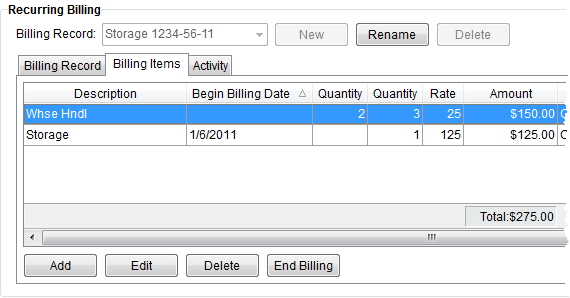
 Figure 5: Billing Items section
Use the Billing Items tab within a Billing Record to define the individual charges that comprise the billing itemization based on item code, rate type, warehouse, and billing attribute such as setting the item to be a one-time charge or recurring, etc. Items such as warehouse handling, utilities, and access charges can be included in the total charge amount.
Figure 5: Billing Items section
The data grid provides a total amount of all billed items at the bottom of the Amount column.
The following table describes the general functions available within the Recurring Items tab.
|
Function |
Description |
|
|
Add (Alt+A) This function opens the Add Billing Item screen allowing a user to define a new charge for the billing record. |
|
|
Edit (Alt+I) This function opens the Add Billing Item screen in edit mode allowing a user to modify an existing charge item. A user cannot modify an item that has been included in a billing run. View (Alt+V) This function appears when an item has posted transactions against it. Users will be able to view a read-only data within the Add Billing Item screen. |
|
|
Delete (Alt+L) This function removes the selected item after prompting the user to confirm the request. The application will only delete items not included in a billing run. |
|
|
End Billing (Alt+B) This function removes the selected item from being included in any future billing runs, as denoted through the Final flag being set. Users will receive a prompt confirming the request to end billing. |
The following table lists the unique fields available within the Billing Items tab; see Add Billing Item for the remaining field descriptions.
Note:
Users can sort data by any column by clicking on the column heading.
|
Field |
Description |
|
Recurring |
This field will display a checkmark if either Recurring End Billing Date or Recurring No End Date is set within Add Billing Item. |
|
Final |
This field will display a checkmark if the item has been finalized (not included in any further billing runs). See Ending Recurring Billing for more information. |
|
Manual Rate |
This field will display a checkmark if Enter by hand option is in use for the Rate field within Add Billing Item. |
|
Manual Amount |
This field will display a checkmark if Enter by hand option is in use for the Total Daily or Total Monthly field within Add Billing Item. |
|
Billed |
A checkmark will display when the item has been included as part of a billing run (see Recurring Billing Management). |


