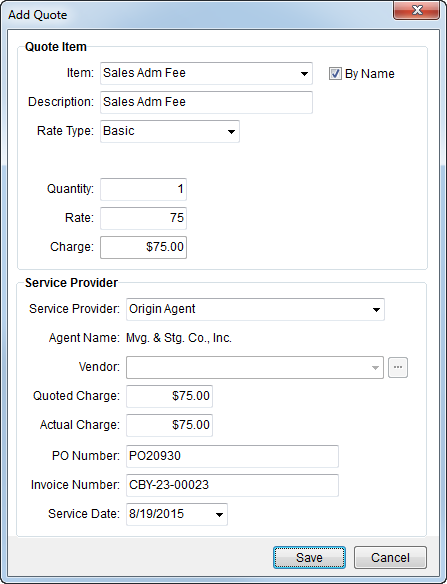
The Add Quote screen defines quote items that comprise a quote. Users can create a charge using an Item Code and opt to include an agent or vendor.
The Add Quote screen is available through the Edit and Add functions within Manage Quote.
Figure 5: Add Quote screen
The following table describes the fields and functions available within this screen.
|
Field |
Description |
|
Quote Item | |
|
This section defines how the application will apply the charge in Revenue Entry. | |
|
Item |
Select a value from the list of those defined within Item Code Setup. This specification defines the record as a detail revenue line item. Selecting a value will affect rating values associated to the item including the remaining fields within the Quote Item section. See Rating Systems or Rate Type Setup for more information. An item code must be associated to the quote item in order to be available for Revenue Import. Choose By Name to list display the Item Code description within the Item field or unselect this field to display by the Item Code number. The selector includes both Description and Item Code that a user can sort by when searching for a value. |
|
Description |
Enter the quote description that will represent this record (up to 128 characters). This value will default to the selected Item Code. Users can update this field at any time. |
|
Rate Type |
Select a type from the list defined within Rate Type Setup used to determine how transactions are calculated and how they appear on the invoice. Additionally, special logics exists for “100-Weight” and “Miles” types. These two types retrieve order data to assist in computing the rate. Refer to Rate Type Setup for details. The Rate Type affects other rating data on this item, including Rate, Quantity field(s), and Charge. Setting the Rate Type may trigger Advanced Rating Systems as well. See Rating Systems for an overview and setup options. |
|
Quantity |
Enter the appropriate value according to the label provided after the Rate Type selected. |
|
Rate |
Enter the percentage applied to compute the total amount of the item. The application will set the rate based on Rate Plan Setup when From Rate Plan is set, depending on the Item and the Tariff/Rate set within Billing Information. Refer to Rating Systems for more information. Users can manually enter a rate amount by selecting Enter by hand. Refer to the Rates by Rate Plan Report for listing of rates. |
|
Charge |
Rating selections will compute the Charge automatically. Users can also manually set this dollar amount field. Note: The sum of all item charges displays for a quote record within Manage Quote. |
|
Service Provider | |
|
This section defines the quote item as a third-party payable. When the quote is accepted, the user is prompted to create an actual third party item based on this information. Refer to Add Third Party Item (Revenue Entry) for more information. | |
|
Service Provider |
Select a provider from the list of participating agents assigned to the order as the third party payable on the quote. The provider will be either the Origin or Destination Agent assigned to the order and the drop-down menu will display the name of the agent, if set. The name of the selected provider will display alongside the Agent caption. See Agents for more information. |
|
Vendor |
If a vendor is the third-party on the quote, select the
vendor from the drop-down list or use the Vendor Find screen ( The drop-down selector includes the following fields each of which can be used to sort the data: Vendor Name Vendor ID City State Status Hold Manage vendor information in Microsoft Dynamics GP. |
|
Quoted Charge |
Enter the amount of the third-party payable item. This field represents the amount of the total charge addressed by the Vendor. This field is required to import the quote item into Revenue Entry. A value is required when either Service Provider or Vendor is set. |
|
Actual Charge |
Enter the actual charged amount if the third-party payable quoted charge has already been accepted and billed. When this field is set, it will be the amount of the payable, instead of the Quoted Charge; i.e. Actual Charge supersedes Quoted Charge when the transaction imports into Revenue Entry. A value is required when either Service Provider or Vendor is set. |
|
PO Number |
Provide the purchase order identifier provided by the vendor (up to 30 characters). |
|
Invoice Number |
Enter the invoice number provided by the vendor (up to 20 characters). |
|
Service Date |
Enter the date of the service provided by the vendor (see Date Fields). |
RELATED TOPIC:
Third Party Invoice Information
 ) for a more detailed search.