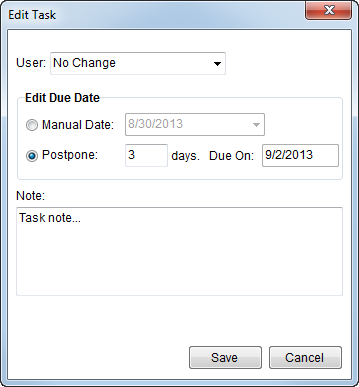
The Edit Task dialog provides a means of changing the user and date assigned to a task and allows the user to add a note to the task. This function is available through Workflow and Tasks tabs.
Figure 6: Edit Task dialog
When more than one task item is selected, the following version of this dialog will appear.
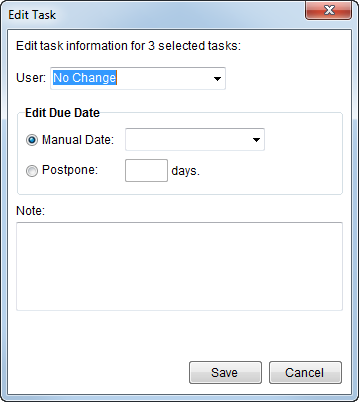
Figure 7: Edit Task dialog (for multiple records)
The following table describes the fields and functions available within this screen.
|
Field/Function |
Description |
|
User |
Select a user from the provided list to be assigned to complete the task. The drop-down menu displays the Name and Role of the user within the organization. This field defaults to “No Change.” Leaving this option selected will retain the current user assignment to the task.
Note: Users that display in the menu are active employees that are associated to the branch of the order; they have a Status of “ACTIVE”, must be assigned a Labor Type (role), and have an Assigned Branch matching that of the order (all set through Personnel Setup).
Note: Changing the user removes any dependencies that may be in place, i.e. the assigned Responsible Role value (Tasks Setup) is removed when the user is changed.
|
|
Enter Due Date |
|
|
Manual Date
|
Select the Manual Date option to base the new due date on the date selected in the drop down.
Note: Changing the date to a manual date will remove any dependencies that may be in place, i.e. the Task Dependency Dates value will be removed (see also Dependency Date in Tasks Setup).
See Date Fields for entry information. |
|
Postpone |
Use the Postpone option to generate a new due date that is a specified number of days beyond what is set for Originally Due On. The system computes the new date and displays it in Due On field when the number of days is entered. The application automatically sets the new due date on a week day. If the calculated date falls on a weekend (Saturday or Sunday) the application will set the Due On date as the Friday preceding the weekend. This option is only available when Originally Due On is set. |
|
Note |
|
|
Note
|
Enter the text of a note to be associated to the particular task or tasks (note size is not limited to any specific number of characters).
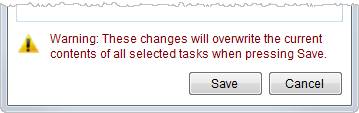
Note: When changing a note last modified by a different user or for multiple selected tasks at one time, users will receive a warning indicating that they will overwrite the existing note if they save the changes.
Figure 8: Overwrite warning for note changes.
|
|
|
Save This function updates the task with the specified new due date. |
|
|
Cancel This function closes the screen without changing the date. |