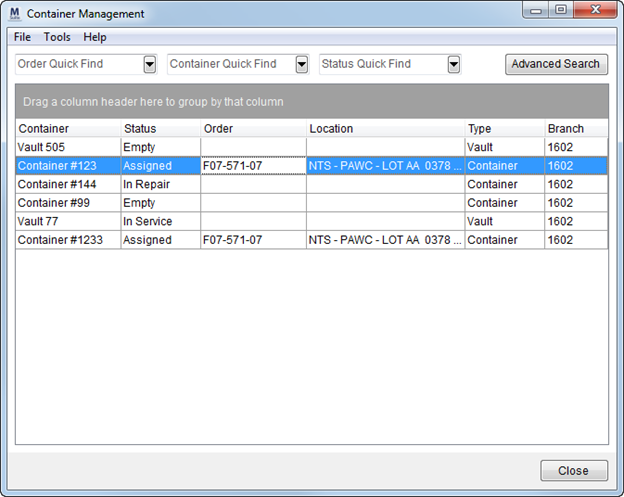
The Container Management screen allows users to view and manage containers within MoversSuite. This includes the ability to assign and release containers from orders, modify the status of container, create reports of container tracking, and more.
Figure 2: Container Management screen
The Container Management screen is available through the Tools Menu and through the Container Tracking button on the Move Information tab.
Utilizing the Container Tracking through Move Information allows you to quickly see container assignments for the order being viewed.
Opening the Container Management screen from the Tools Menu allows you to start with no data displayed and relies on you to populate the grid with container data based on the Quick Finds or the Advanced Find. Accessing the screen from the Tools Menu is primarily designed for persons managing containers over multiple orders or branches.
The Container Management screen remains open while you work within MoversSuite. Anytime you press Container Tracking on the Move Information tab, the screen automatically displays all container information for the particular order.
Options available to you through right-click options include the ability to view a history of assignments and updates to the container, assign and release orders, update the status, and export the data to a browser window or spreadsheet.
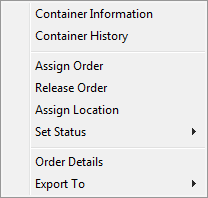
Figure 3: Container Management right-click options
The following table describes the fields and functions available within this screen.
|
Note |
|
Refer to File Menu, Tools Menu, and Help Menu for menu options available through this screen. |
|
Field/Function |
Description |
|
The three following Quick Finds allow you to populate the data grid with container information based on the order assignment, the container number, or container status. | |
|
|
Order Quick Find This Quick Find allows you to retrieve container records based on recent order history or by entering part of or all of an Order Number. Only containers currently assigned to the selected order display within the grid. View the Quick Find topic for more information on using this feature. |
|
|
Container Quick Find This Quick Find allows you to retrieve container records based on a particular container number. This option compares what is entered to all or part of the actual Container Number to populate the data grid. View the Quick Find topic for more information on using this feature. |
|
|
Status Quick Find View containers by their container status by selecting a status from this list. This is also a Quick Find allow you to quickly populate the data grid by selecting a status. |
|
|
Advanced Search This option opens the Find dialog allowing you to populate the data grid with container records based on multiple search criteria. This Find includes the following tabs: Container Information Search Criteria Order Information Search Criteria
|
|
Data Grid |
|
|
Right-Click Options The following right-click options are available within the data grid of this screen.
Container Information Opens the Container Information dialog displaying the container data within the Information tab. This data includes container number, container type, dimensions, status, and current assignments.
Container History Opens the Container Information dialog on the History tab which displays a record of changes affecting the container, including assignment changes and the name of the user performing the change.
Assign Order Opens the Assign Order dialog allowing you to search and assign an order to the selected container.
Release Order Removes the order assignment for the selected container. When this option is selected, a confirmation dialog appears asking you to confirm the request.
Assign Location Use this function to change a location for a container with an order already assigned to it through the Assign Location dialog.
Set Status Quickly change the status of the container using this option and sub-menu containing status values (defined from within Container Status Setup).
Order Details View key information on the order assigned to the container through the Order Details screen.
Export To Send the data grid contents to a spreadsheet or browser window. Choose “Excel” to open a new workbook within Microsoft Excel containing the data or “HTML” to open to view the contents through an Internet browser window. Refer to Export To for more information on exporting data from a data grid.
| |
|
Container |
This column displays the record identifier set for the container.
Note: The Container, Type, and Branch are set for the container when the record is assigned to an order and cannot be changed through this screen.
|
|
Status |
The current status assigned to the container. Change the status on one or more containers using the Set Status option available through a right-click menu. |
|
Order |
Displayed in this column is the Order Number currently assigned to the container. Change the order on one or more containers using the Assign Order or Release Order options available through a right-click menu. |
|
Location |
The first line of the address location assigned to the container displays. Hover over the entry to view the entire contents of the address (address lines, city, state, postal code, and country). Change the location on one or more containers using the Assign Order or Assign Location options available through a right-click menu. |
|
Type |
The Location Type set for the container displays.
Note: The Container, Type, and Branch are set for the container when the record is assigned to an order and cannot be changed through this screen.
|
|
Branch |
Displayed in the column is the branch assigned to the container.
Note: The Container, Type, and Branch are set for the container when the record is assigned to an order and cannot be changed through this screen.
|
|
Count |
The count of containers displayed in the grid appears next to the “Count” label at the bottom of the grid. |
|
|
Close Press this button to close the screen. |