
Click the name for our overview video managing tasks within MSWeb: MSWeb Tasks
This video, along with other MSWeb videos, are located within the Training Center > MSWeb section.
Navigation Menu > Communications > Tasks
|
|
Click the name for our overview video managing tasks within MSWeb: MSWeb Tasks
This video, along with other MSWeb videos, are located within the Training Center > MSWeb section. |
“Tasks” typically refers to “order level” Tasks and are accessed from an orders’ MSWeb Navigation Menu > Communications > tasks, as shown in Figure 175. Manage the workflow of an order by reviewing the tasks, ensuring that the correct date and user are assigned, by marking items as complete or not applicable, etc. Access to Tasks is determined by the Security Profile Setup of the role of the logged in user. The Security Profile Setup is based on branch access to the Order Information module.
NOTE: Global Tasks lists all tasks for all orders - with certain parameters. “Global Tasks” are accessed through the Tasks tab within MSWeb’s header. See MSWeb Global Tasks for those parameters and information on that functionality.
Tasks accessed from an Order’s Navigation Menu > Communication > Tasks (Figure 175) will list the tasks for that order only.
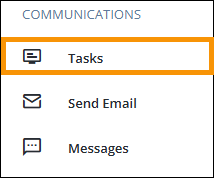
Figure 175: Navigation Menu > Communications > Tasks
Clicking Tasks opens the Tasks List, which is organized by three sections: To Do, Completed, and Not Applicable. When one section is open, the others are closed. Opening a different section, will close the section that had been opened. This is to maintain a manageable list by not having the entire list open at one time, which could present a very long list. Also within Tasks are the MSWeb Task Filters and the MSWeb Multi-Select Options to help in managing the tasks.
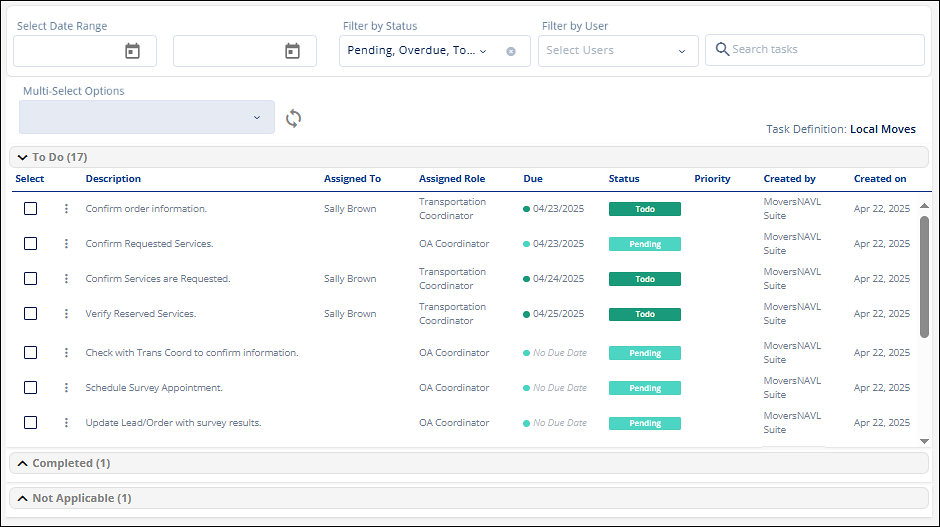
Figure 176: Tasks List for the order open in MSWeb.
Tasks can be updated one at a time or multiple tasks at a time using the Multi-Select Option (shown in Figure 176.)
When tasks are completed, the change is detailed within the MSWeb Order Timeline. Also shown in the Order Timeline are Tasks which list according to Due Date. Be sure the Tasks button is clicked on the MSWeb Order Timeline to have Tasks included in the list. Additionally, selecting Tasks and unselecting all other timeline options will just list tasks for a helpful timeline of tasks by due dates.
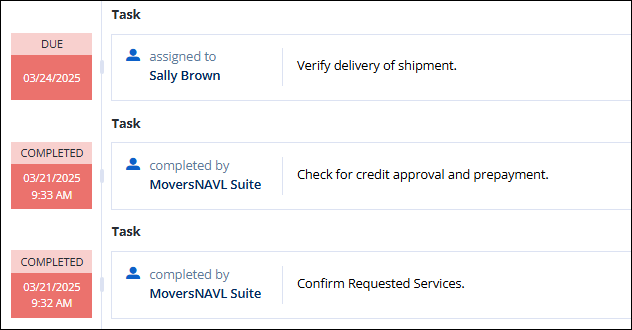
Figure 177: The bottom two tasks were completed on 3/21/2025. The top task shows Due.
To update several tasks at one time: See MSWeb Multi-Select Options.
To update a single task:
1. Click the menu icon indicated in Figure 178 next to the task that needs updating.
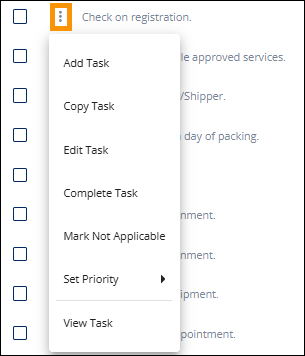
Figure 178: Menu icon is noted and the options menu available.
2. Select one of the following menu options:
|
Option |
Description |
|
Add Task |
This is the only option that does not relate to the task from which it was opened. Clicking Add Task opens the Add Task screen where a new task can be created. No information from the task from which it was opened auto-populates the Add Task screen. See MSWeb Add Task for more details. |
|
Copy Task |
This option opens the Add Task screen with all the data that is set on the task from which it was opened. Edit any field as required. See MSWeb Copy Task for more details. |
|
Edit Task |
This option opens the Edit Task screen with data set on the task. The Assigned To, Priority, and Due Date fields are editable. Enter a Task Details – or note on the task – if needed. The Task Detail is often used for a script to be when calling a customer. See MSWeb Edit Task for more details. |
|
Complete Task |
This option moves the task to the Completed section. If the task is in the Completed section, the option available will be “Undo Complete Task.” |
|
Mark Not Applicable |
This option moves the task to the Mark Not Applicable section. If the task is in the Not Applicable section, the option available will be “Undo Not Applicable.” |
|
Set Priority |
Add or update the priority of the task. |
|
View Task |
This option opens the View Task screen where all the details for that task are listed. |
When an update is made, who moved it and the date it was moved is indicated under Marked By and Marked On columns. The task update will also be reflected within the MSWeb Order Timeline.
RELATED INFORMATION: