, and select
Edit Task, which opens the Edit Task screen.
, and select
Edit Task, which opens the Edit Task screen.Navigation Menu > Tasks > Single task update option
Whether it is to change Priority, change Due Dates, personnel, or any other field within the task, use Edit Task to keep details of the task up to date.
To update many tasks at a time (when are all in the same section – To Do, Completed, or Not Applicable,) use the MSWeb Multi-Select Options and choose Edit Task, which opens the Edit Task screen.
To update one task at a time, go
to a task, click the menu icon , and select
Edit Task, which opens the Edit Task screen.
As an example, in Figure 189 the task has been assigned to a role, not been assigned to a specific person. We will use Edit Task to assign the task to a person, set a Priority, and update the due date.

Figure 189: This task is assigned to a Role, not a person.
To edit the task, click the menu
icon  for that task. Choose Edit Task.
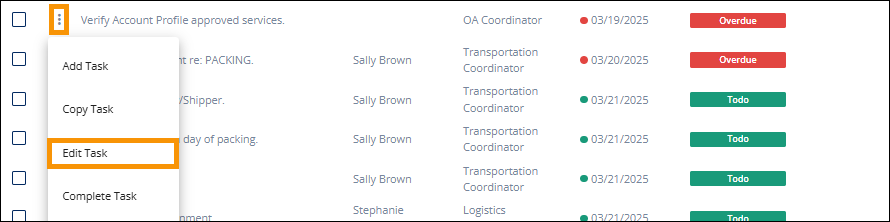
Figure 190: Edit Task
From the Edit Task screen, the “Assigned To” field was blank when the screen was opened but now a person has been selected for the task. The Priority was updated and the Due Date was postponed 2 days. Click Save.
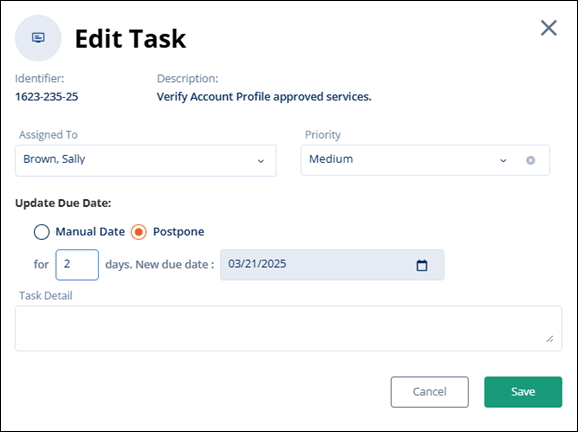
Figure 191: Several fields were updated.
All the updates are reflected in the Tasks List.

The change is reflected in the MSWeb Order Timeline, as well, and lists according to the Due Date.

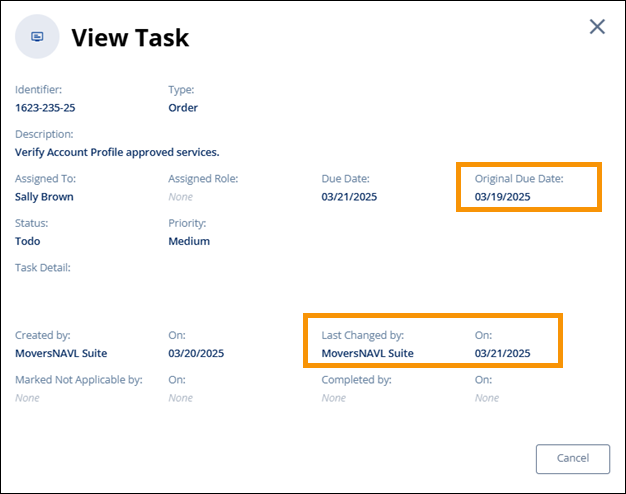
The View Details option in that task’s menu will reflect the Original Due Date, who made the last change, and the date the last change was made. See MSWeb Tasks for details.