Navigation Menu > Tasks
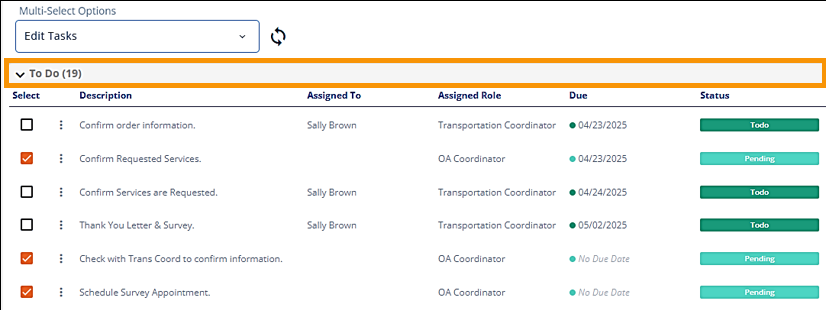
Multi-Select Options is an efficient way to update several tasks at one time. To utilize Multi-Select Options, the tasks selected must all be in the same section: To Do, Completed, or Not Applicable. In Figure 180, for example, all selected tasks are in the To Do section. This is required because the section determines the options available within the Multi-Select options menu. Since these tasks are in To Do, the option of “Undo Completed” or “Undo Not Applicable” wouldn’t apply.
Figure 180: All selected tasks are within the To Do section.
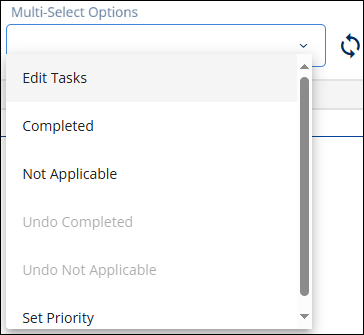
Since the tasks in the above image are in To Do, the options “Undo Completed” or “Undo Not Applicable” are greyed out and not active as they do not apply to the To Do section
To update several tasks at one time:
1. Select the tasks to be updated. There must be at least two tasks selected for the Mult-Select Options field to be active.
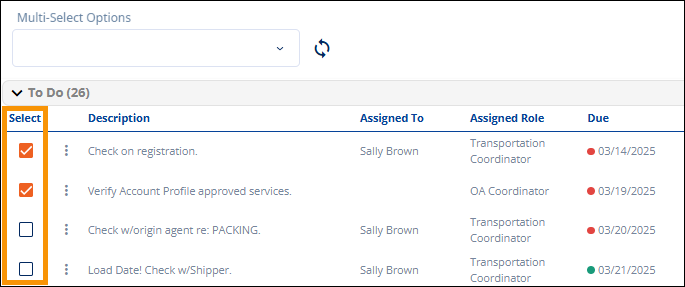
Figure 181: Select tasks from within the same section.
2. Click the dropdown within Multi-Select Options. Options correspond to the task section of the tasks being updated. Select an option.
3. The following table shows the Multi-Select options and the process or result for each option.
|
Multi-Select Option |
Result |
|
Edit Tasks |
The Edit Tasks screen opens. See MSWeb Edit Task for details and the process for that option. |
|
Completed Undo Completed Not Applicable Undo Not Applicable |
Select one of these options and then click the update icon. When the update icon is clicked, the selected tasks’ status will be updated and the tasks will be moved to those sections. |
|
Set Priority |
When Set Priority is selected, the Task Priority field is prompted and is located next to Multi-Select Options. Set the priority and then click the update icon. |
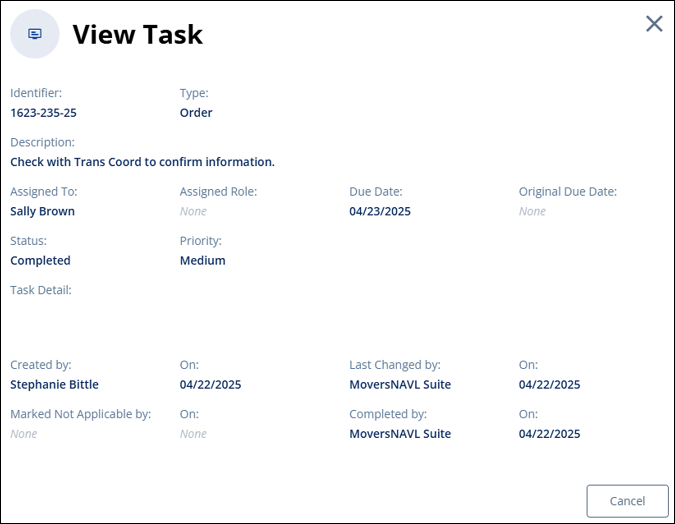
When tasks are edited, the View Task screen will record who
made the edits and on what date. If Due Date is changed, the Original Due Date
will be posted. Access this screen by clicking this icon  beside a task and select View Task.